
Activity
Open the activity
The Activity bell sits at the top of the sidebar. Beside it sit the theme button and Minimize bots.
Click the bell. The activity list appears above the list of bots. Until the list arrives, the bar shows Loading activity…
Click the bell again to close the list. The app keeps your choice. After you leave and come back, the list stays as you left it.
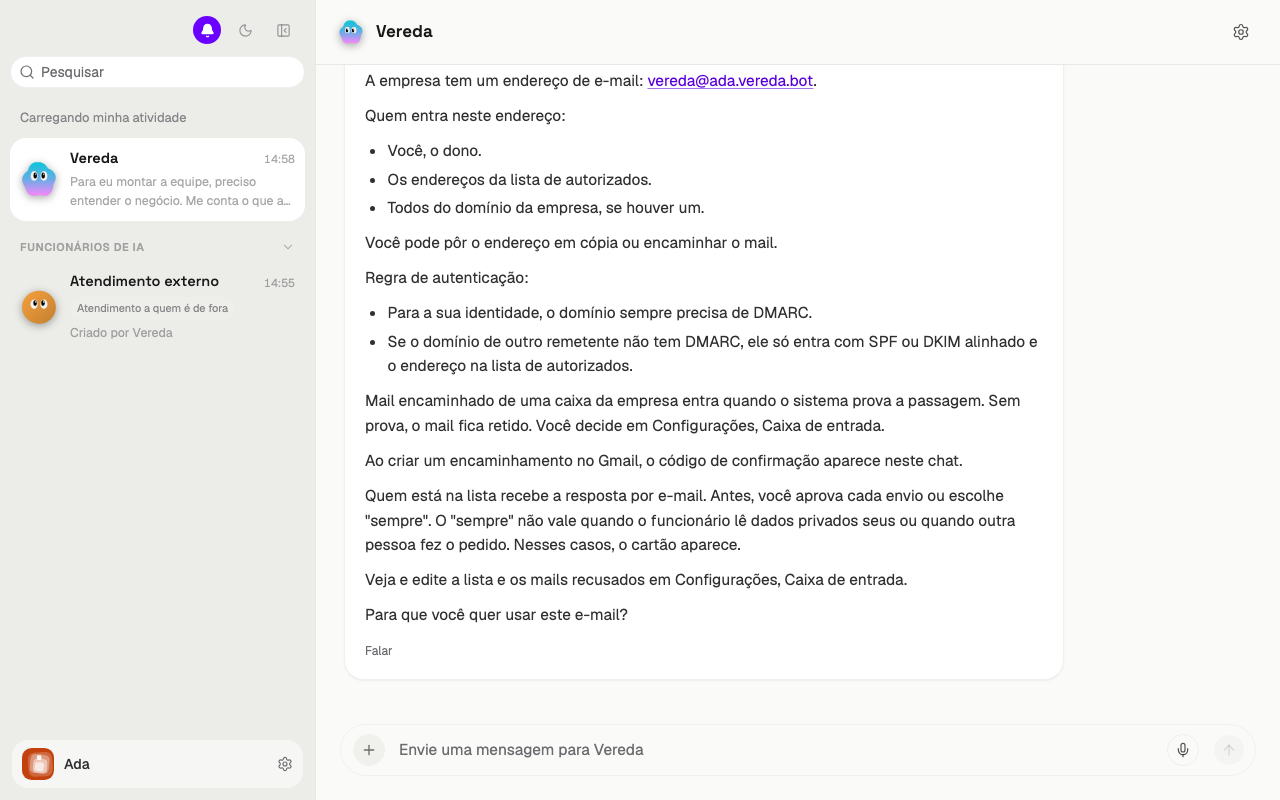
When the list is empty
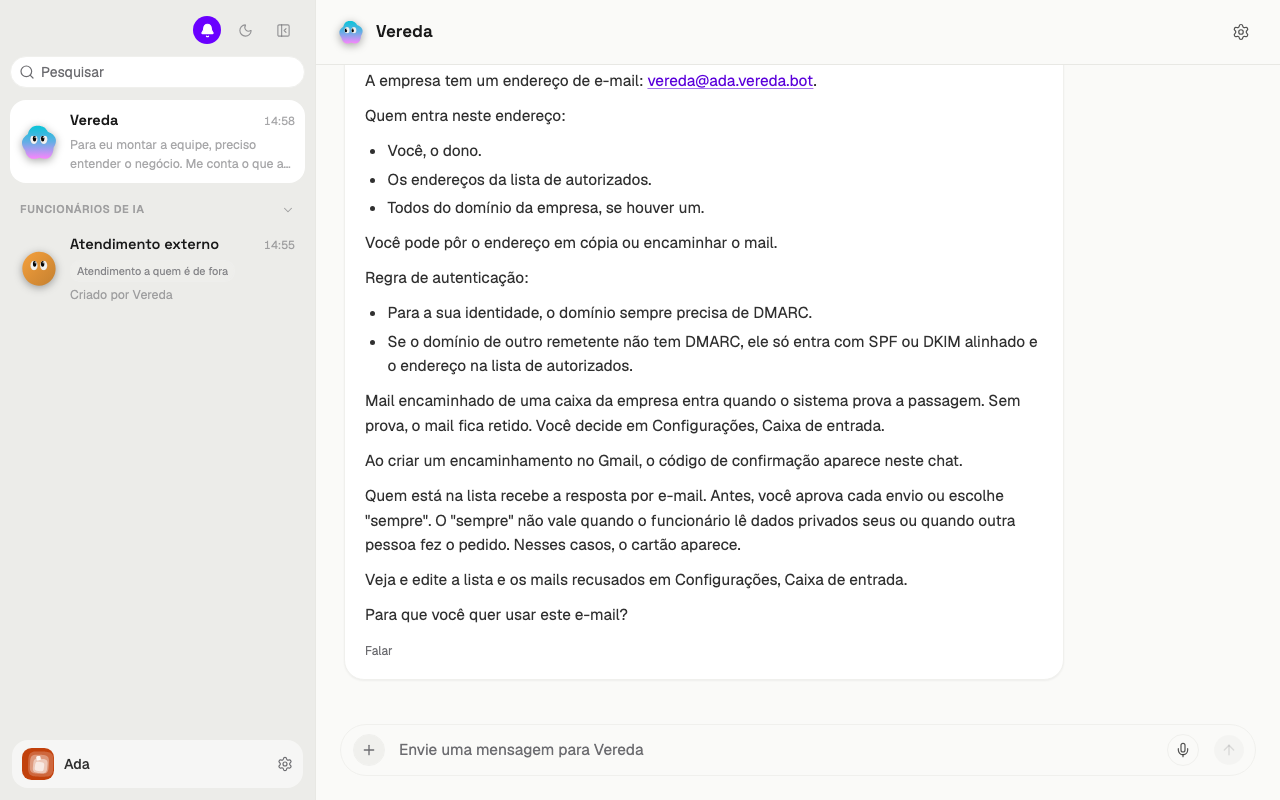
The list shows only the work you asked for. An account that has not asked for anything yet shows no groups.
In this case the bar shows only the leader Vereda. Ask for a job in the conversation and the first row appears.
Read a row
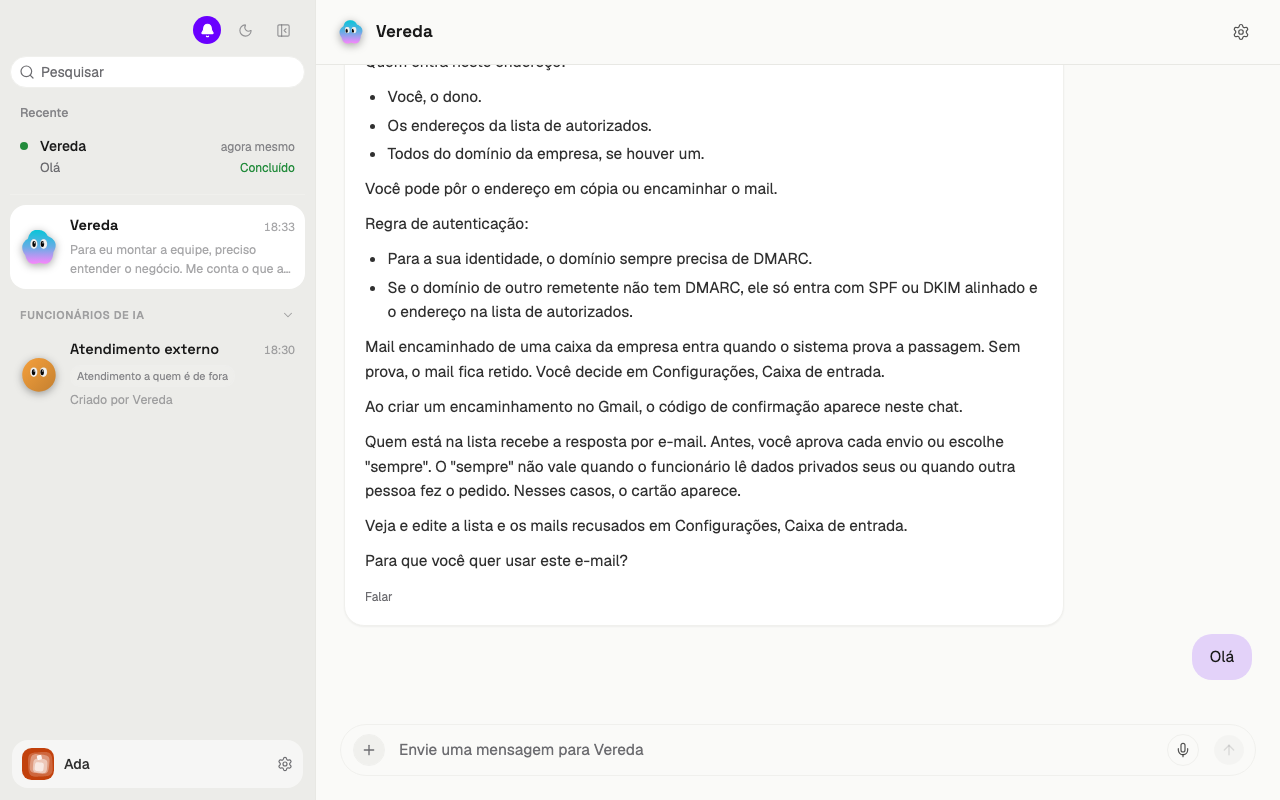
The list has two groups. Now shows the work in progress. Recent shows the last 20 jobs. The list refreshes every 15 seconds.
Each row shows the name of the bot, the time, the start of your request, and the state of the job.
The time appears in a short form, such as just now, 5m ago, or 2h ago.
In the figure, the request Hello is finished. The row sits in Recent and shows Done.
See the state of a job
The state sits at the right corner of the row. A job goes through these states.
Queued and Starting show that the job has not started yet. Running shows that the bot works now.
Needs input shows that the bot waits for your answer, for example to an approval card. Needs takeover shows that the bot waits for you on the computer.
Done shows that the job finished. Failed shows that the job stopped with an error. Cancelled shows that someone stopped the job.
Go back to the conversation
Click a row to open the conversation of that job. The row of a group opens the chat of the group.