
List
Open the conversation of a bot
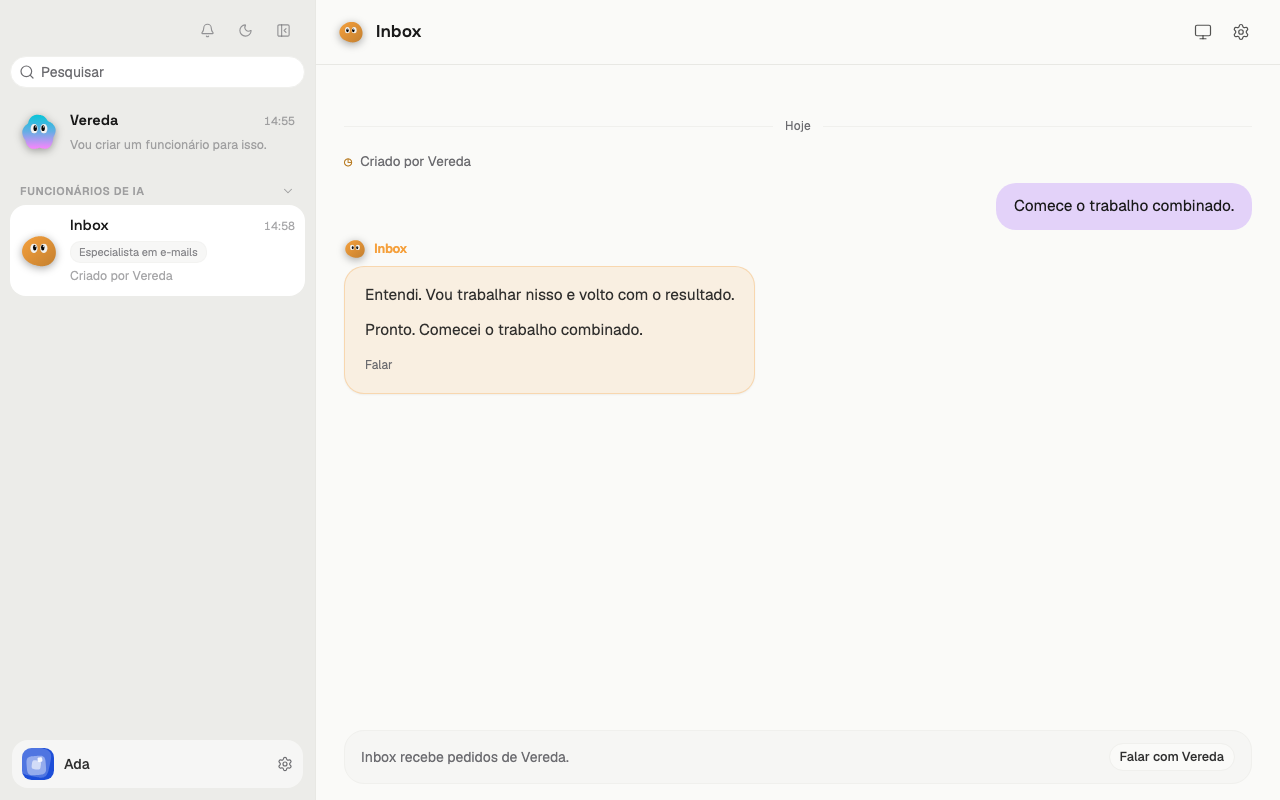
The list of bots is on the left of the conversation. At the top are the Search field and the Activity bell.
The first row is the leader Vereda. Each row shows the name, the time and the start of the last message.
The leader creates the employees. They stay below, under the title AI employees. The row of an employee also shows the title of the employee and the text “Created by Vereda”.
Click a row to open the conversation of that bot.
Hide the employees
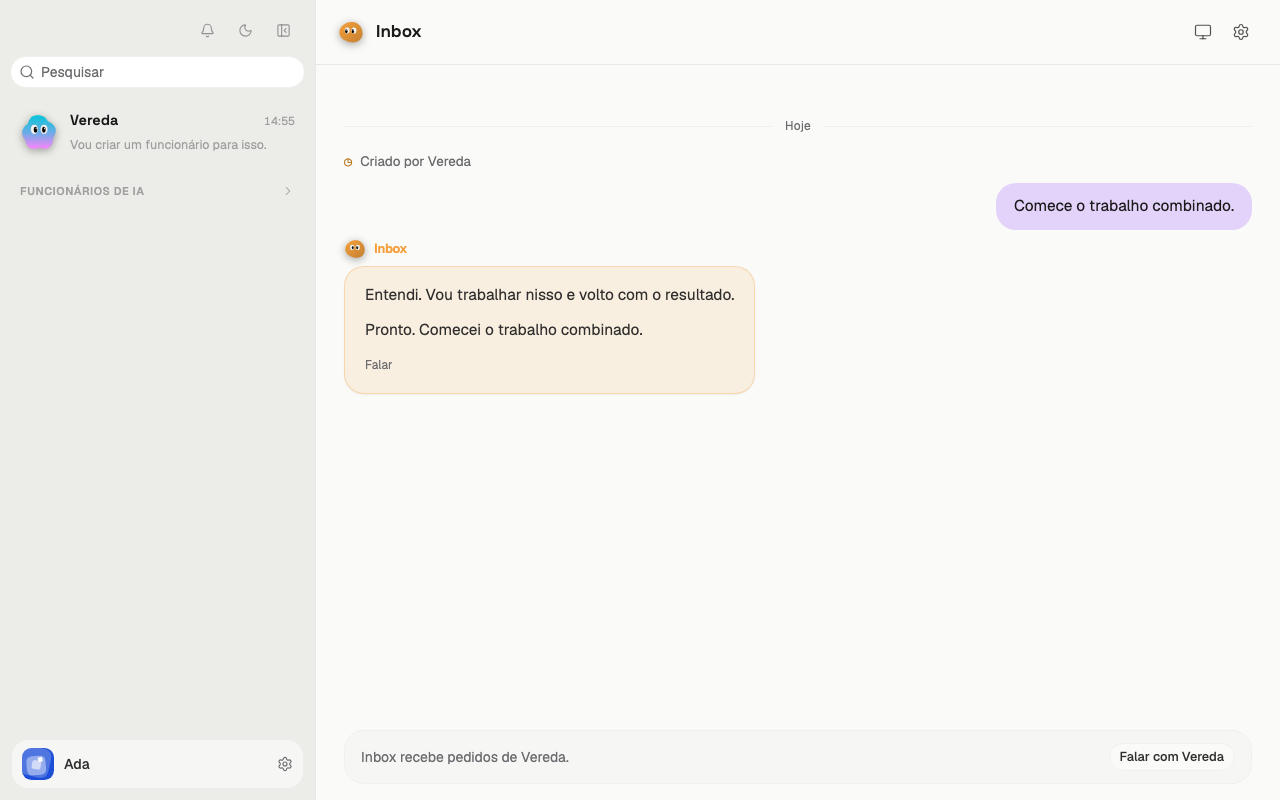
Click the title AI employees. The rows of the employees disappear and the list shows only the leader.
Click the title again to show the rows. The open conversation does not change.
Change the order of the employees
Drag the row of an employee to another place in the list.
You can also change the order with the keyboard. Focus the row and press Alt with the up or down arrow.
The app keeps the new order. It stays the same after you leave and come back.
Search for a conversation
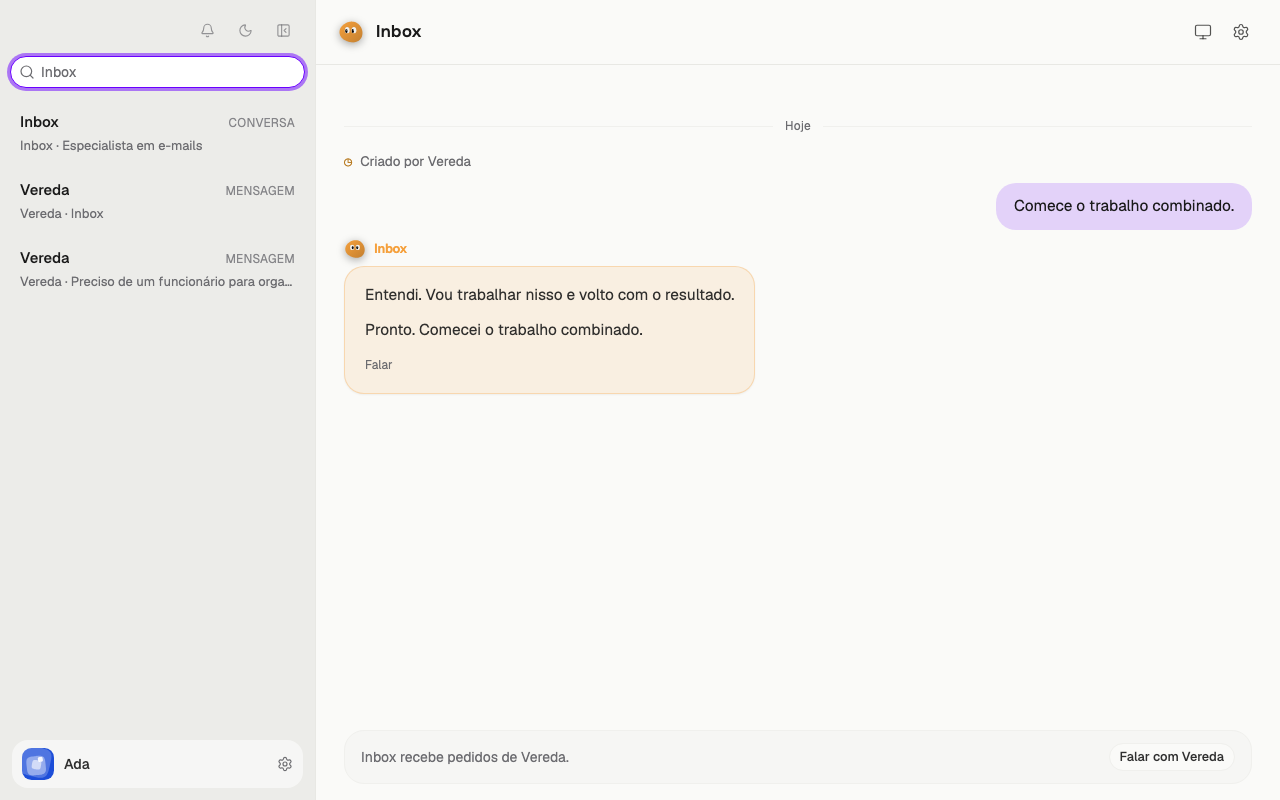
Click the Search field and write a word. The search looks in conversations, messages, files, links and routines.
While the search runs, the list shows Searching…. If nothing matches, the list shows No results.
Each result shows a title. Below it, the result shows the name of the bot with a part of the text. The list shows up to 25 results.
Click a result to open the conversation. Clear the text of the field to go back to the list of bots.
Pin a conversation
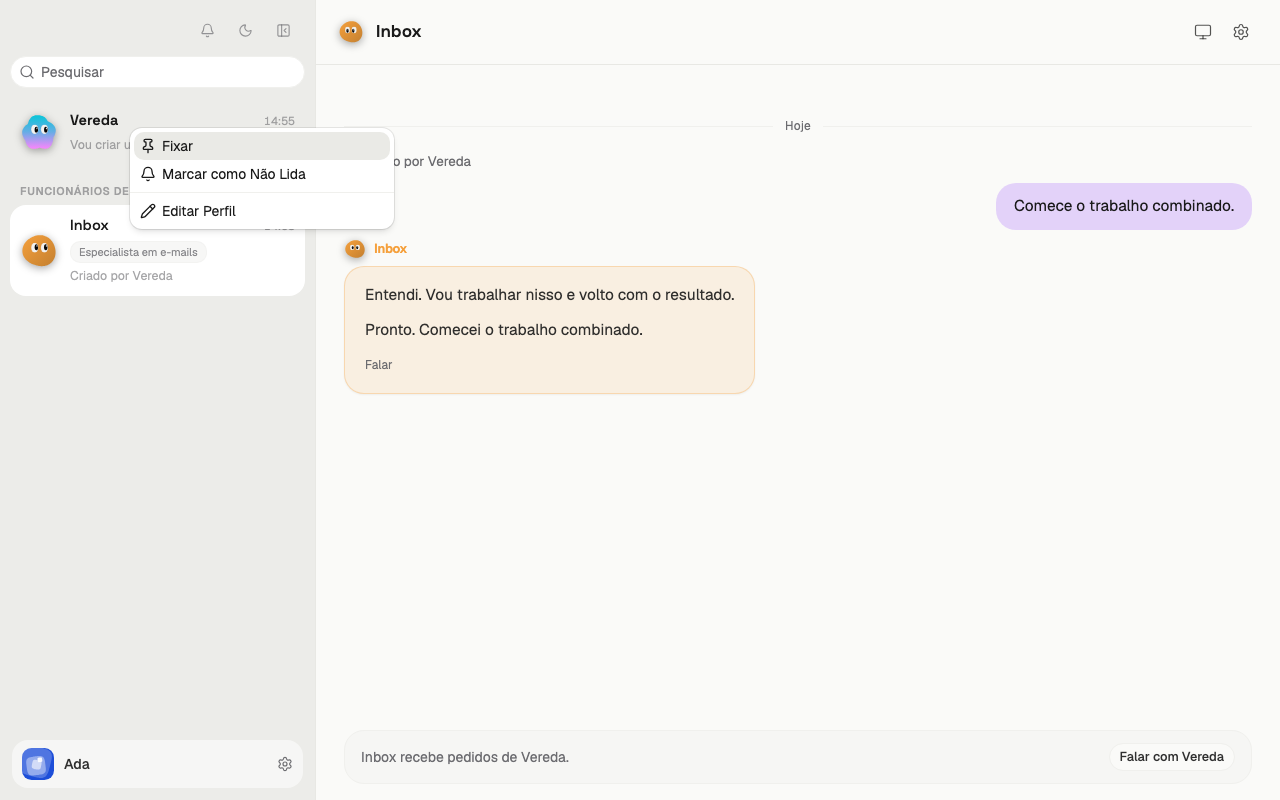
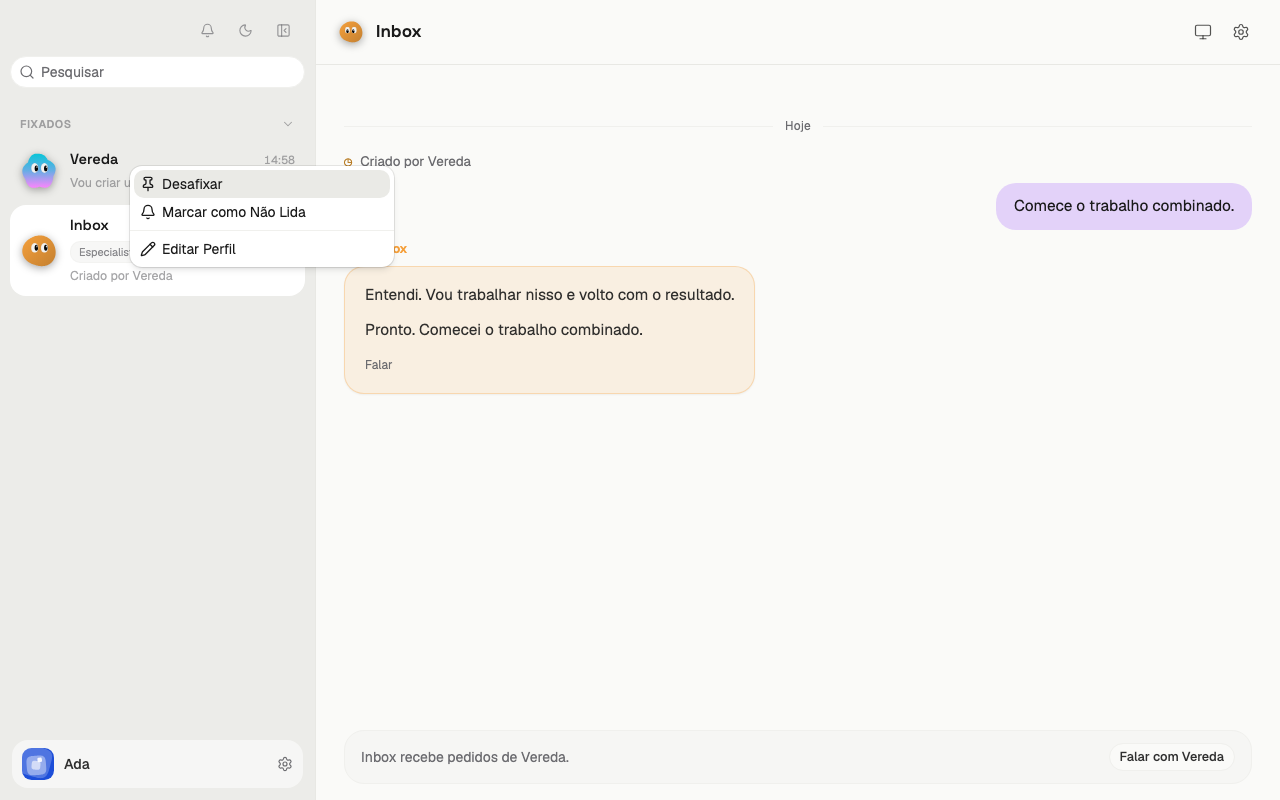
Right-click the row of a bot. The menu shows three items.
Click Pin. The row moves up to the group Pinned, at the top of the list, and stays there.
If you pin the leader Vereda, the title AI employees disappears. The employees stay below the group Pinned, with no title.
Unpin a conversation
Right-click the pinned row. When the conversation is pinned, the menu shows Unpin in place of Pin.
Click Unpin. The row goes back to its place in the list. If it was the leader Vereda, the title AI employees comes back.
Mark a conversation as unread
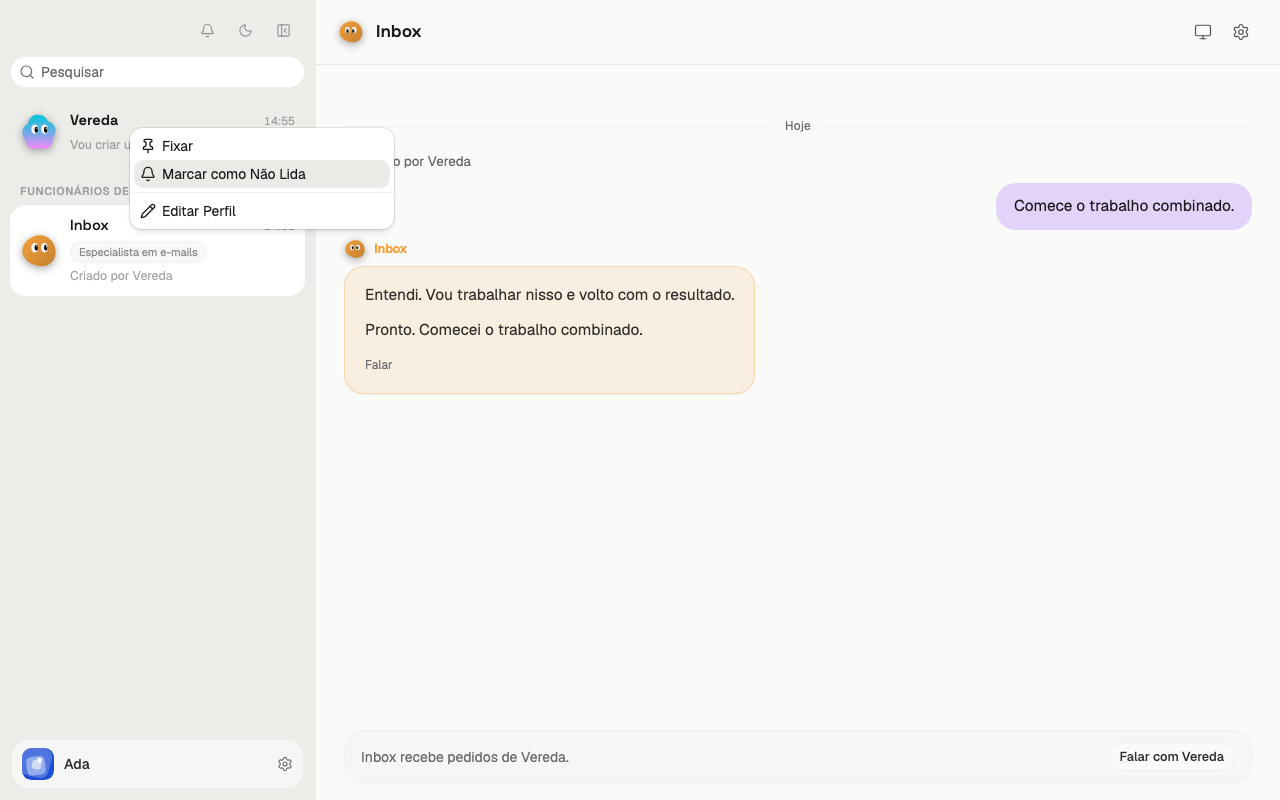
Choose the row of a bot that you are not reading. Right-click it.
Click Mark as Unread. The row shows a yellow dot next to the time.
Mark a conversation as read
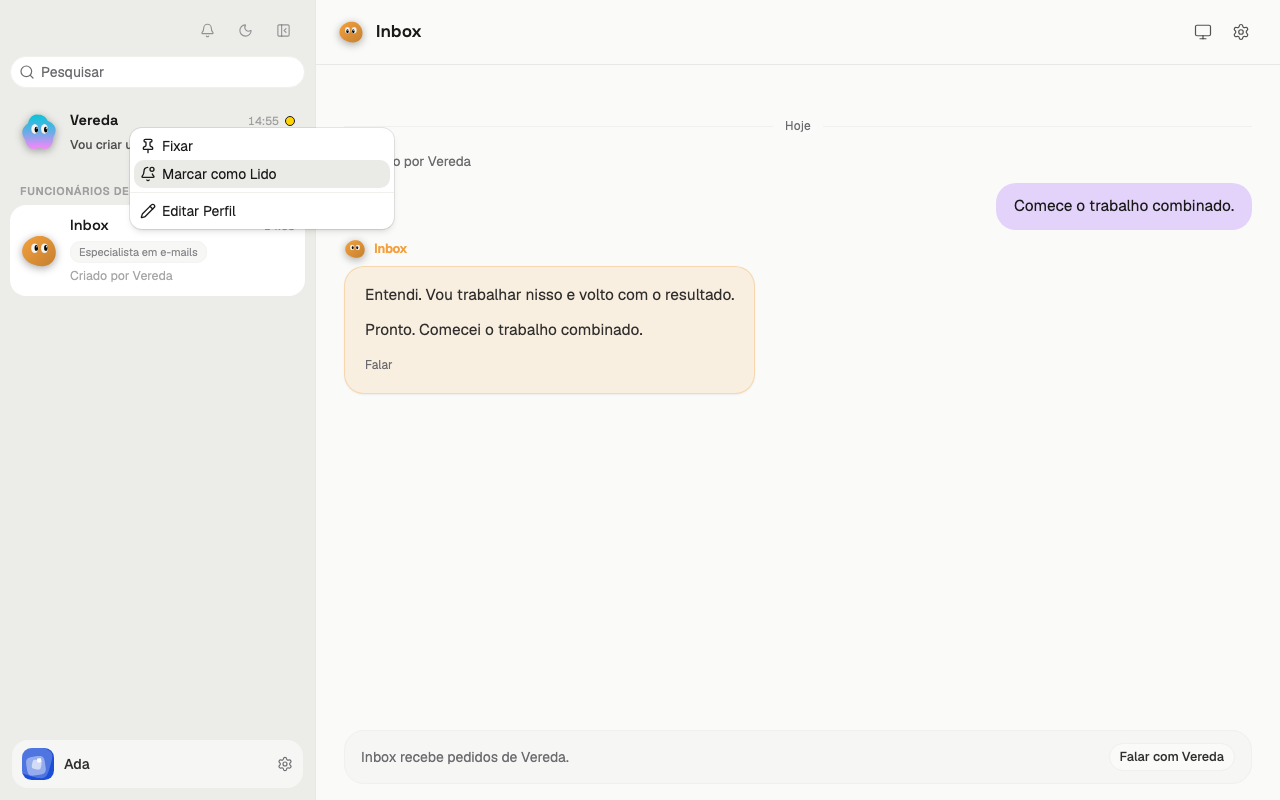
Right-click the unread row. The menu shows Mark as Read in place of Mark as Unread.
Click Mark as Read. The yellow dot disappears.
Edit the profile of the leader
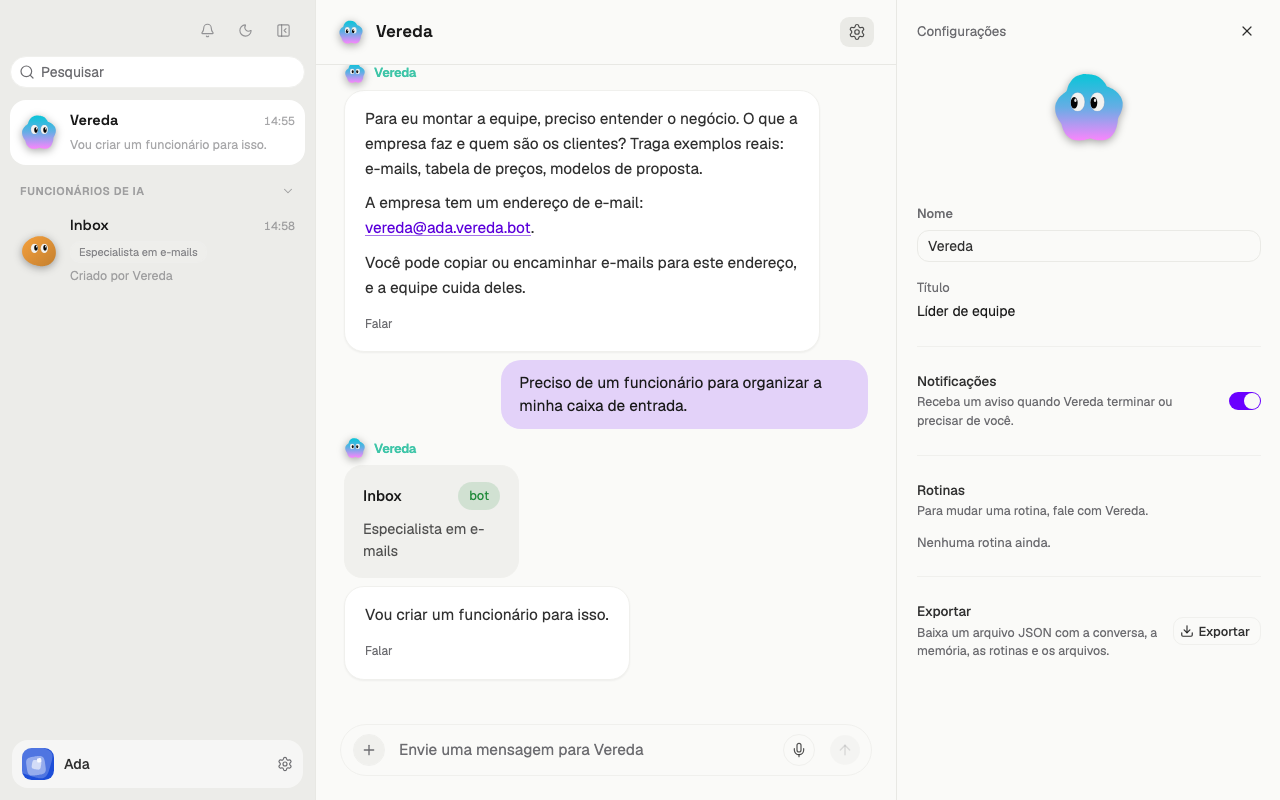
Right-click the row of the leader and choose Edit Profile. The Settings panel opens on the right.
The Name field accepts text. Title shows “Team leader”.
The panel also has Notifications, to get a notice when the leader finishes or needs you.
The Routines section lists the routines. To change a routine, talk to the leader. The Export section downloads a file with the conversation, the memory, the routines and the files.
See the profile of an employee
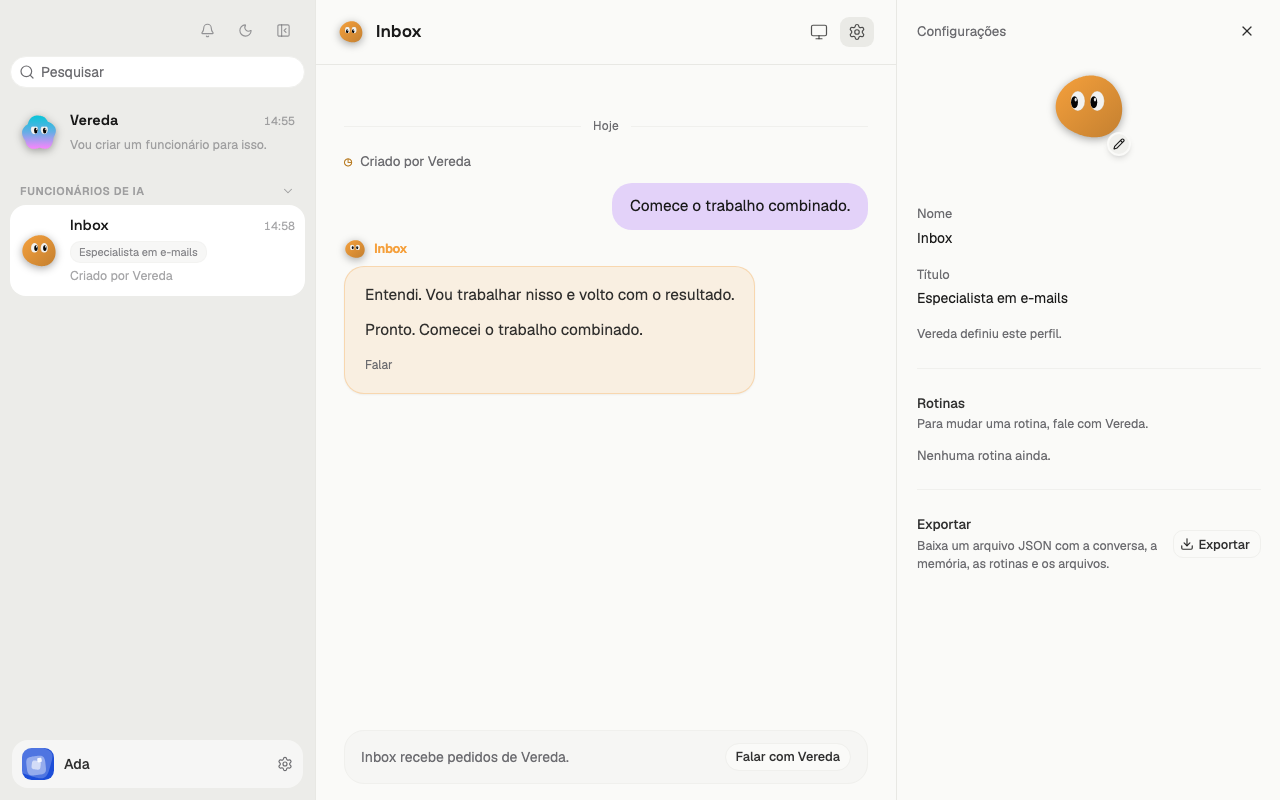
Right-click the row of an employee and choose Edit Profile.
The Settings panel shows Name and Title as read-only. The text “Vereda set this profile.” explains why: the leader sets the profile.
To change an employee, ask the leader in the conversation of the leader. The Routines and Export sections work as in the profile of the leader.
Private employee
A private employee works only for you, the owner. The employee refuses a request from another person. This applies to the company email, WhatsApp, groups, and trusted people.
The leader is never private. The other employees show the Private employee switch in the Settings panel. The text below it says that only you ask this employee for work.
A private employee shows a small padlock on its row in the bot list.
The switch turns on in two ways. You turn it on by hand. Or the employee takes care of an app that you marked as yours, such as Gmail. Then the switch stays on and locked, and the panel says “On because it takes care of:” and the name of the app.
Turning the switch off does not unlock an employee that takes care of an app of yours. To unlock it, mark the app as The company's in Integrations.
- Right-click the row of the employee and choose Edit Profile.
- In the Settings panel, turn on the Private employee switch.
Who comes with the team
The leader, External support, and the Engineer all start at the beginning.
The Designer also starts with the leader, on the plans with images. On the Basic plan, the team has no Designer.
The Engineer does not appear in the list and does not talk to you. When the team needs a capability it does not have, the request goes to the Engineer.
Reading an email from a customer or a website does not stop this request. If the request finds hidden orders in what it read, each of its outputs asks for your OK.
Create or duplicate a bot
The menu of a row does not have the item Duplicate. The list also has no button to create bots.
The leader creates the employees. It talks with you and builds each employee to measure. Ask the leader for a new employee, in the conversation of the leader.
External support
Every company has External support from the start. It serves the people who are not the owner.
It answers email sent to vereda@<company>.vereda.bot by members, by the authorized list and by the company domain. It also answers mentions in the WhatsApp groups that the owner allowed.
It passes the work to the right employee, gathers the answers and replies to the outside person. Then it sends a short summary to the leader.
When it replies by email, it attaches the files that the colleagues leave in the shared folder.
It never uses or shows the private data of the owner, such as the agenda, the personal email and the items marked as private.
Someone from outside cannot hire, change an employee, or ask the Engineer for a new capability. Text from outside is treated as information.
Each conversation is separate from the others.
The owner can archive External support. After that, email from outside goes back to the previous routing. Mentions in the groups stay unanswered, and the leader tells the owner once a day.