
Voice
Choose the voice of Vereda
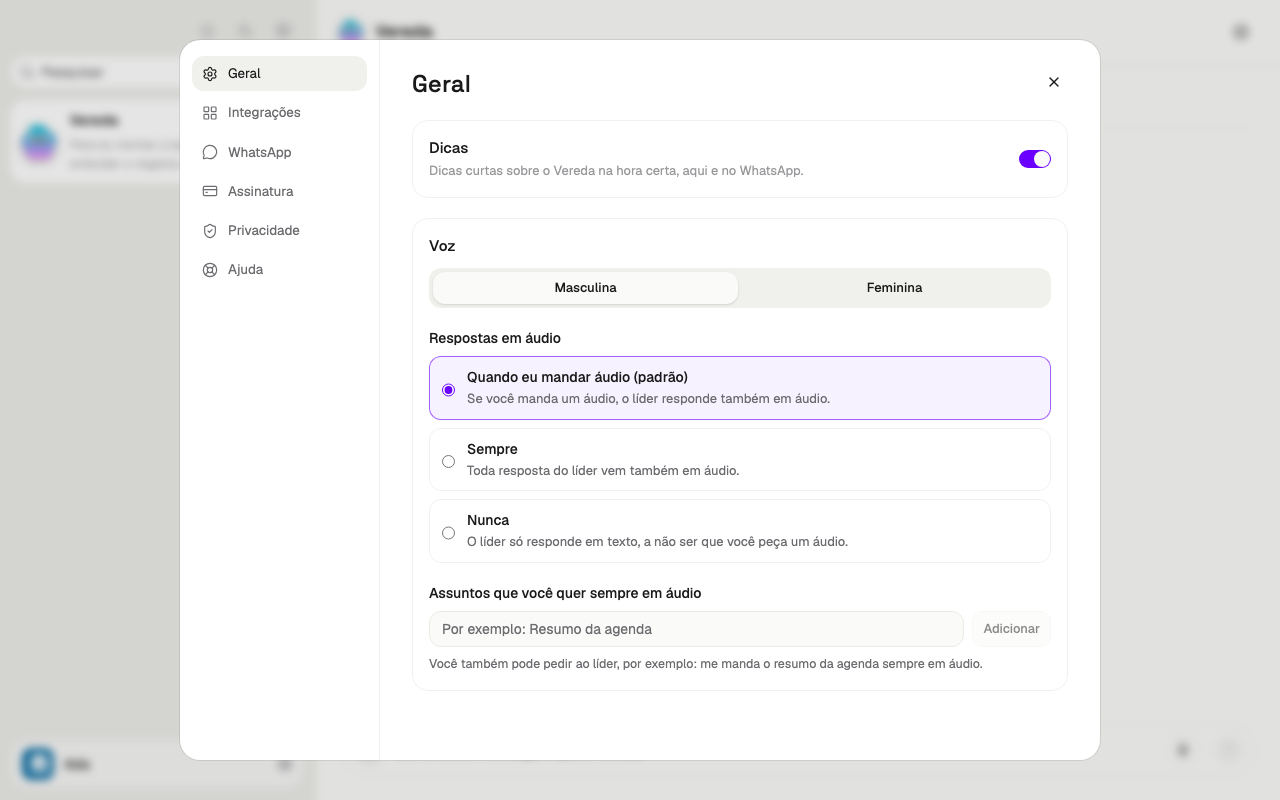
Vereda speaks with a male or a female voice. Your choice takes effect at once. There is no button to save.
- Click the button with your name, at the end of the list.
- Choose Settings.
- In General, scroll to the Voice block.
- Click Male or Female.
Choose when Vereda answers in audio
The Audio replies block has three options. You choose one. Your choice takes effect at once.
When I send an audio (default): if you send an audio, Vereda also answers in audio.
Always: every answer from Vereda also comes in audio.
Never: Vereda answers in text only, unless you ask for an audio.
Ask for audio on certain subjects
The Subjects you always want in audio field keeps the topics that Vereda always sends in audio. One example is Agenda summary.
You can have up to 10 subjects. Each subject has 2 to 80 characters. A subject cannot repeat.
The Add button stays inactive while the field is empty or the subject is not valid.
You can also ask Vereda in the conversation, for example: always send me the agenda summary in audio.
- Write the subject in the field.
- Click Add or press Enter.
- To remove a subject, click the X next to it.
Listen to an answer
The Speak button sits below each text answer from Vereda. It appears when the voice is ready.
Click Speak to hear the answer. While Vereda speaks, the same button becomes Stop. Click it to silence the voice.