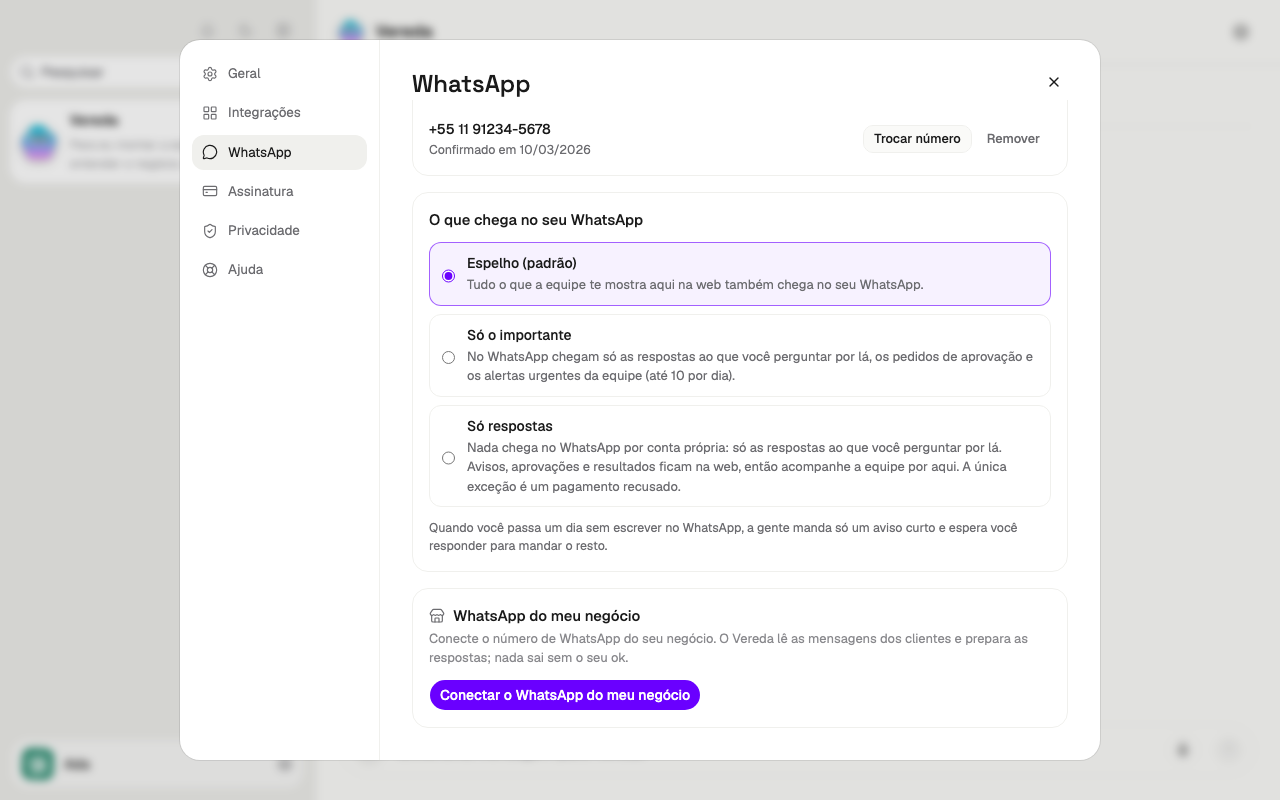
Open WhatsApp
The leader talks to you on the web and on WhatsApp. Both show the same conversation.
Only the account owner confirms, changes, and removes the number.
- Click your name, in the bottom corner of the sidebar.
- Click Settings.
- In the Settings menu, click WhatsApp.
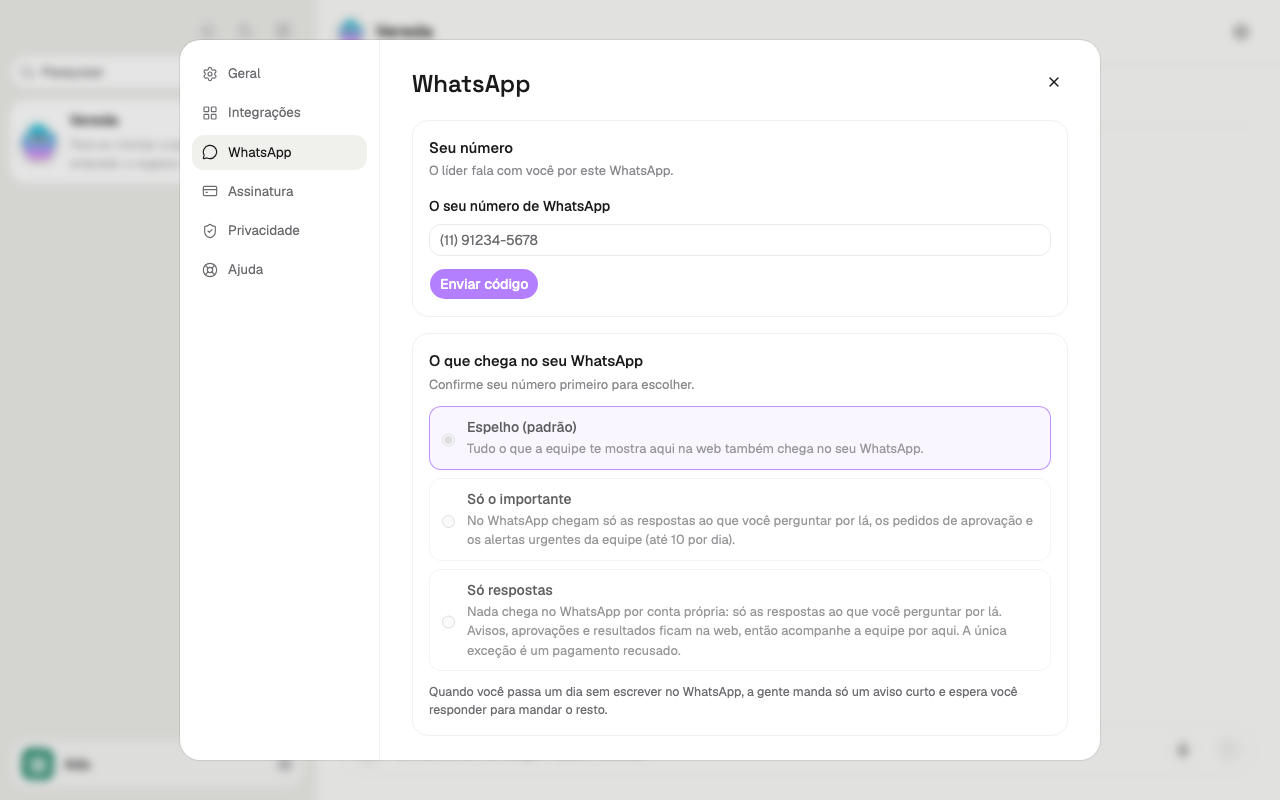
Confirm your number
The Send on WhatsApp button stays inactive until you write the number.
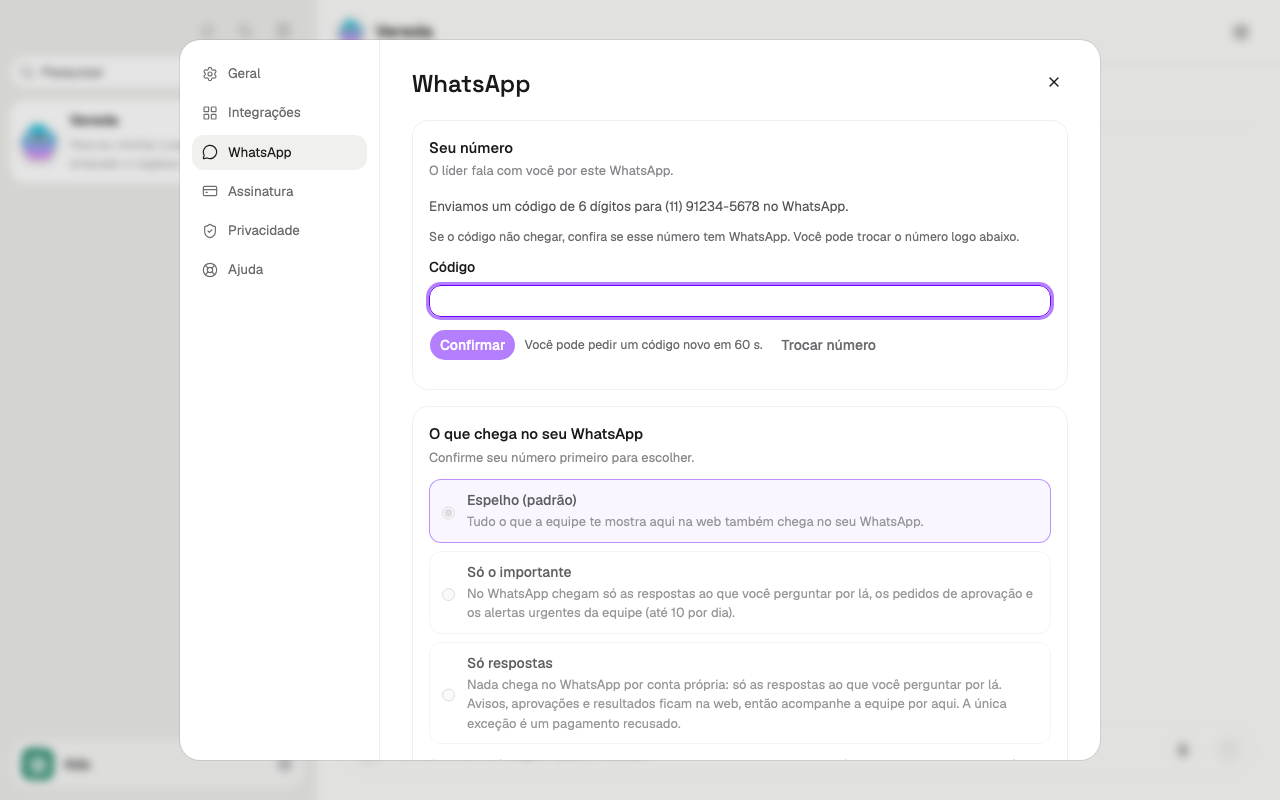
No code arrives by message. You send a ready message to the Vereda number. It starts with “VEREDA” and carries a code.
On a computer, you read the QR code with the camera of your phone. On a phone, the button opens WhatsApp directly.
If the confirmation does not appear, check that you sent the message without changing the text and that the number has WhatsApp.
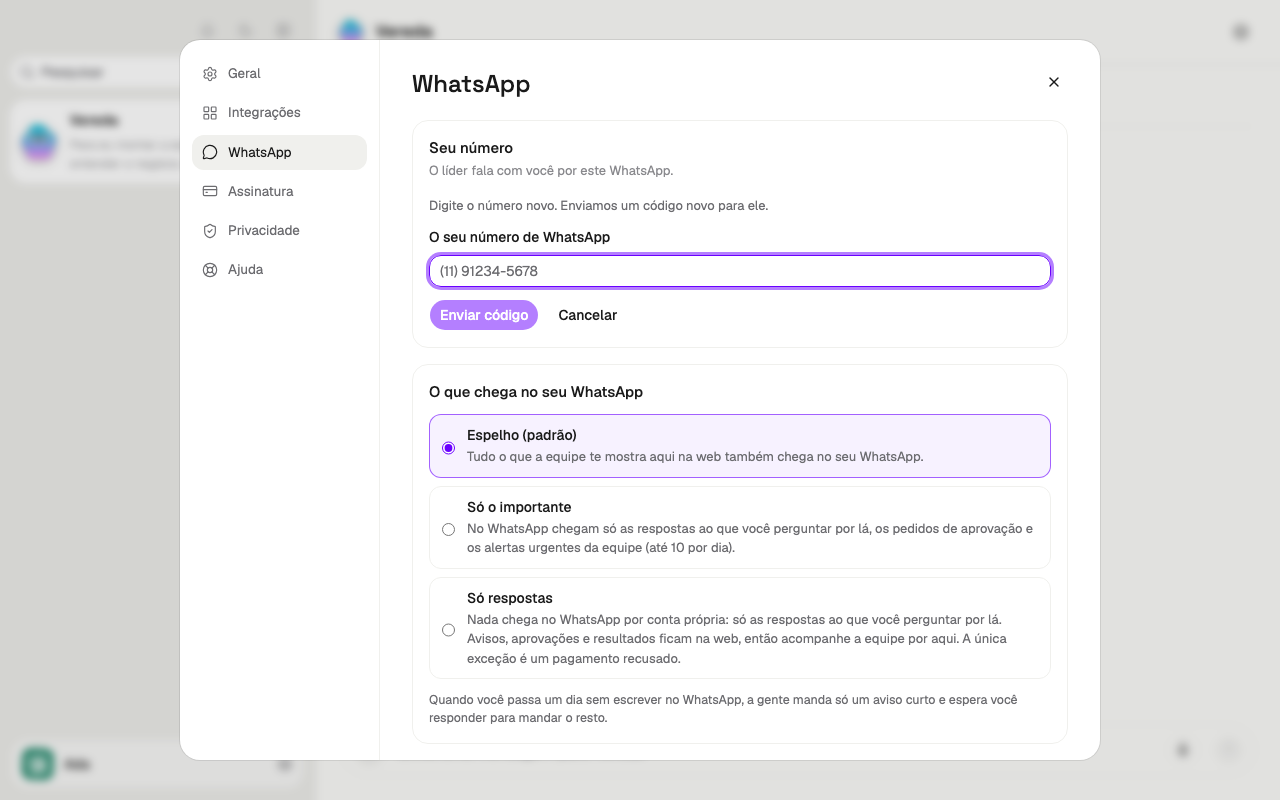
To correct the number, click Change number.
To add other WhatsApp numbers, such as the number of an assistant, use Trusted people.
- In the Your number card, write the number in the Your WhatsApp number field. Include the area code.
- Click Get my code. The screen shows the code.
- Click Send on WhatsApp.
- On a phone, WhatsApp opens with the message “VEREDA <code>” ready. On a computer, read the QR code with your phone.
- In WhatsApp, send the message without changing the text.
- Go back to Vereda. In a few seconds, the card shows the confirmed number.
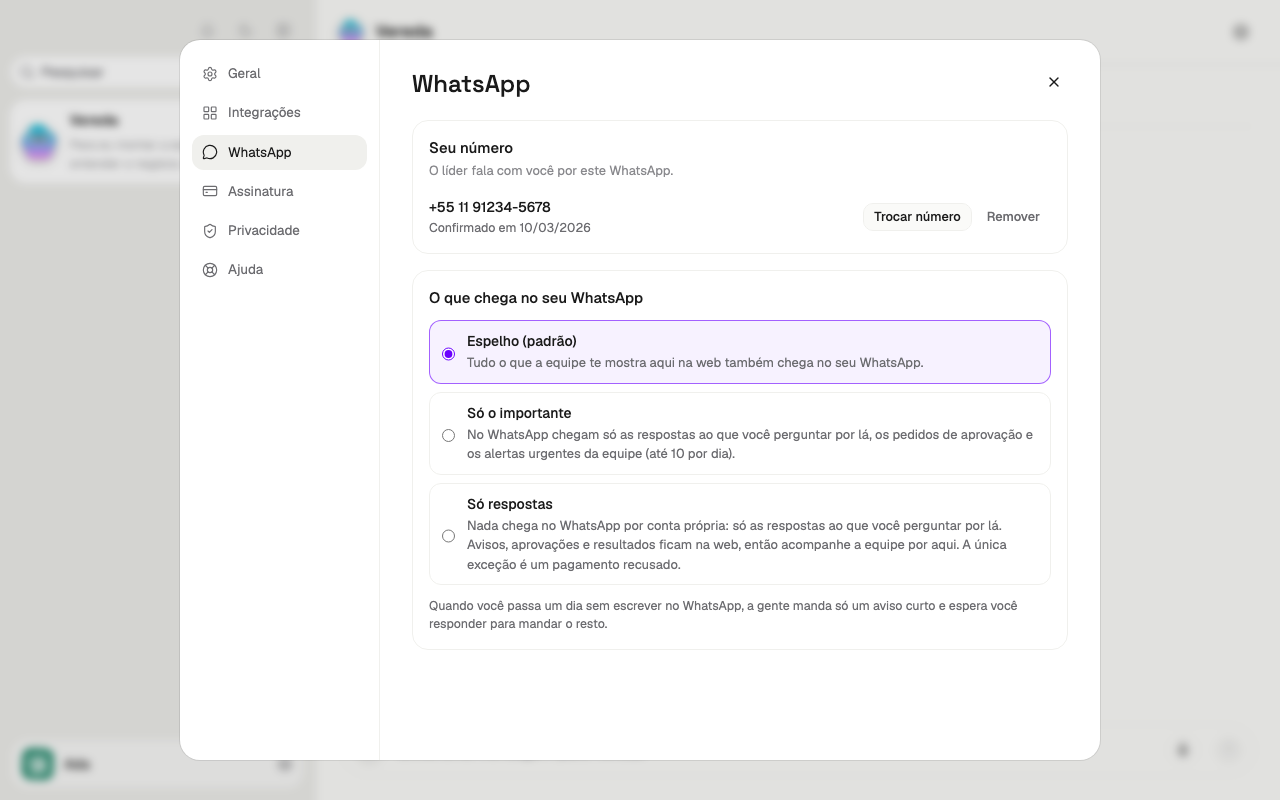
See the confirmed number
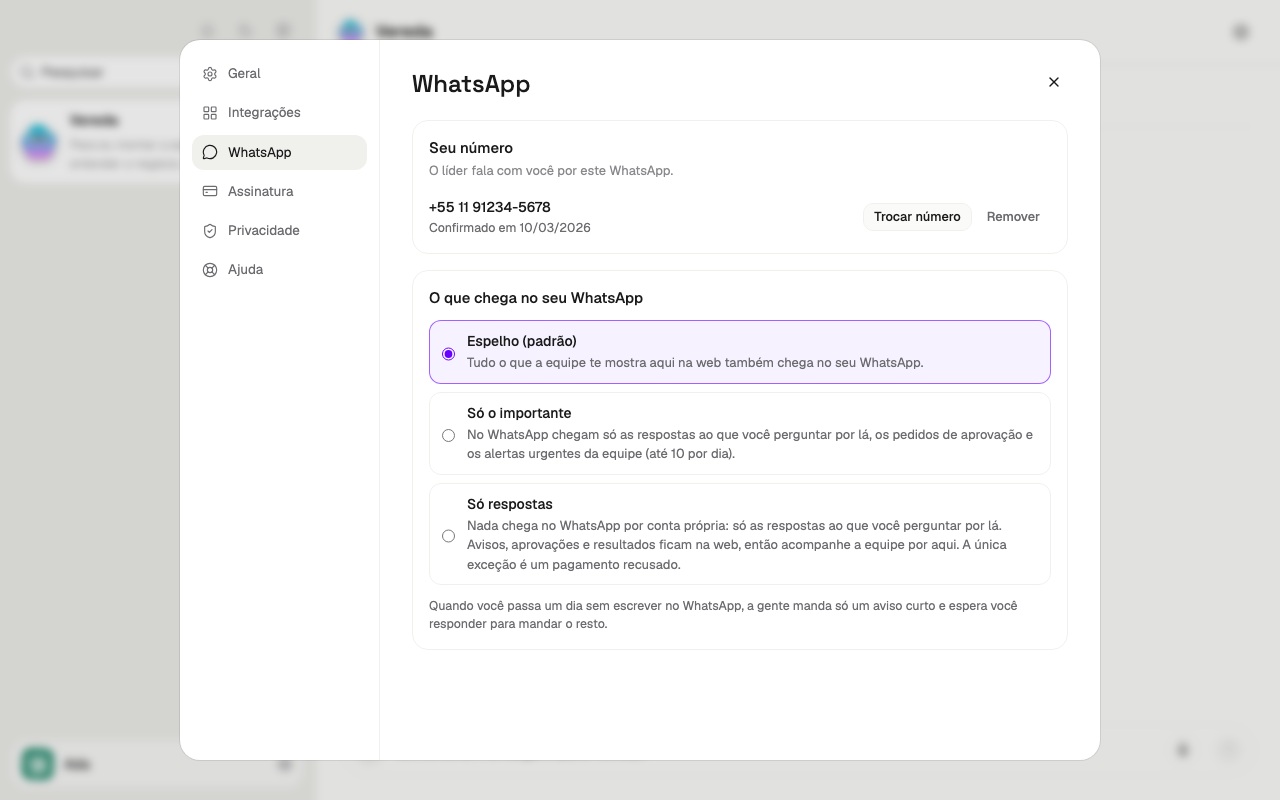
When the number is confirmed, the Your number card shows the number and the day of the confirmation.
Two buttons sit beside the number: Change number and Remove.
Change the number
The new number replaces the old number. To give up, click Cancel.
- Click Change number.
- Write the new number.
- Click Get my code.
- Click Send on WhatsApp.
- From the WhatsApp of the new number, send the ready message “VEREDA <code>”.
Remove the number
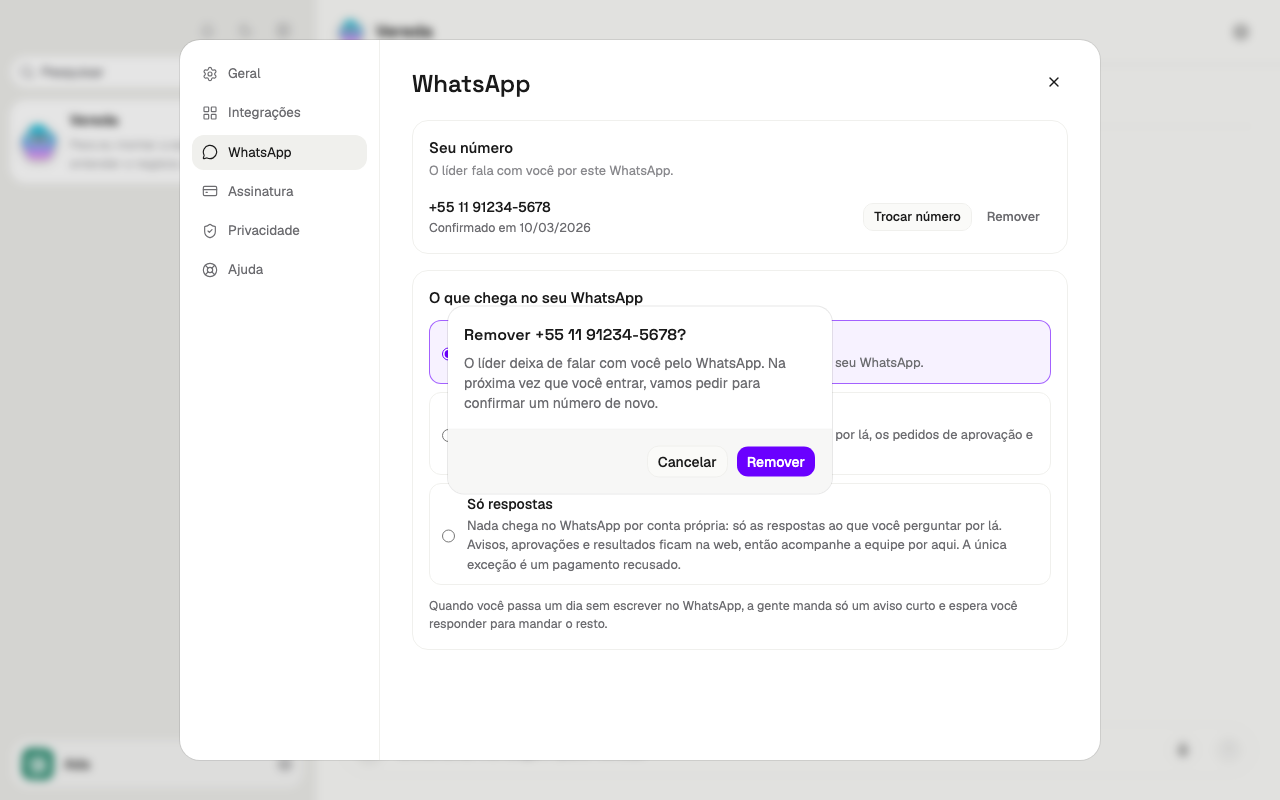
Without a number, the leader stops talking to you on WhatsApp.
The next time you sign in, Vereda asks you again to confirm a number.
- Click Remove.
- Read the question. It shows the number that goes away.
- Click Remove to confirm. To give up, click Cancel.
What reaches WhatsApp
The What reaches your WhatsApp section explains the rule. There is no option to choose.
The web shows everything that happens, including the WhatsApp conversations.
On WhatsApp, the leader answers what you write there.
What the team does alone also reaches WhatsApp, with the approval requests. This includes scheduled routines, incoming e-mails, and system notices.
What you ask on the web gets its answer on the web. To receive it on WhatsApp, ask the leader: “notify me on WhatsApp”.
Urgent alerts and billing notices always reach WhatsApp.
Vereda writes to you at any hour. Nothing waits on hold for your answer.
Answer an approval request
The request arrives as text, in Portuguese. It ends with “Responda com o número:” (Reply with the number) and the options, one per line: “1. Só desta vez” (Just this once), “2. Permitir sempre” (Always allow), and “3. Não permitir” (Do not allow).
Reply with the number of the option only, such as “1”.
When several requests are open, each one carries a short code. Write the number and the code, such as “1 K7”.
You can also quote the request: swipe its message and write the number.
“0. Decidir depois” (Decide later) leaves the request pending and frees the conversation. The request returns after each answer from the leader, and at the first message you send 2 hours or more after the “0”.
To turn the number off, write “VEREDA SAIR”. Vereda asks “1. Sair” (Leave) or “2. Continuar” (Continue). Only the “1” turns it off.
Vereda also sends the link to connect an app, such as “Conectar <app>: <link>”. Open the link on your phone.
Audio, documents, photos, and location
You send audio, photos, PDFs, and your location to the leader. The leader reads them and answers.
The leader also sends voice messages, named documents, and images.
Prepare a group
Vereda never creates groups. You create the group and add the Vereda number.
The group works only when all three rules hold at the same time:
Rule 1: you are the only administrator. You are the account owner, with a confirmed number.
Rule 2: the option “Approve new participants” is on.
Rule 3: only administrators add participants. In “Add other participants”, choose “Only admins”.
If you are an administrator and a rule fails, Vereda sends a message in the group. It says which rule you fix. It sends this message once.
The panel gives the reason: “You are not an administrator of this group.” or “There are other administrators besides you.”
If you are not an administrator, Vereda stays silent. Direct messages from numbers that do not belong to the owner get no answer.
- In WhatsApp, create the group.
- Add the Vereda number to the group.
- Keep yourself as the only administrator.
- In the group settings, turn on “Approve new participants”.
- In the group settings, under “Add other participants”, choose “Only admins”.
Release a group
The Groups panel shows each group, the participants with their numbers, and the state of the group. Click the participants to open the list.
A released group has two modes. Always allow: Vereda answers in the group without asking. Always ask: each answer waits for your approval.
You change the mode at any time. To end the release, click Revoke.
A group that breaks the rules, but where you are present, shows Release anyway. A window lists what you accept:
Other administrators can add anyone to the group.
Anyone in the group can mention @Vereda and start the External support. This uses credit.
The External support never sees your private data. The sending limits still apply.
If you leave the group or someone removes you, the release ends. You release it again.
The release starts on Always allow. You change it to Always ask or click Revoke, as in any group. The Released over the rules tag marks the group. In this group, Vereda does not send the message about what to fix.
- Click your name, in the bottom corner of the sidebar.
- Click Settings, and then WhatsApp.
- In Groups, find the group.
- Click Always allow or Always ask.
What Vereda does in the group
Vereda answers only when someone mentions it (@Vereda) or replies to one of its messages. The other messages serve only as context.
Nothing private from the owner goes to the group. When someone, including you, asks for something private, Vereda says it handles the matter with you in private. The answer arrives in your private chat with Vereda.
The same applies to an action, such as sending, scheduling, or using an app. An action always asks for your approval, even with Always allow.
Private employees and your private data never reach a group. The External support does not publish an answer with private data, even when the answer comes from the leader.
Trusted people
To add other WhatsApp numbers to your account, such as the number of an assistant or a team member, use Trusted people.
Trusted people are people you authorize to ask the leader for work on WhatsApp, each one from their own number. Only the account owner sees and manages the Trusted people section.
What they do: they ask the leader for work, create routines, and ask how their requests are going. Their conversation appears in your chat, with the name of the person above each message.
What they never see: the private employees, the private e-mail, and the private memory. Their conversation belongs only to them, and the leader does not pass to one person what comes from another.
Managing the account stays with the owner. If a person asks for this, the request reaches you and the person gets the answer that the owner decides.
Approval cards: if you turn on Can approve their own requests, the person approves the cards of their own requests. With the option off, you approve them. “Always allow” never applies to a trusted person: each of their actions asks again.
Your plan limits how many people are active at the same time: 3 on Basic, 6 on Professional, and 10 on Scale. The section shows “X of N people of your plan”.
If you change to a smaller plan, Vereda pauses the people above the limit. Nobody is deleted. When the plan has room again, you activate the person again. A paused person does not talk to the leader.
You pause a person at any time with Pause, and you bring them back with Activate. The pause frees the place in the plan.
The person can leave alone. They write “VEREDA SAIR” and Vereda asks “1. Sair” (Leave) or “2. Continuar” (Continue). Only the “1” turns it off. After that, Vereda notifies you.
To remove a person, click Remove and confirm. The access ends at once, and the routines the person created stop.
- Click your name, in the bottom corner of the sidebar.
- Click Settings, and then WhatsApp.
- In Trusted people, click Add person.
- Write the name, the role (optional), and the WhatsApp number of the person. Turn on Can approve their own requests only if you trust them for this.
- Click Get the code. The screen shows the code and the link, as in the confirmation of your number.
- Send the link or the code to the person. They send the ready message “VEREDA <code>” from their own WhatsApp.
- Wait. In a few seconds, the person appears in the list as Active.
What a person who is not the owner sees
A person who is not the account owner only reads the panel, with no buttons. The owner confirms, changes, and removes the number.
The WhatsApp of your business
When this function is on in your account, the panel shows the My business's WhatsApp card. It connects the WhatsApp of your company to Vereda.
Vereda reads the messages from customers and prepares the answers. Nothing goes out without your ok.
Only the account owner connects and disconnects. A person who is not the owner sees The owner of the account connects it.
To turn it off, click Disconnect. Vereda stops reading and answering the messages of your business. The number stays yours, in the WhatsApp Business app.
- Click Connect my business's WhatsApp.
- In the Meta window, choose the number of your business and finish the connection.
- Go back to Vereda. The card shows the name of the business and the number.
- Read the message Done. The leader will talk to you to agree on what to do with your business's messages.