
Files
See a file in the conversation
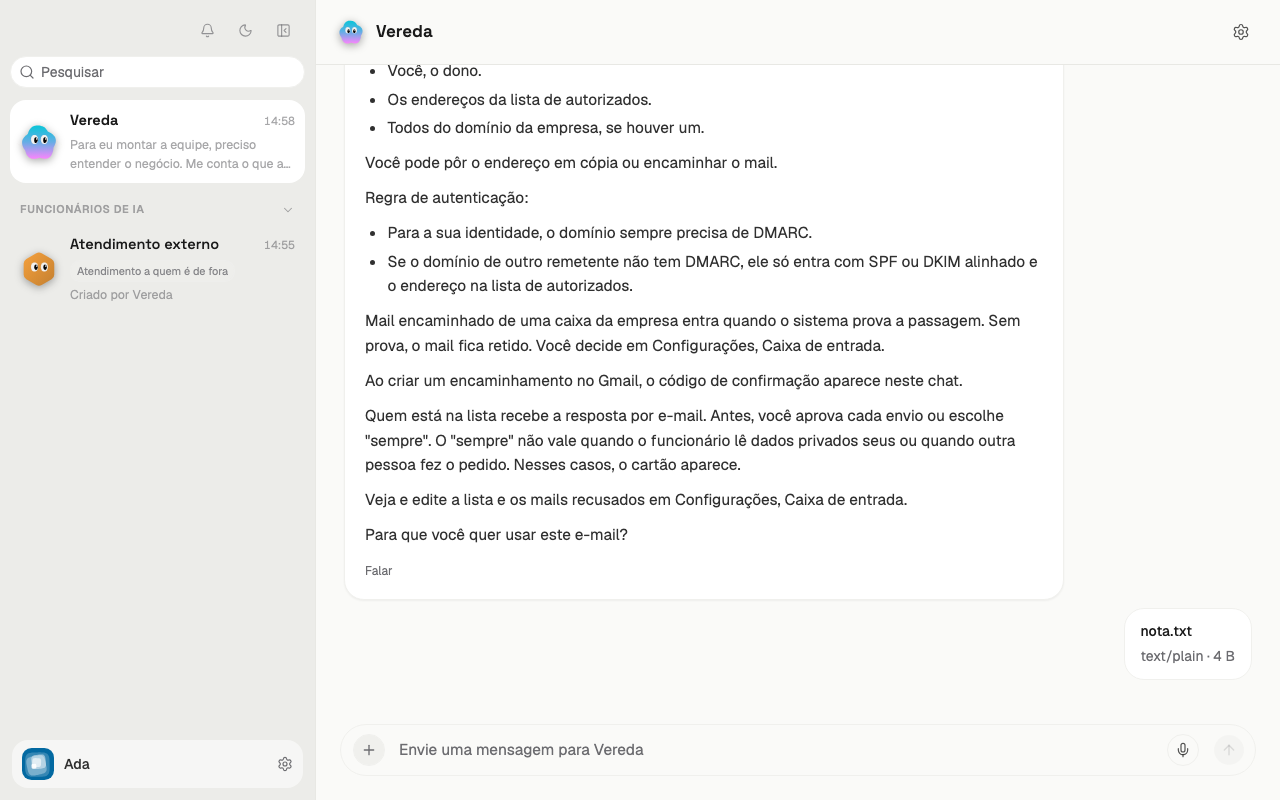
A file that you send, or that the team creates, appears in the conversation as a card.
The card shows the name of the file. Below the name, it shows the type and the size, such as text/plain · 4 B.
Click the card to download the file.
Open a Markdown file
The card of a Markdown file, with the .md extension, has another format. It shows a document icon, the name, and the size. A download button sits on the right.
- Click the card to open the preview.
- Read the formatted text in the window.
- Click the download icon to save the file.
- Click the X to close the window.
Images created by the team
Vereda asks the Designer for the images. The Designer starts with the leader, on the plans with images. It creates social media posts, product photos, banners, and illustrations.
Ask for the image in the conversation with Vereda. Say what the image is for, the format, and the text it carries.
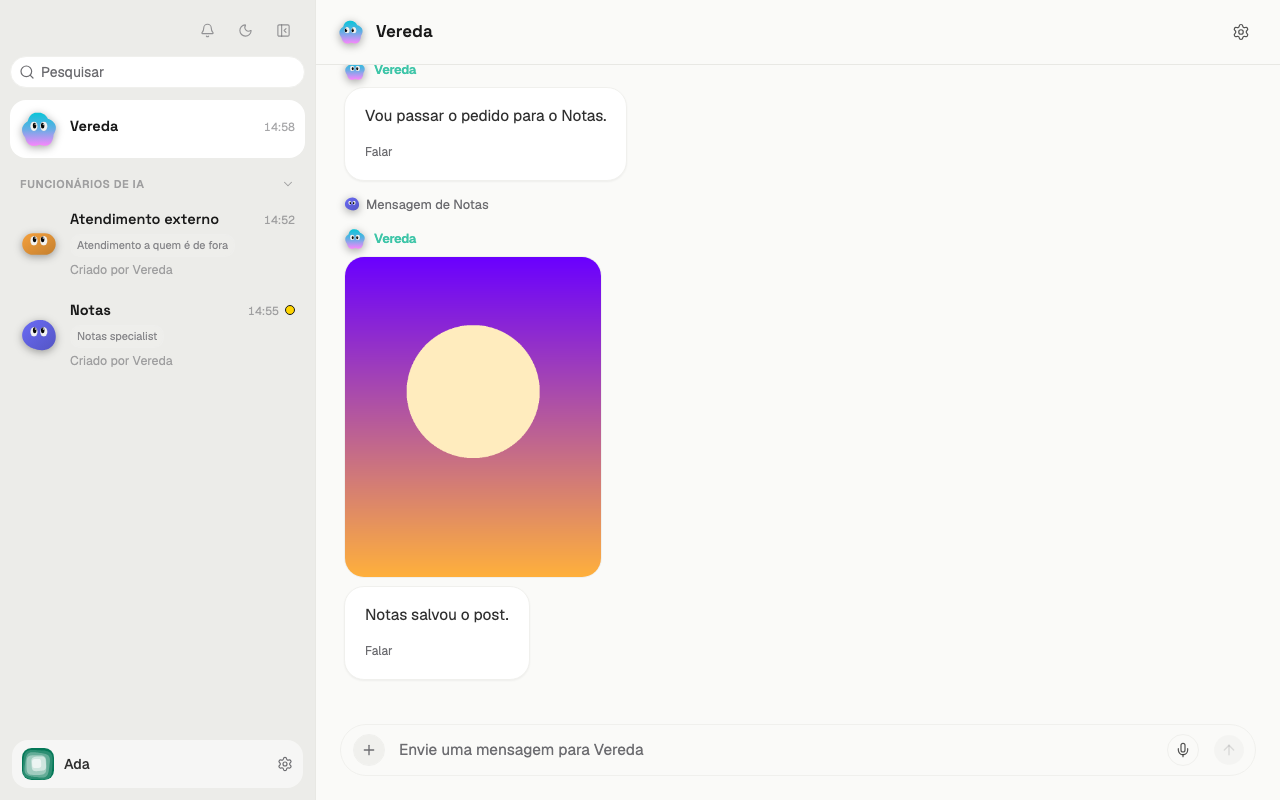
When the set is ready, the images appear in the conversation with Vereda. Vereda notifies you and asks if they work.
Open and download an image
The image appears whole in the conversation, uncropped. A photo that you send appears the same way.
- Click the image to open it in large size.
- Click the download icon, in the corner of the window, to save the image.
- Click the X to close the window.
See the image limit of the month
The Professional and Scale plans include images. The Basic plan does not include them. Without images in the plan, the team has no Designer.
Each plan has a limit of images per month. There is also a limit per day.
- Click the button with your name, at the end of the list.
- Choose Settings.
- Click Subscription.
- Read the line with the image icon. It says how many images you used this month and what the limit of the plan is.