
Approvals
When the card appears
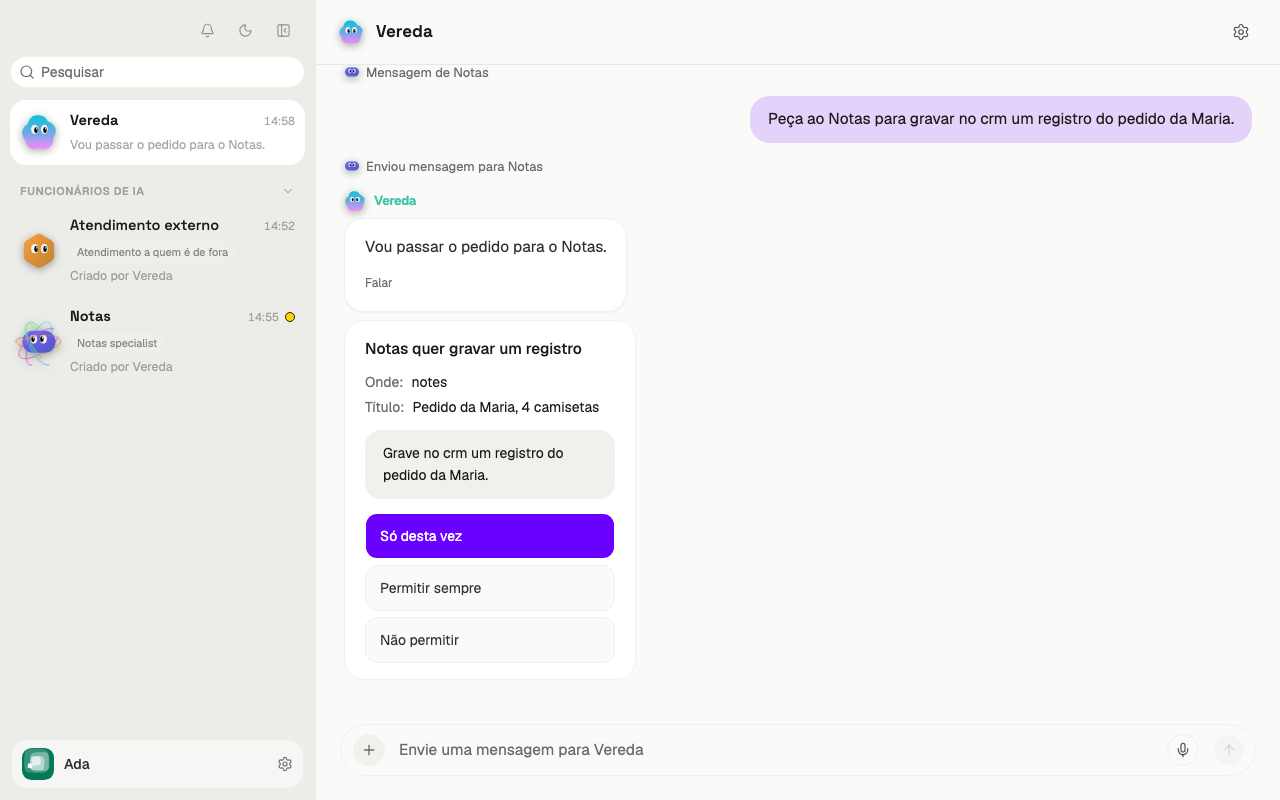
Before an action that needs your approval, the leader stops the work. The conversation shows a card that says who asks and what it wants to do, such as “Vereda wants to save a record”.
The card lists the details of the action with labels such as To, Subject, Title, Amount, and Where. Long text appears in a box below.
While the card waits, the Activity list shows Needs input on the row of the job.
When Vereda asks for your OK
Vereda asks for your OK in the main cases.
Send something to someone outside the company, such as an email or a file.
Send your private data outside the company.
Pay or charge something.
Delete something.
Save a password or an access key.
Hire a new employee.
Give an employee access to a company mailbox, or take that access away.
Give a personal app of yours to an employee.
Take an action in a connected app that changes something outside the company, such as create, edit, delete, or send.
After the work reads an email from outside, what leaves the company asks for your OK until the work ends.
Give work to a private employee, when the request read content from outside.
When the team finds hidden orders in what it read, each output asks for your OK, with no Always allow. The section Hidden orders in what the team read explains this.
In the other cases, internal work goes on with no card. This applies even after the team reads an email from a customer or a website.
Hidden orders in what the team read
Sometimes the check finds hidden orders in an email or a website that the team read.
In that case, internal work goes on with no card. For example, the team saves a note in memory or creates a routine.
Each output asks for your OK again, with no Always allow. This applies to sending outside, sending your private data outside, paying, deleting, and using a credential. No rule of yours that includes private data frees these outputs.
An employee, a skill, or a routine created in this conversation follows the same rule. Each of its outputs asks for your OK.
To clear the mark of an employee, open its settings. A notice shows the button I reviewed it, you can trust it. Only you can use this button.
To clear the mark of a routine, change the request text on the routine screen. A change of time or a pause does not clear the mark.
The skill is reviewed with the same button as the employee that owns it.
The check does not refuse your requests. It only records them. Vereda still refuses what is truly harmful.
Requests from customers and other people are still refused.
The employee's sentence
The card can open with a sentence from the employee. The sentence says what will happen. The title of the card still says who asks.
The app limits the length of the sentence and keeps the sentence with the card. The employee writes the sentence, so also read the fields of the card.
If the work read content from outside, the card never shows this sentence. It shows only the facts that come from the real data of the action.
Google Calendar and Gmail fields
For Google Calendar and Gmail, the card shows named fields in the language of the account owner. For an event, the fields are Start, End, Location, Notify guests, and Video call. The start and the end use the time zone of the company.
For an email action, the fields are Add labels, Remove labels, and Messages. The Messages field shows how many messages the action affects.
Where the action lands is always visible. This applies to a calendar that is not the main one and to custom labels.
The technical ids stay in Details, closed on the web. WhatsApp does not show these ids.
Files in an email
An email with a file shows each file by its name and size. Read the names before you approve.
A private file asks for your OK on every send. Only a rule of yours that includes private data skips your OK, and never when the team found hidden orders. Always allow does not free that file.
If the file changes after your OK, nothing leaves. The team asks for a new card.
Answer the card
The card has three answers: Just this once, Always allow, and Don't allow. The work continues after your answer.
- Read on the card who asks, what it wants to do, and the details.
- Choose Just this once, Always allow, or Don't allow.
- See the card show your answer.
Just this once
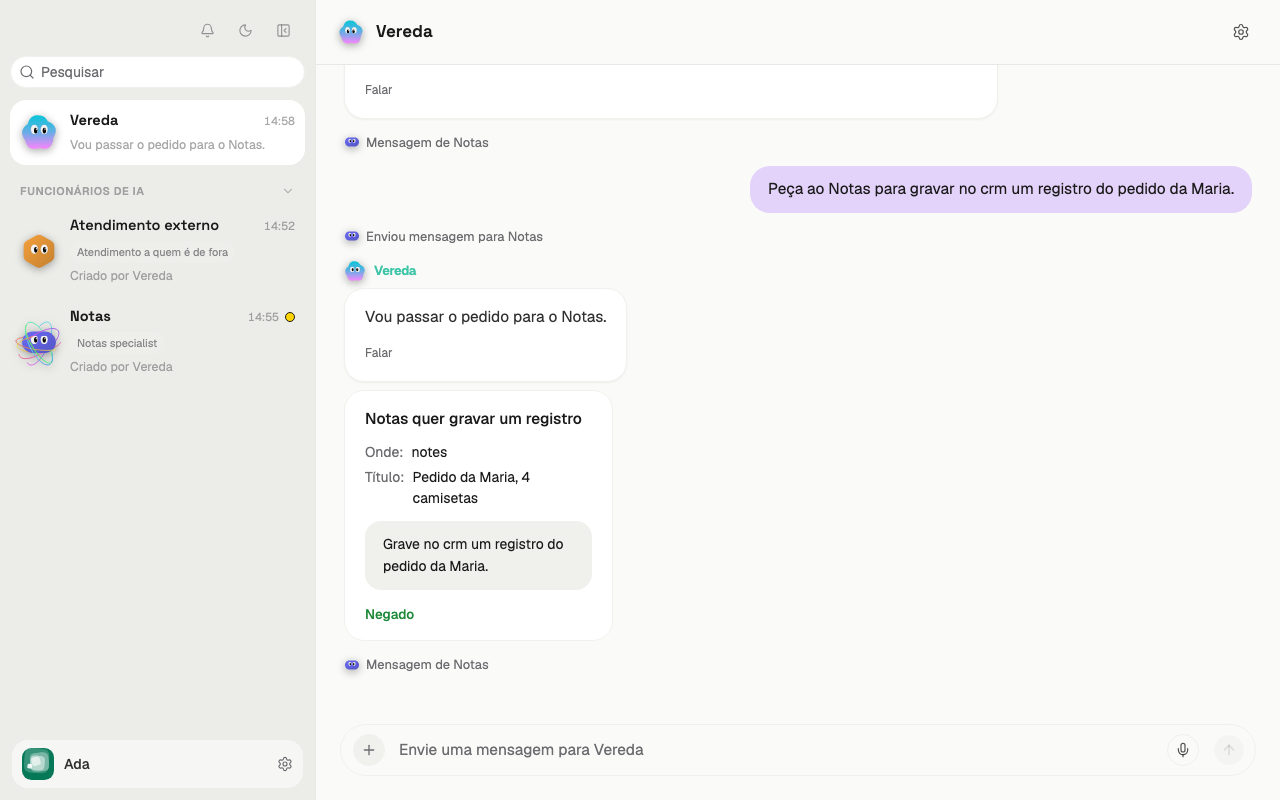
Just this once allows this action now. The leader does the action and continues the work.
The card now shows Allowed once. At the next action of the same kind, the card comes back.
Don't allow
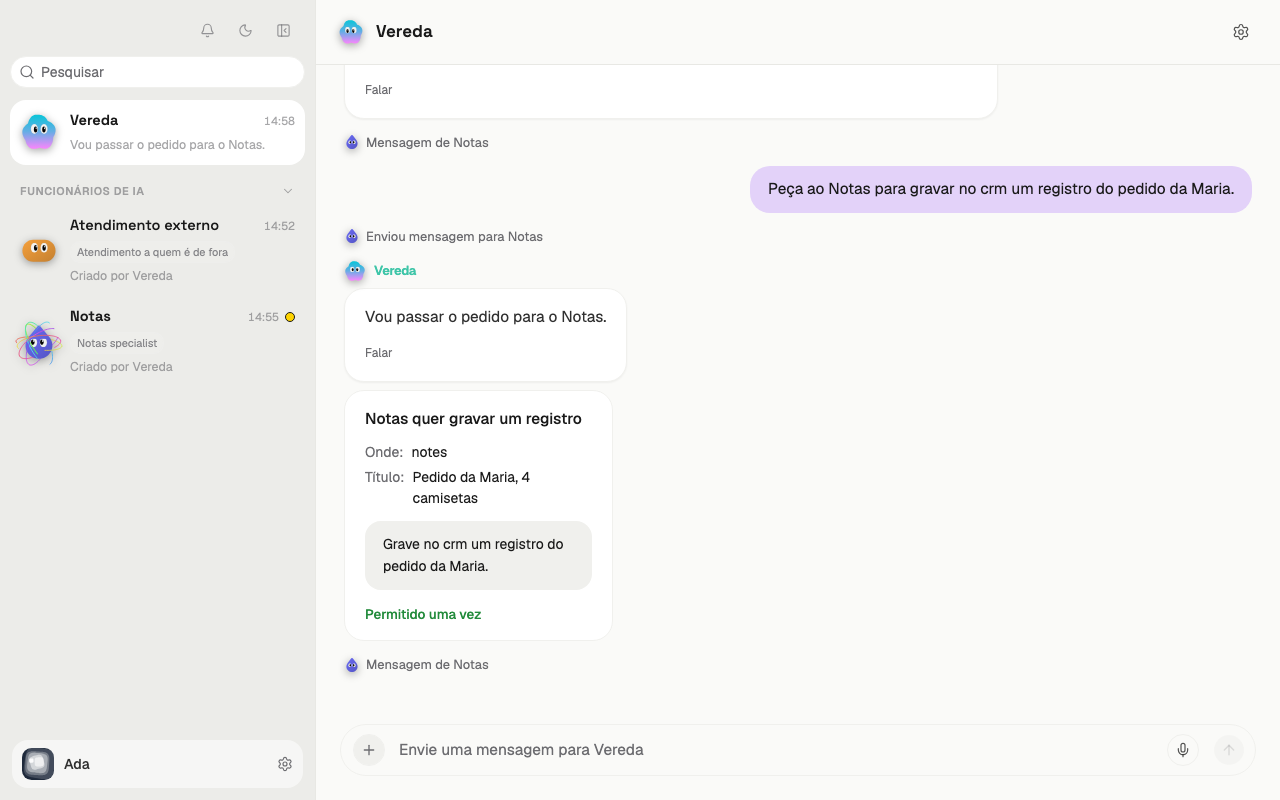
Don't allow denies this action. The leader does not do the action.
The card now shows Denied. The leader continues the conversation without the action.
Always allow
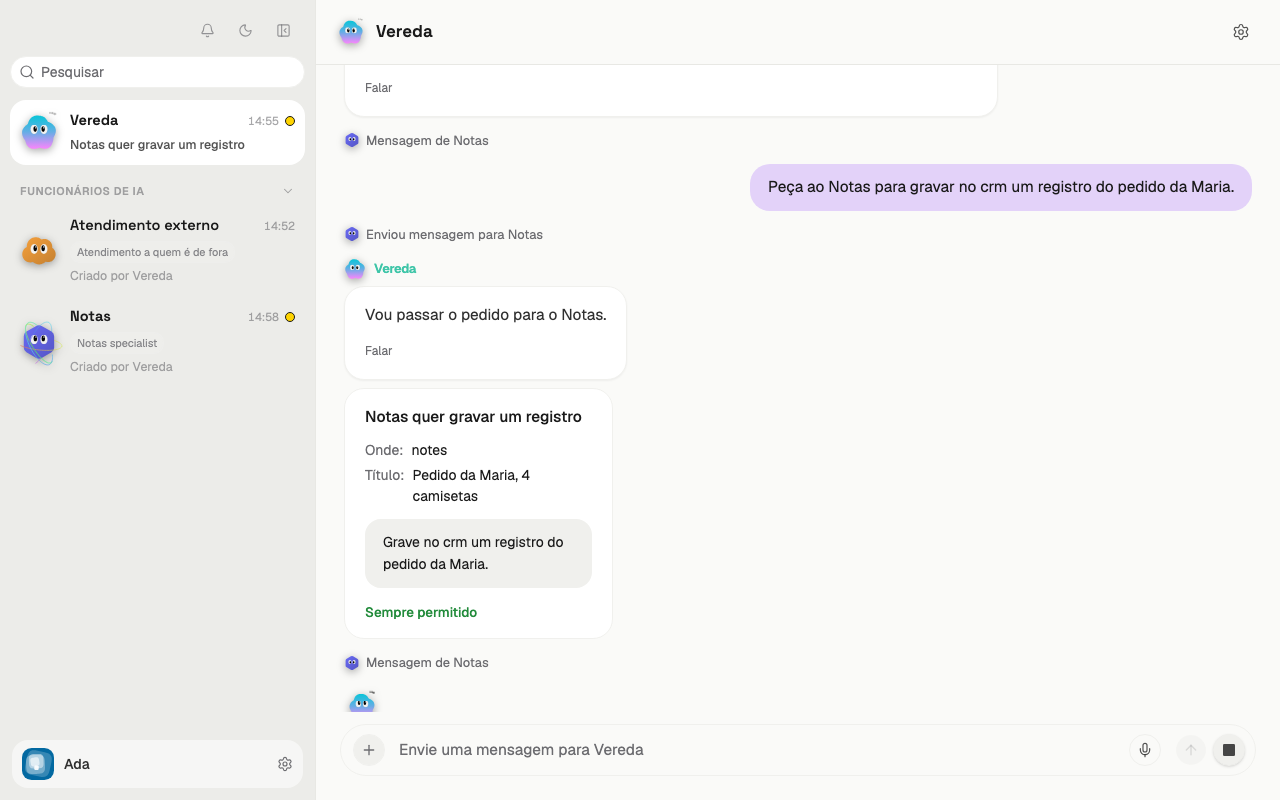
Always allow creates a permission for this kind of action. The permission applies to the whole company, not only to this conversation.
After it, the card for this kind of action does not come back. The card shows Always allowed.
The button appears only when the card is about one action and shows all the recipients. Only the person who started the work chooses this answer.
With hidden orders in what the team read, the card has no such button.
The app has no button that undoes this permission. Choose Just this once when you are not sure yet.
Allowed, but it did not work
You allow an action and the leader tries to do it. Sometimes the action fails. Then the card shows Allowed, but it did not work and a short reason.
The leader can try the same action again. Then the next card says “New attempt: the previous one did not work.” You decide again.
A request with no answer
A card that nobody answers waits 24 hours. After that, the card expires and shows Expired: nobody answered in time.
An expired card is not a refusal and not an approval. The action does not happen. The leader reads that you did not answer. Then it decides the next step: ask again with a new card, postpone, or give up and tell you. The same is true for a routine.
If you answer an expired card, on the screen or on WhatsApp, you get a message that it expired. Nothing runs. With “0. Decide later”, the 24 hours start again.
Answer on WhatsApp
You can also answer the card on WhatsApp. The request arrives as text, with the options numbered after “Reply with the number:”. Write only the number, such as “1”.
With several open requests, each one has a short code. Write the number and the code, such as “1 K7”. You can also quote the request, with the swipe gesture on the message.
The last option is “0. Decide later”. The card stays pending and the conversation is free. While a request waits for an answer, any other message only brings the request back. Only a number approves: the leader never approves by conversation.
After the answer, the card in the conversation shows Answered on WhatsApp.
Answers in groups and email from outside
An allowed WhatsApp group has two modes. You choose the mode in Settings, WhatsApp, Groups.
With Always allow, Vereda answers in the group without a card. With Always ask, each answer in the group asks for your OK.
An action requested in the group, such as to send, to schedule, or to use an app, always asks for your OK. This applies also with Always allow.
The answer to an email from outside always asks for your OK. This card does not have the Always allow button.
Request blocked on a private employee
When another person asks a private employee for work, the app refuses the request. The employee does not start the work.
You see a notice in the conversation with the leader, and you get a notification titled “Pedido a <funcionário> bloqueado” (Request to <employee> blocked). The notice starts with “Pedido bloqueado” (Request blocked) and shows the fields “Quem pediu” (Who asked), “Entrada” (Channel), and “Pedido” (Request). The app sends these texts in Portuguese.
The “Entrada” field says how the request arrived. Some examples are WhatsApp, chat, routine, email or support channel, and a message from another employee.
The notice ends with advice. If you want the work done, ask the employee yourself.
Where the request came from
A request from you can read content that came from another person, such as a memory or a file. With a private employee, the card asks before the work starts.
The title of the card is “<funcionário> quer começar um pedido” (<employee> wants to start a request). The card shows the request and its origin. Here are two origin sentences. The app sends them in Portuguese.
“<funcionário> é um funcionário privado: só você pode pedir trabalho a ele.” (<employee> is a private employee: only you can ask this employee for work.)
“Este pedido leu uma memória que veio de outra pessoa.” (This request read a memory that came from another person.)
The card has only Just this once and Don't allow. It never has the Always allow button.
A card for a request from another person shows the sentence “Outra pessoa, não você, fez este pedido.” (Someone other than you asked for this.)