
Conversation
Send a message
The text field is at the bottom of the conversation. The Send button stays inactive while the field is empty.
To break the line without sending, press Shift+Enter.
- Click the text field.
- Write your request.
- Click Send or press Enter.
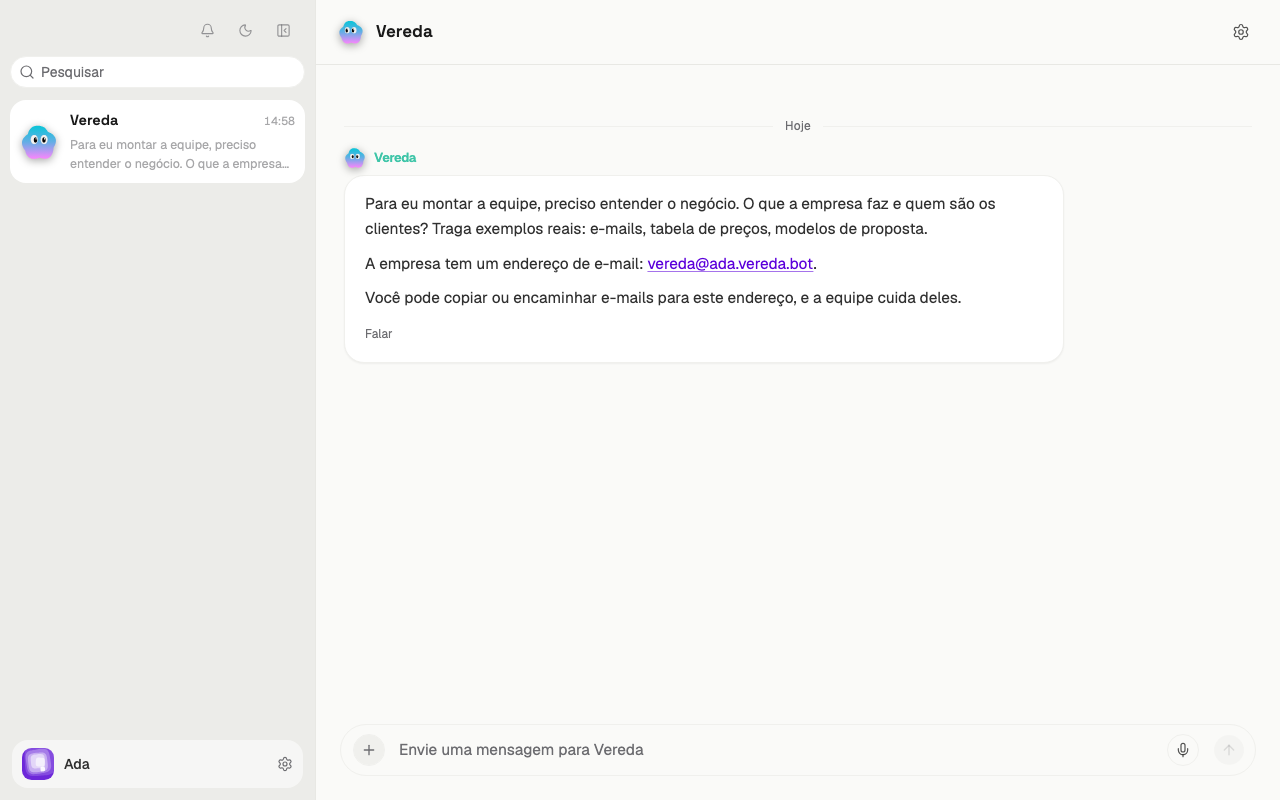
See the message in the conversation
Your message appears on the right, in a colored bubble. The answer from Vereda appears on the left, in the same conversation.
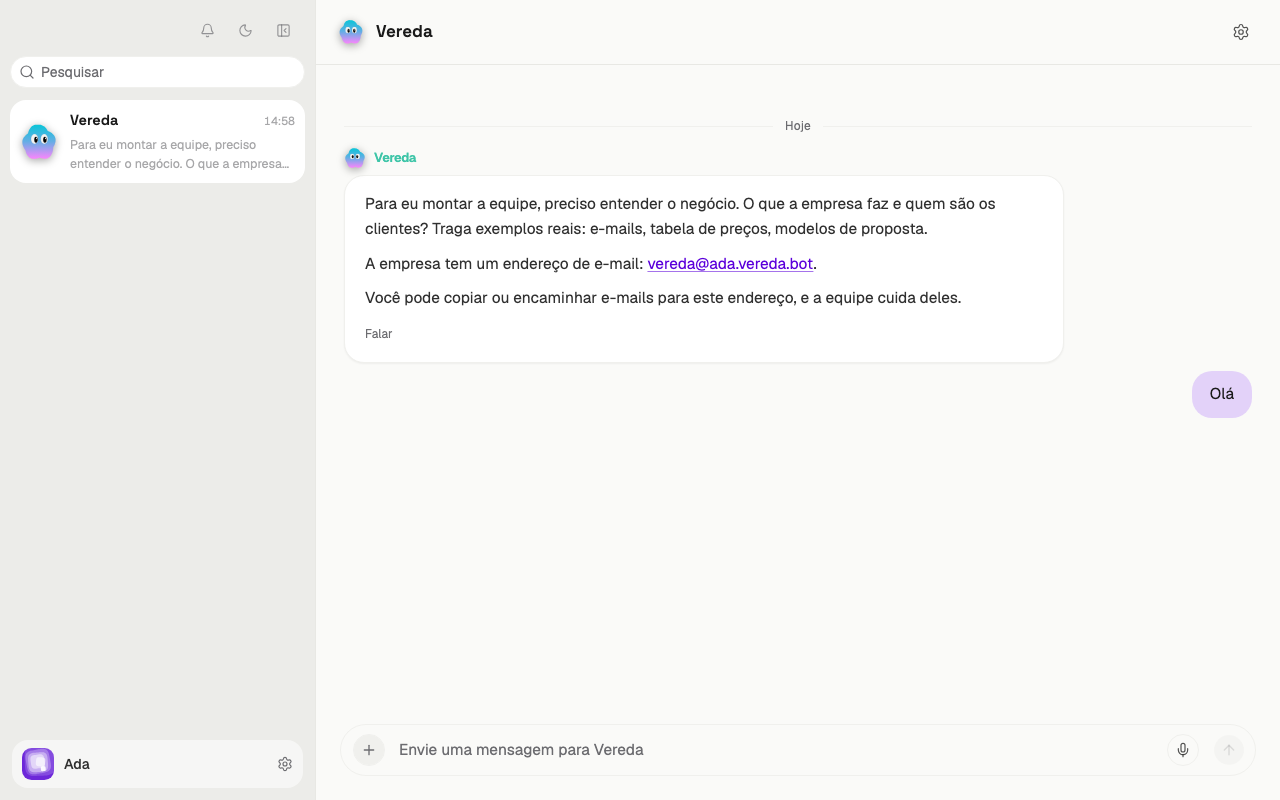
Attach files
The Attach file button has a plus sign. It sits to the left of the text field.
Document opens PDF, Word (.docx and .doc), Excel (.xlsx and .xls), and PowerPoint (.pptx and .ppt). It also opens OpenDocument (.odt, .ods, and .odp), RTF, HTML, XML, text, Markdown, CSV, JSON, and .zip files. Photo and video opens JPG, PNG, WebP, GIF, HEIC, MP4, MOV, and WebM. Audio opens MP3, M4A, OGG, OPUS, WAV, and AAC.
An iPhone HEIC photo becomes a JPG in the browser, when the browser can open the photo. A .zip file opens at once, and each file inside becomes an attachment.
You can also drag files into the field or paste an image into it.
- Click Attach file.
- Choose Document, Photo and video, or Audio.
- Choose the file on your computer. Its name appears above the text field.
- Write a message, if you want, and click Send.
File limits
Each message carries up to 10 files. The files of a .zip have a separate limit, up to 100 per message.
The size limit changes with the file type. The limit is 100 MB for PDF, .docx, .pptx, .xlsx, TXT, MD, and CSV files.
The limit is 50 MB for audio and video. The limit is 10 MB for photos, HTML, XML, JSON, and the old formats, such as .doc, .xls, .ppt, .odt, .ods, .odp, and .rtf.
If a file is over the limit or has a type that Vereda does not accept, the conversation shows a notice above the field. The notice names the skipped file.
Vereda reads old formats in the conversation, such as .doc, .xls, .ppt, .odt, .ods, .odp, and .rtf. The company Base accepts only .docx, .xlsx, .pptx, .pdf, and text.
Above 6 attachments, the conversation shows the first 6 and a button with the number of the others, such as +14 files. Click the button to see all of them.
Remove an attachment before you send
Each chosen file appears above the text field, with its name and an X.
Click the X next to the file name to remove the attachment. Vereda does not receive that file.
Stop an answer
While the team works, the Stop button appears next to Send.
Click Stop to interrupt the work.
Reply to a message
You can reply to one specific message of the conversation. The notice Replying to appears above the text field. Click the X of the notice to cancel.
On a touch screen, open More and choose Reply. In that menu, Copy copies the text of the message.
- Move the mouse over the message.
- Click the reply icon.
- Write your reply.
- Click Send.
Talk by voice
The Voice button sits to the right of the text field. It has a microphone icon. It does not appear in groups.
On the keyboard, Space interrupts the speech and Esc hangs up. The Voice chapter explains how to choose the voice and when Vereda answers in audio.
- Click Voice. The call window opens.
- Talk to Vereda. A pause sends what you said.
- Listen to the answer. Click Interrupt to cut the speech.
- Click Hang up to end the call.