First access
How to confirm your WhatsApp
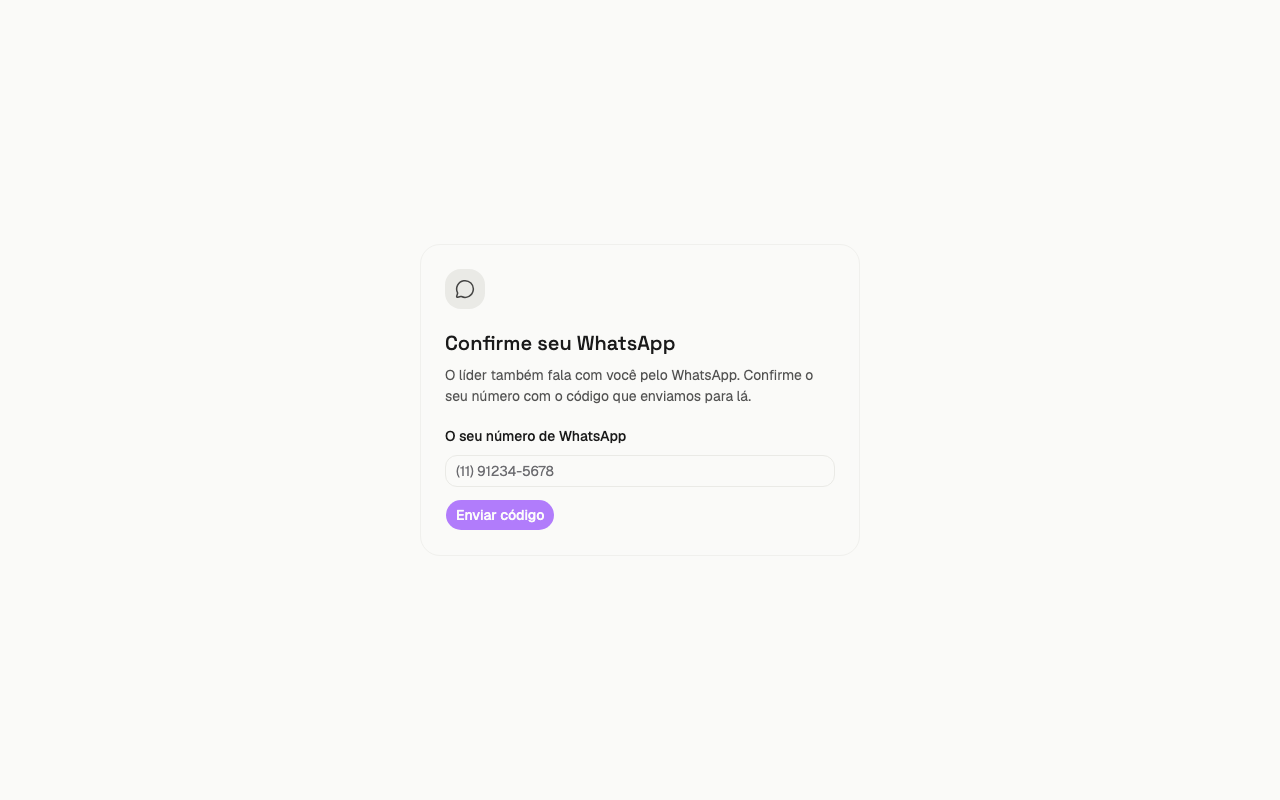
After you create the password, the Confirm your WhatsApp page appears. Vereda also talks to you on WhatsApp.
The page appears again at each sign-in, until you confirm a number.
- Check the number in Your WhatsApp number. Correct it if it is wrong.
- Click Get my code. The screen shows the code.
- Click Send on WhatsApp. On a phone, WhatsApp opens with the message “VEREDA <code>” ready. On a computer, scan the QR code with your phone.
- In WhatsApp, send the message without changing the text. No code arrives for you to type.
- Go back to Vereda. The page moves on by itself when the number is confirmed.
- If the confirmation does not arrive, check that you sent the message as it came, and try again.
- If the number is wrong, click Change number.
How to continue without confirming now
If Vereda cannot open the confirmation, the Continue without WhatsApp for now button appears. It is valid for this tab only.
Vereda asks for the confirmation again the next time you open the app. The button does not appear when the confirmation works.
How to open the first conversation
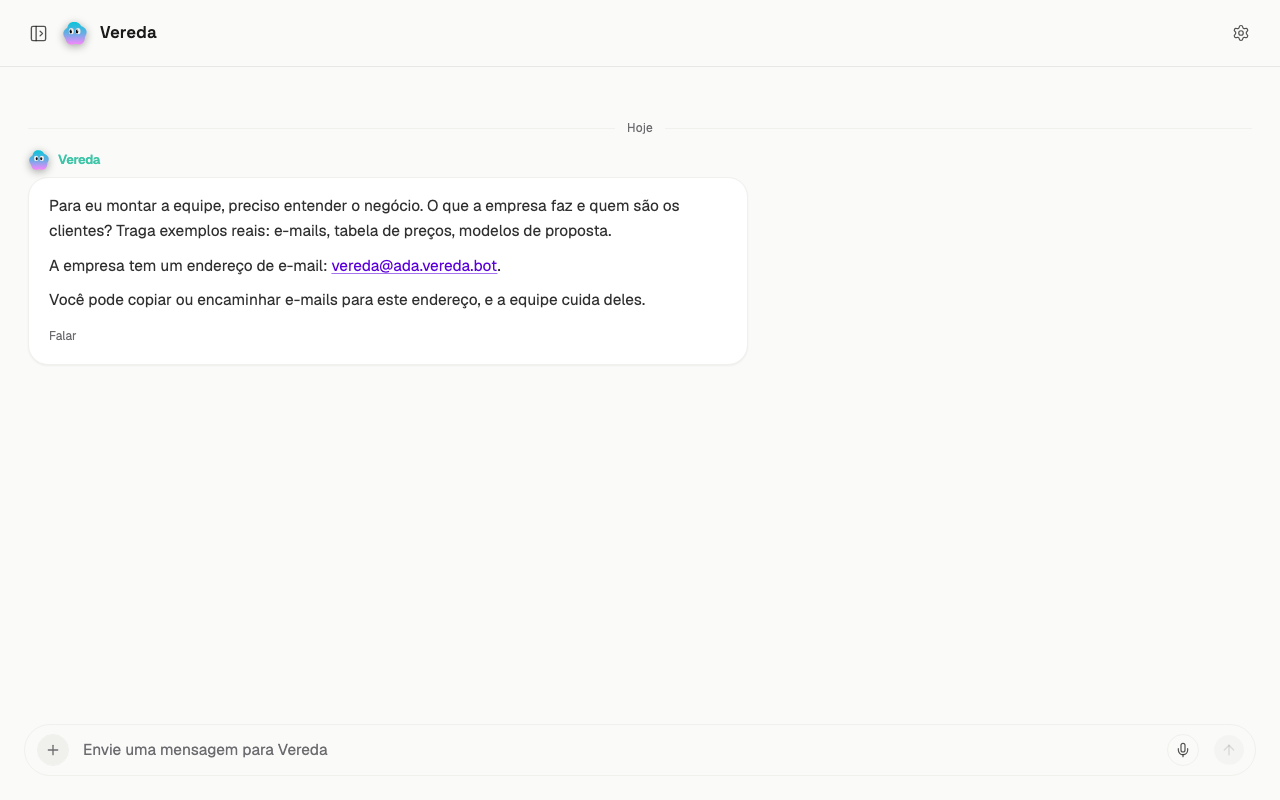
After WhatsApp, the Opening chat… page appears for a moment. Then the Vereda chat opens.
Vereda writes first. If Vereda has already read your business, it summarizes what it found and suggests where to start.
If it has not, it says: “For me to build the team, I need to understand the business. What does the company do, and who are the customers?” Answer as in a conversation.
In the same message, a second block gives the company e-mail address. It says: “You can copy or forward e-mails to this address, and the team handles them.”
- Click the message field, which says “Send a message to Vereda”.
- Write your answer.
- Click Send.
How to use the three icons at the top
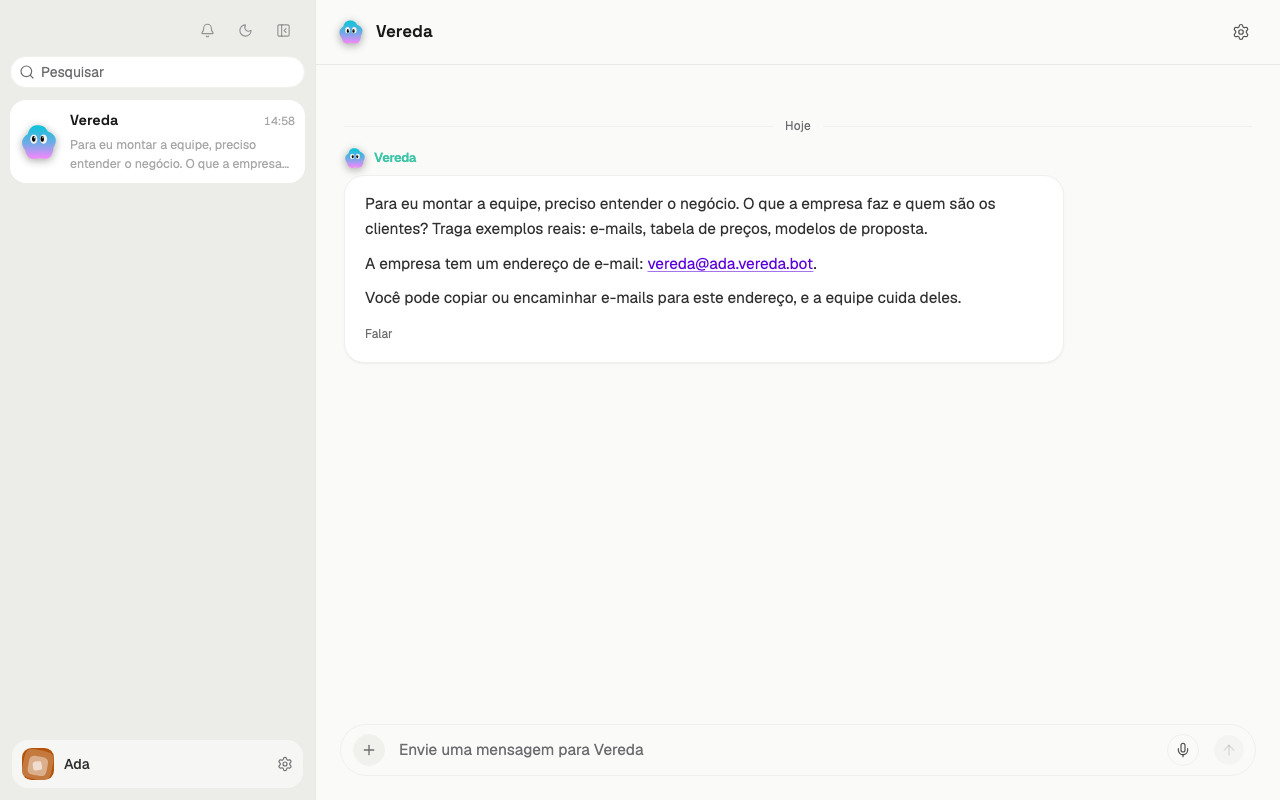
Three icons sit at the top of the left column. The first is the bell, the second is the theme, and the third minimizes the column.
The Activity bell shows the activity list above the list of bots. Click again to hide it.
The theme icon switches between the light theme and the dark theme. In the light theme, its name is Switch to dark theme. In the dark theme, its name is Switch to light theme.
The third icon, Minimize bots, hides the column and leaves more room for the conversation. On wide screens, click Show bots to bring the column back.
How to accept the terms
You accept the Terms of Service and the Privacy Policy at purchase, before payment. So the first access does not ask for the acceptance again.
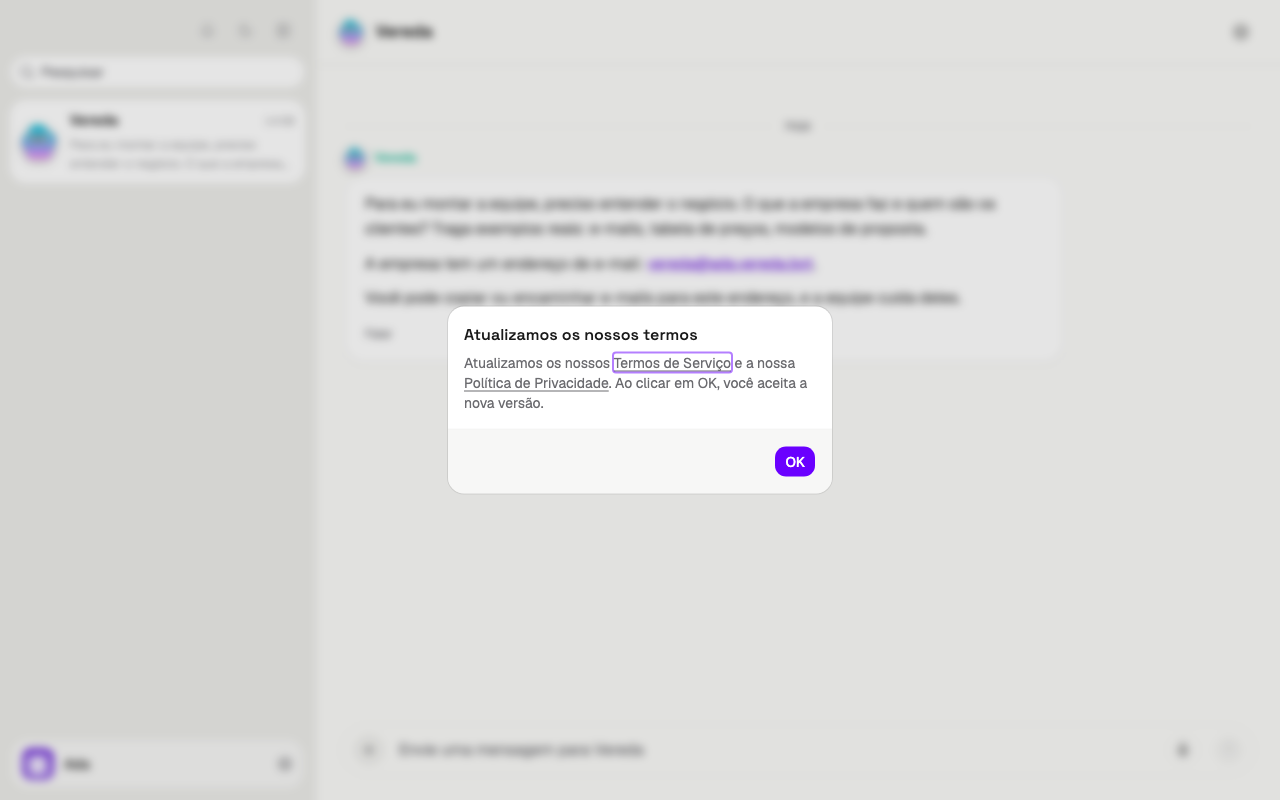
When the terms change, the We updated our terms notice opens once, after sign-in. It covers the conversation.
The notice has the links Terms of Service and Privacy Policy. Each link opens the text in another tab.
Read the text and click OK. The click accepts the new version and frees the conversation.