
Routines
Ask for a routine
A routine is work that an employee repeats by itself, for example reading the inbox every morning. A reminder is a routine that runs only once.
Each employee can have its own routines. You ask the leader for the routine. The leader creates it for the right employee, after the two of you agree on the days and the hours. If the work belongs to the leader, the leader keeps the routine.
Each time the routine runs, the employee works in its own conversation.
- Open the conversation with the leader.
- Write what the team does and when. For example: every morning, read the inbox and tell me what needs me.
- Read the answer from the leader and confirm the days and the hours.
- Open the settings of the employee that runs the routine and see the routine in Routines.
Days and hours
A routine that repeats runs on the days and at the hours you agree with the leader, in your time zone. The app sets no hours: a routine you ask for at night runs at night.
When a routine starts outside your conversation with the leader, a card shows the days and the hours for you to approve.
A one-time reminder also runs on the day and at the hour you choose.
If you do not want messages at some hours, turn on Quiet. Open Settings, in the General area, or ask the leader. You choose the night hours and the whole days, and you say what can wake you.
Quiet holds only the messages the app sends to you on its own. WhatsApp and e-mail messages wait and arrive when the quiet ends. In the web chat, the message appears at once, with no browser notification.
A reply to a message from you does not wait. An urgent alert does not wait either, if it matches what you wrote in What can wake me. The app lets at most 3 urgent alerts through each night. The others wait for the end of the quiet.
The work for your customers and the work of your employees goes on, and routines keep the hours you agreed.
See your routines
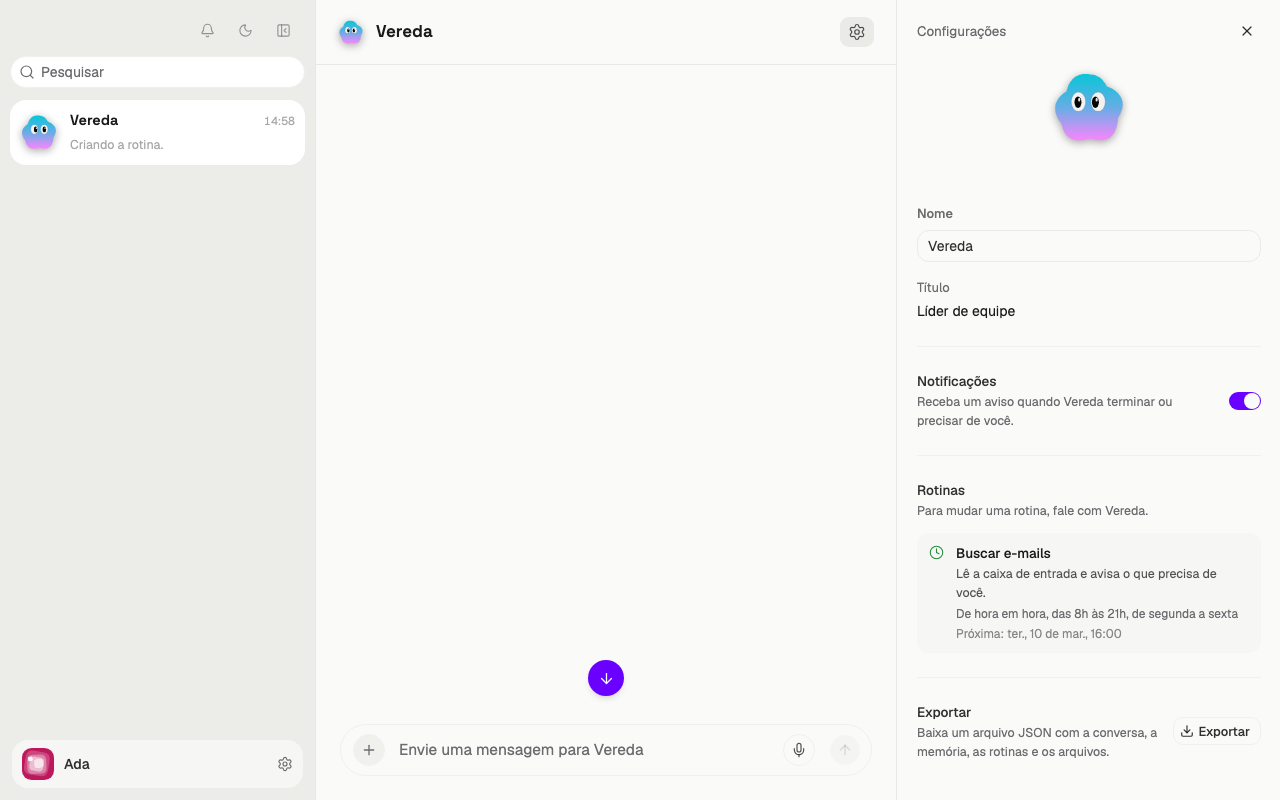
Click the name of the employee at the top of the conversation. The settings open. The Routines section lists each routine of the employee.
The routine of an employee appears in the settings of the employee. The routine of the leader appears in the settings of the leader.
Each routine shows the name, a sentence about the work, and the days and hours. The Next: line shows the date of the next run.
A routine that no longer runs shows Paused. A one-time reminder shows Paused after it runs.
Change, pause or stop a routine
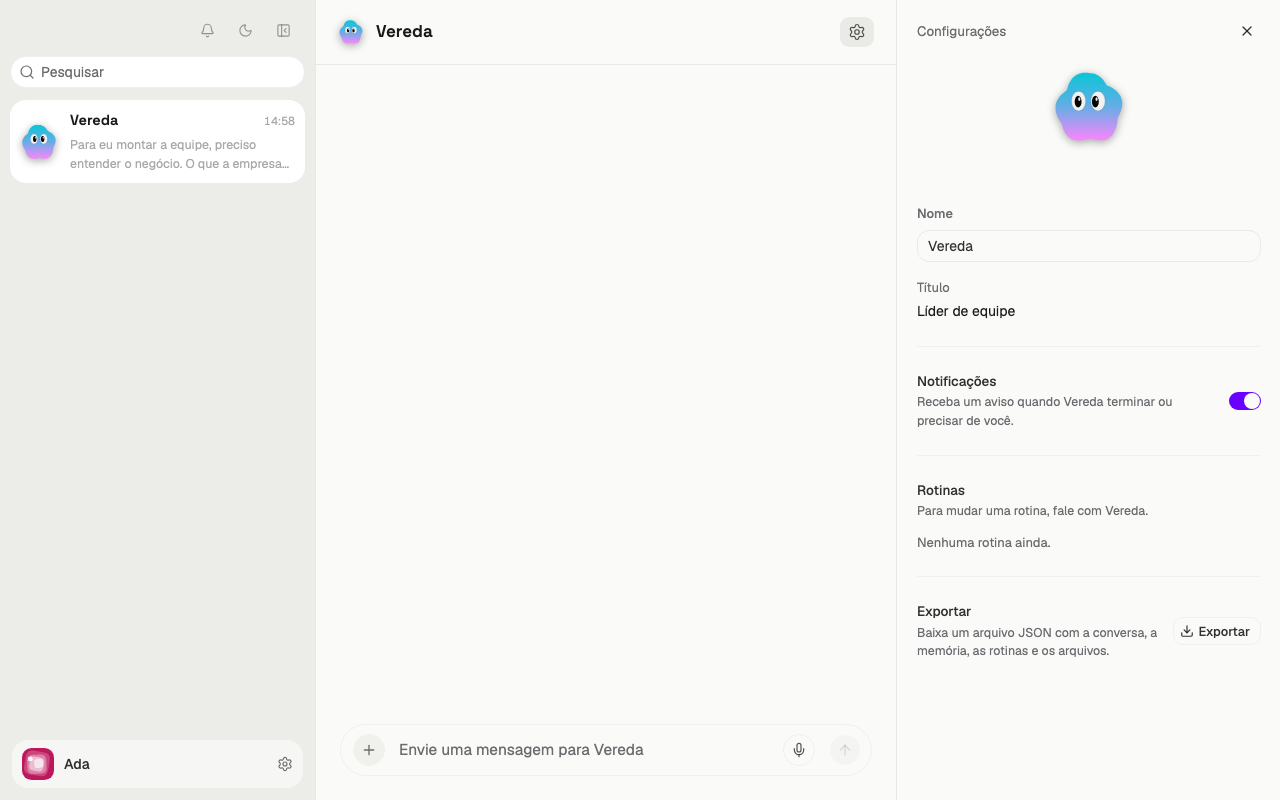
The Routines section only shows the routines. The app has no button to create, change or stop a routine. The section tells you to talk to the leader.
To change a routine, talk to the leader. Say what changes, for example the hours. The leader cancels the old routine and creates a new one.
To stop a routine, ask the leader. The leader deletes the routine. There is no pause that you resume later. Ask for the routine again when you want it.
What the routine does by itself
The routine works the way the employee works in a conversation. It reads, writes and prepares the work without asking you for anything.
An action that needs your approval, such as sending an e-mail, does not happen by itself. The routine stops and waits for your approval card.
While the card waits, the Activity list shows Needs input. Answer the card so the routine continues.