Subscription
Open Subscription
The Subscription area shows your plan, the credit of the month, and the payment buttons.
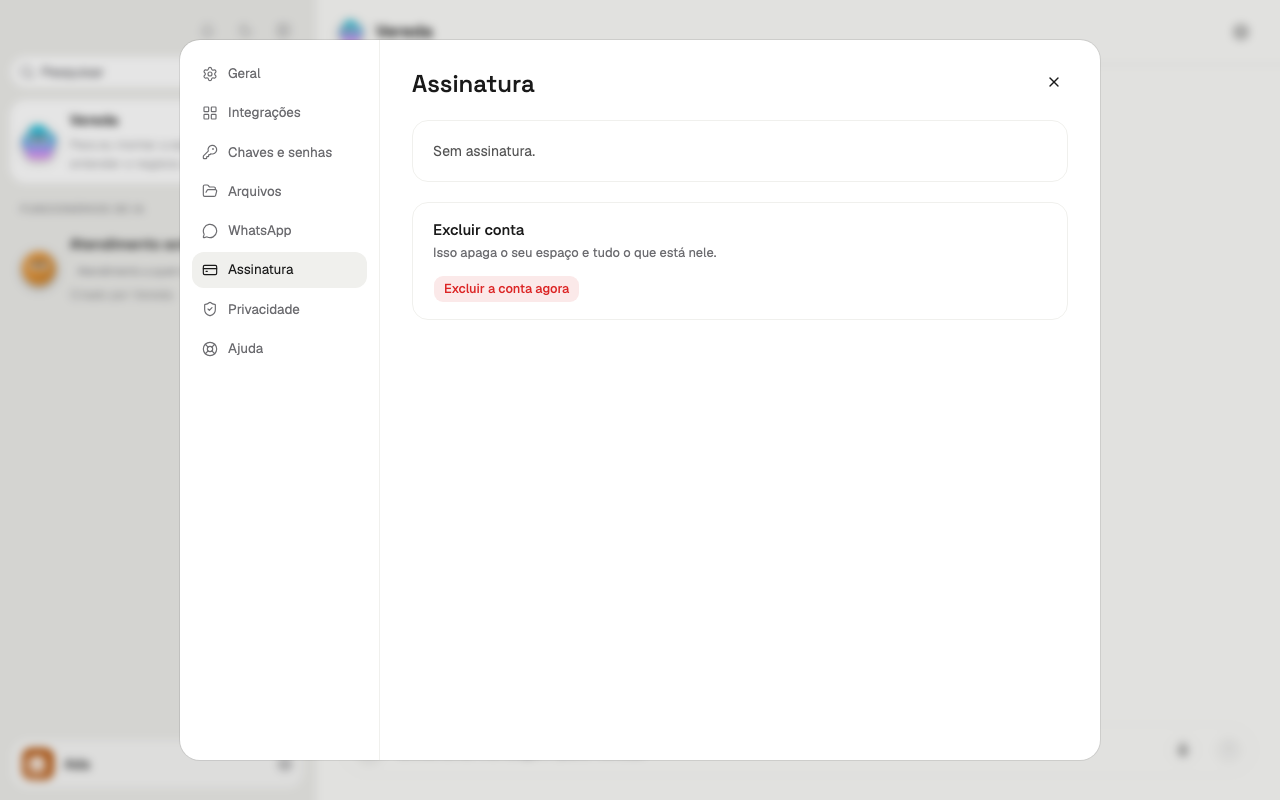
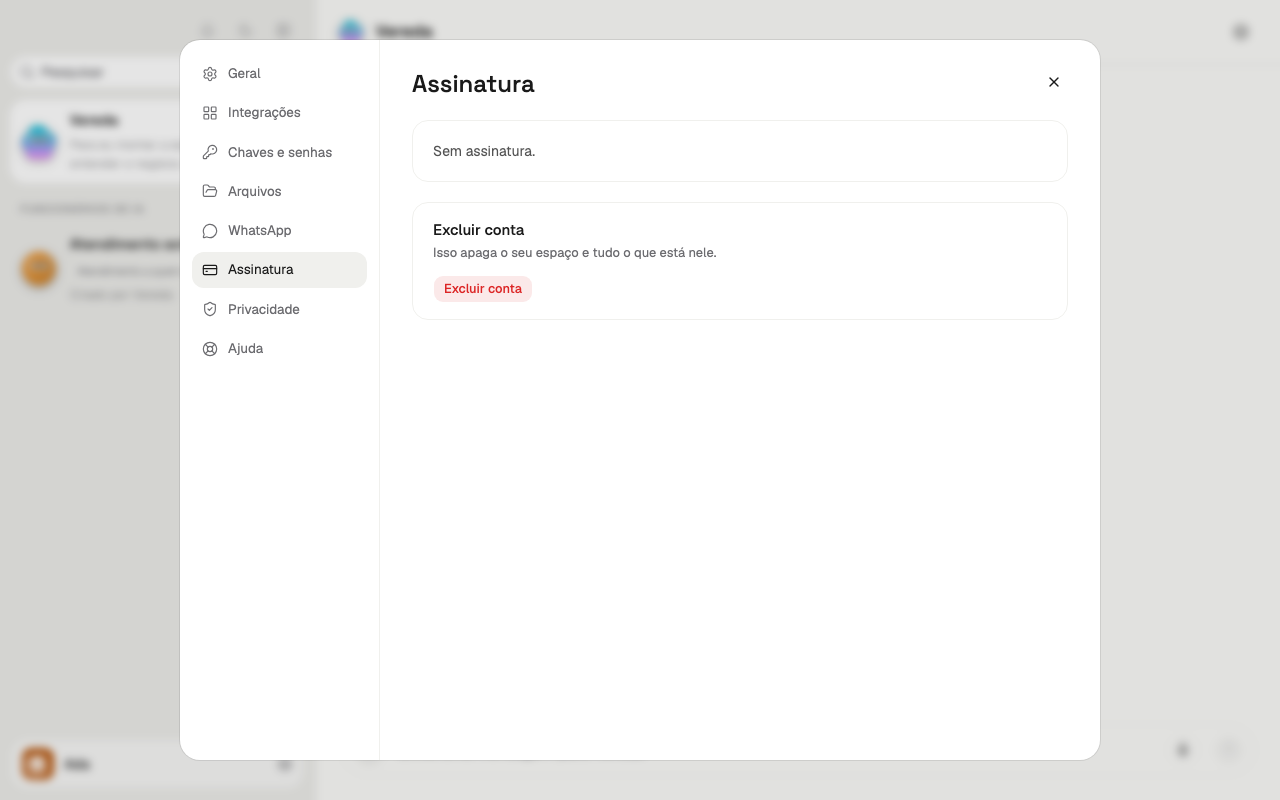
An account with no plan shows only the No subscription. card and the Delete account card.
- Open Settings. The Account chapter shows how.
- In the menu on the left, click Subscription.
See the plan and its state
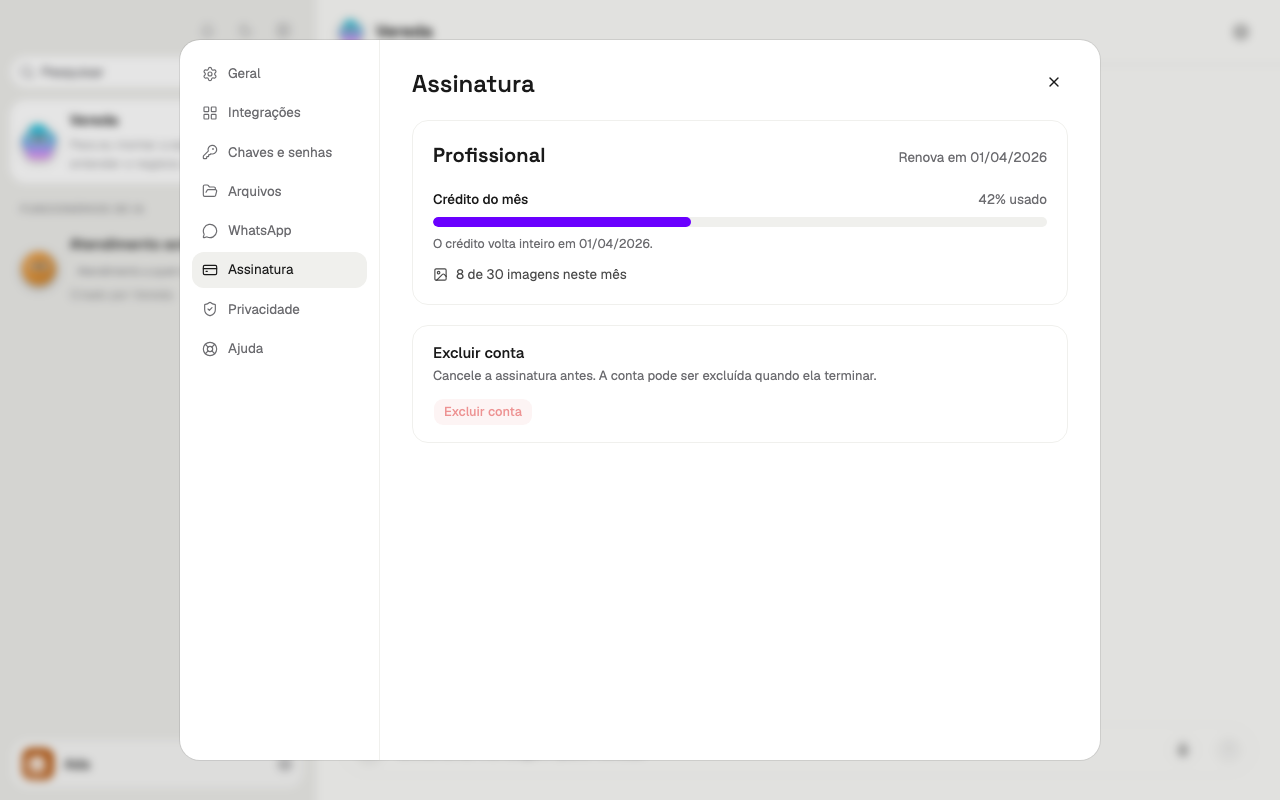
With a plan, the first card shows the plan name. The state of the plan is next to the name.
In the free trial, the state starts with “Free trial until” and shows the date the trial ends.
With the plan up to date, the state starts with “Renews on” and shows the renewal date.
If the payment fails, the state says Payment pending. The section Fix a pending payment explains what to do.
After you cancel, the state starts with “Canceled. Works until” and shows the date. The plan runs until that date.
If you asked to change to another plan, one line starts with “Changes to” and shows the plan name and the date of the change.
Some plans include images. For these plans, the card shows how many images you used this month and how many the plan gives.
Follow the credit of the month
The Credit this month is how much the team can work in the month. The screen shows the percentage of credit already used, with the word used.
The bar fills as you use credit. Near the end, the bar changes color.
Below the bar, the screen says when the credit returns. The full credit returns on that date.
When the credit ends, the screen says the team paused new tasks until the return date. You can buy extra credit to continue sooner.
Change plan
The Change plan button appears only when you have a plan.
The button opens the Stripe page in another tab. You choose the plan on that page.
Close the Stripe tab when you finish. Vereda stays open in the previous tab.
- In the Subscription area, click Change plan.
- In the tab that opens, choose the new plan.
- Confirm the change on the Stripe page.
Buy extra credit
Buy extra credit when the credit of the month is not enough. The button starts with Buy extra credit and shows the price of the pack.
On some plans, the button also says how much the pack adds to the credit of the month.
The button opens the payment in another tab. There you choose from 1 to a maximum number of packs. The maximum depends on the plan.
If the plan is not active, the button stays inactive.
- In the Subscription area, click the button that starts with Buy extra credit.
- In the tab that opens, choose how many packs you want.
- Pay on the Stripe page.
See the invoices or cancel
The Payment, invoices and cancellation button opens the Stripe payment page in another tab.
On that page, you see the payments and the invoices. You also cancel the plan there.
Canceling does not delete the account. To delete the account, see the section Delete the account.
- In the Subscription area, click Payment, invoices and cancellation.
- Use the page that opens in another tab.
Fix a pending payment
The Fix payment button appears only when the state says Payment pending.
The button opens the Stripe page in another tab. Correct the payment method there.
- In the Subscription area, click Fix payment.
- In the tab that opens, correct the payment.
- Go back to Vereda and check that the state no longer says Payment pending.
Delete the account
The Delete account card sits at the end of the Subscription area. Its sentence says This removes your space and everything in it.
The button is active only when you have no plan or when the plan has ended.
With a plan in progress, the sentence on the card becomes Cancel the subscription first. The account can be deleted after it ends. The button is inactive.
The button needs two clicks. The first click only changes the name of the button. The second click deletes the account.
Before the second click, confirm that you want to delete the space and everything in it.
- In the Subscription area, find the Delete account card.
- Click Delete account. The button now says Delete account now.
- To delete, click Delete account now.
- Wait for the message Account deleted.