
Privacy
Open Privacy
The Privacy area shows whether support has access to your account now. It also shows the requests from support and the access history.
Support does not enter your account alone. You decide whether it enters and for how long.
- Open Settings. The Account chapter shows how.
- In the menu on the left, click Privacy.
What BBI.MEDIA support sees
With your access allowed, the support team of BBI.MEDIA sees only the diagnosis and the setup of your team. The access is read-only.
Support sees the team and the roles. It sees the name and the description of the recipes, and the connected apps.
Support sees the name and the time of the routines. It also sees the recent runs and the use of credit.
Support does not see your conversations or your messages. It does not see the text of the recipes, the text of the routines, passwords, or keys.
The text on the screen says the same: Conversations are not included.
Allow the access on your own
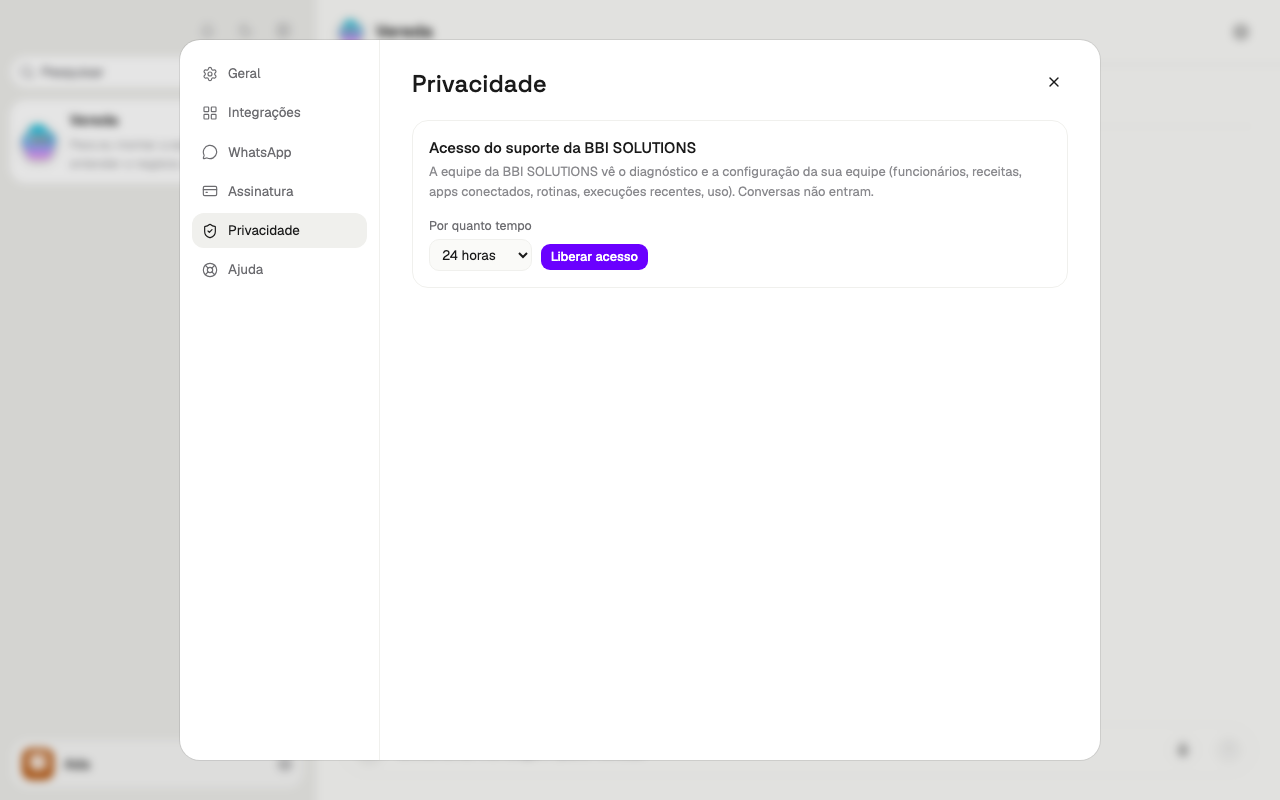
You can allow the access without waiting for a request. Choose for how long support can see your account: 24 hours, 3 days, or 7 days.
The access ends alone at the end of the period. While an access is active, the form disappears. To allow a new period, end the access first. The section See the active access and end it explains how.
Only the account owner allows. A person who is not the owner reads the sentence Only the account owner allows or ends this access. and does not see the button.
- In the Privacy area, find the For how long list.
- Choose 24 hours, 3 days, or 7 days. The list starts at 24 hours.
- Click Allow support access.
Answer a request from support
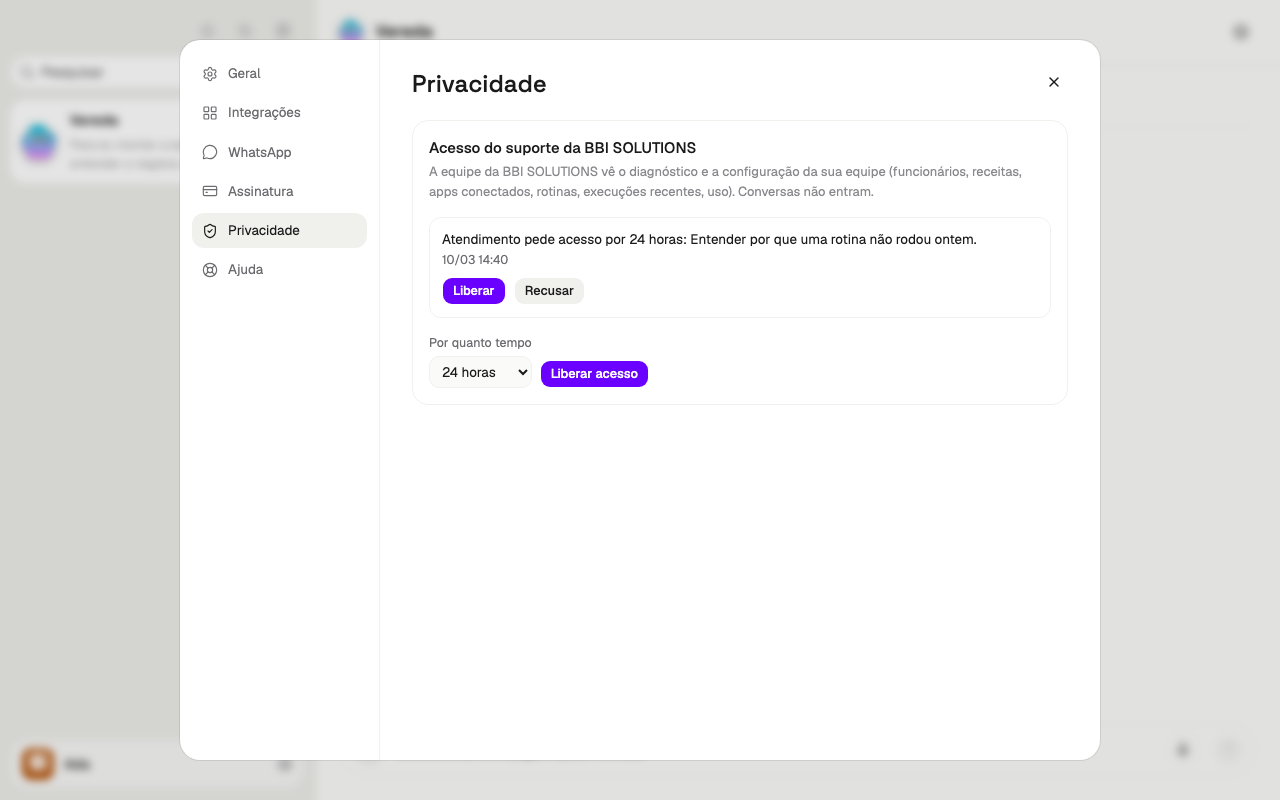
When BBI.MEDIA support needs to see your account, it makes a request. The request arrives as a card in the conversation with the team leader. WhatsApp can receive the same notice.
The card says for how long support asks for access and for what reason. It also says Conversations are not included.
The request stays in the Privacy area until you answer. You can answer on the card or in that area.
If support asks for 3 days and you want less, refuse the request and allow a shorter access in the Privacy area.
After your answer, the card shows Access allowed or Access refused.
Only the account owner answers. A person who is not the owner reads the request and the sentence Only the account owner allows or ends this access. The buttons do not appear.
- Read the reason and the period of the request.
- Click Allow access to accept the requested period.
- To deny, click Refuse.
See the active access and end it
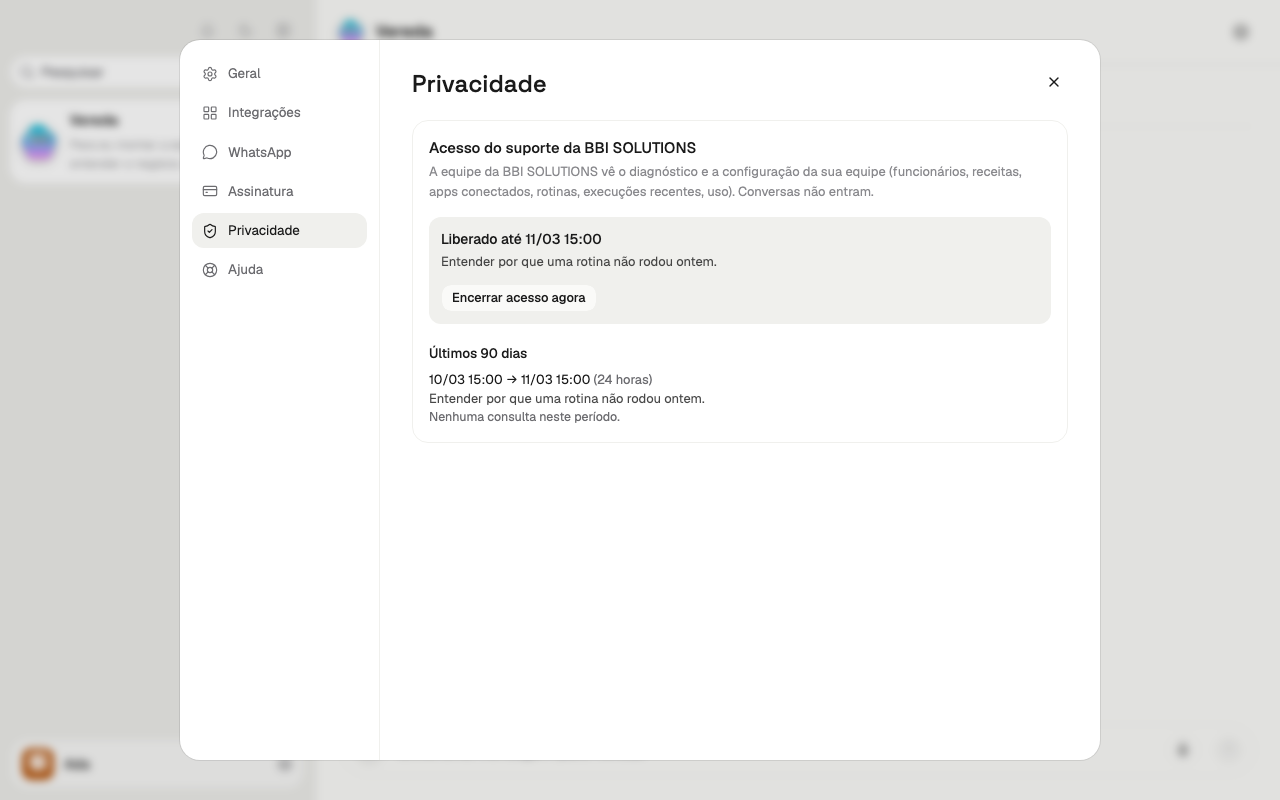
While an access is active, the Privacy area shows a box that starts with “Allowed until” and gives the end date. If the access came from a request, the box also shows the reason.
You can end the access before the end date. After you end it, support no longer queries your account.
- In the Privacy area, find the box that starts with “Allowed until”.
- Click End access now.
Check the history of the last 90 days
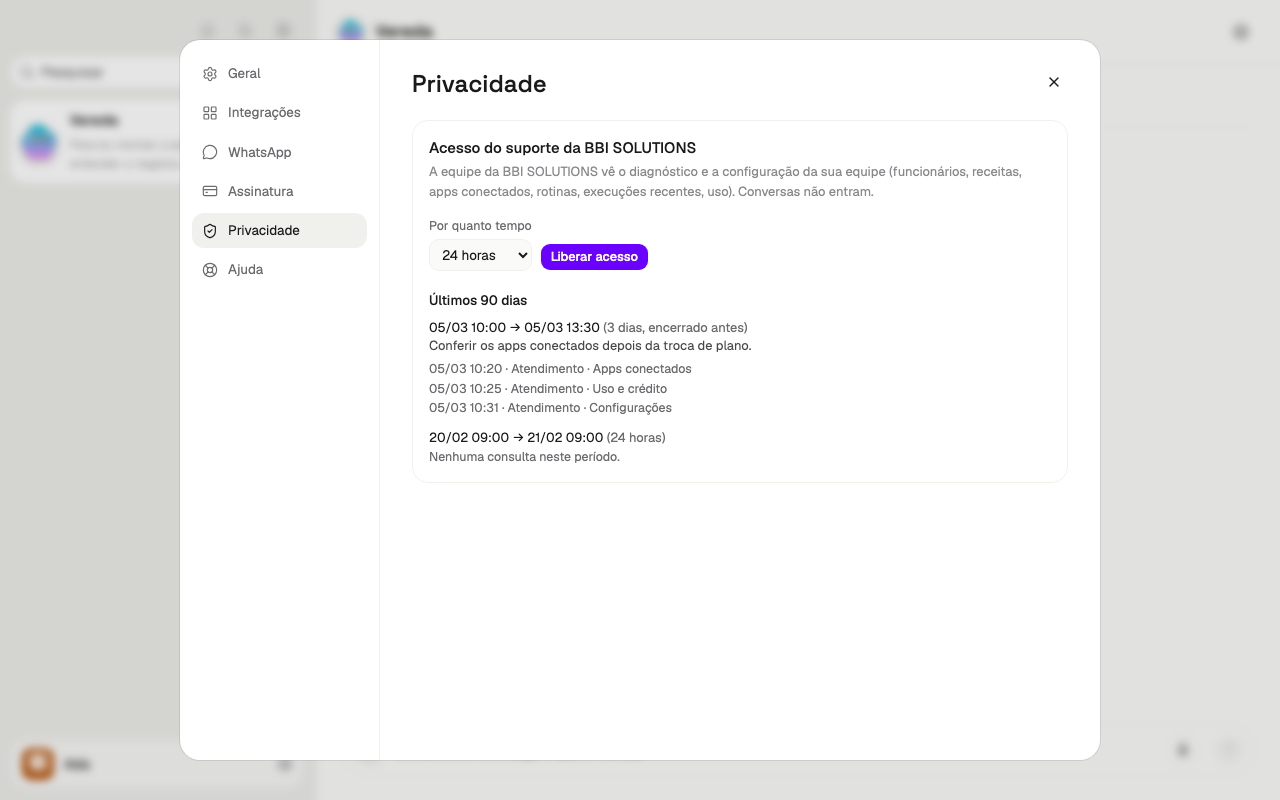
The Last 90 days section lists each access that you allowed. Each item shows the day and the time of the start and of the end. The time zone is São Paulo.
Next to it is the duration. If you ended the access before the end date, the item says ended early.
Below each access, a line shows each query from support. The line has the day, the time, the name of who queried, and the subject.
The subjects are Team and roles, Recipes, Connected apps, Routines, Recent runs, Usage and credit, and Settings.
If support queried nothing, the item says No query in this period.
The section appears only after the first access.
When the team reads content from outside
The team reads emails and websites from other people to do the work.
That reading does not send your private data outside.
Before your private data leaves, the card asks for your OK. Only a rule of yours that includes private data frees that card, and never when the team found hidden orders. Always allow does not free that card.
If the team finds hidden orders in what it read, each output asks for your OK, with no Always allow.
The Approvals chapter explains the cases that ask for your OK.