
Integrations
Open Integrations
An integration lets the team use one of your apps, such as Gmail or Google Calendar.
You connect the app once. After that, the team uses the account you connected.
- Click your name, at the bottom corner of the sidebar.
- Click Settings.
- In the Settings menu, click Integrations.
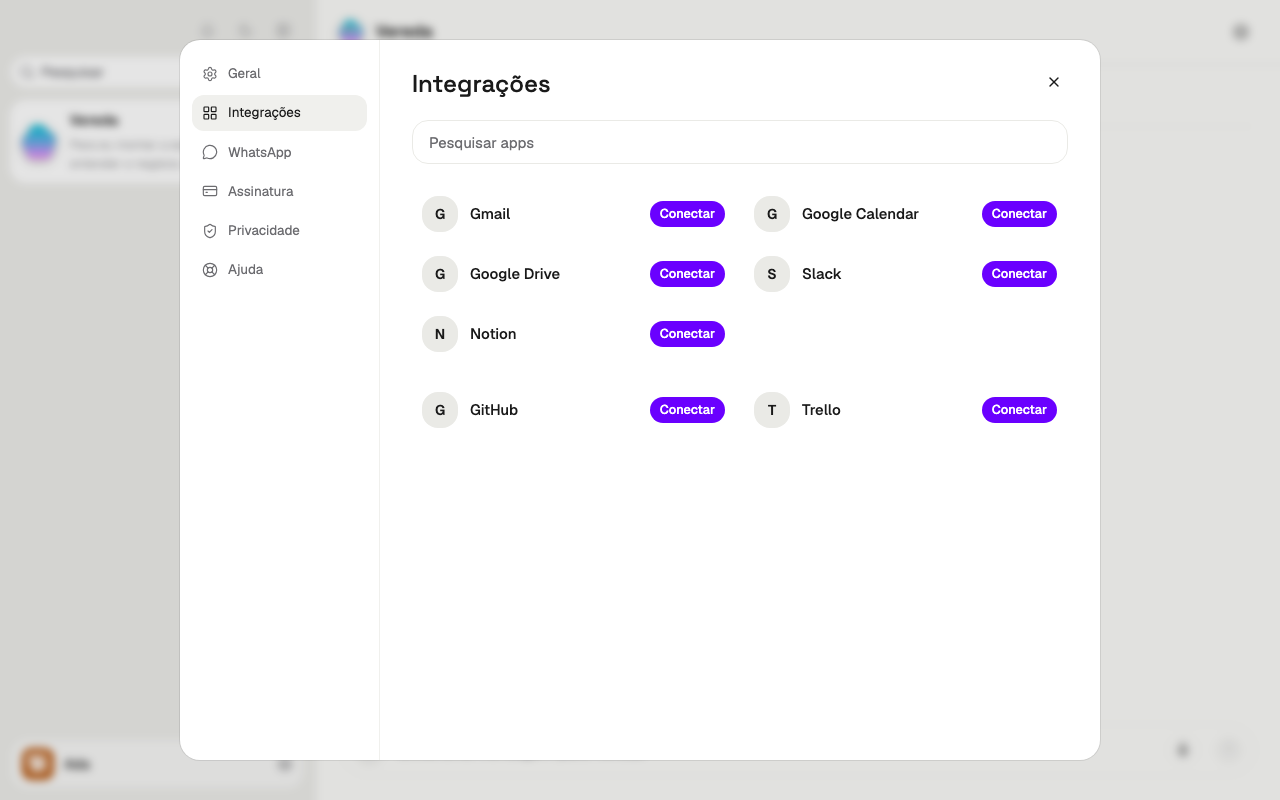
Find an app
The most used apps sit at the top of the list: Gmail, Google Calendar, Google Drive, Slack, and Notion. The other apps sit below.
The list shows 60 apps at a time. To see more, click Show more.
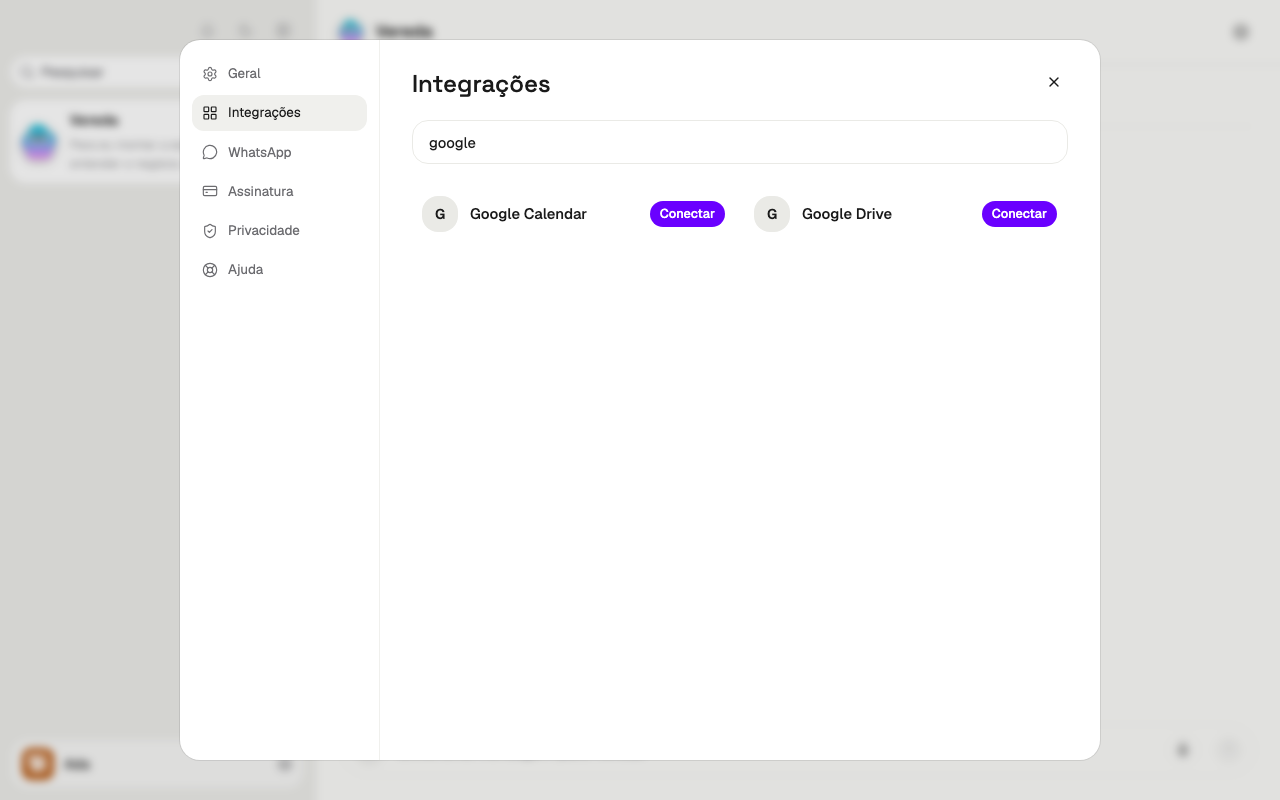
If no app matches the search, the screen says No apps match your search.
- Click the Search apps field.
- Write part of the app name.
- Look in the list for the apps with that name.
Connect an app
The Connect button opens a new tab. The login page in that tab belongs to the app itself.
Some apps do not ask for a login. They connect at once.
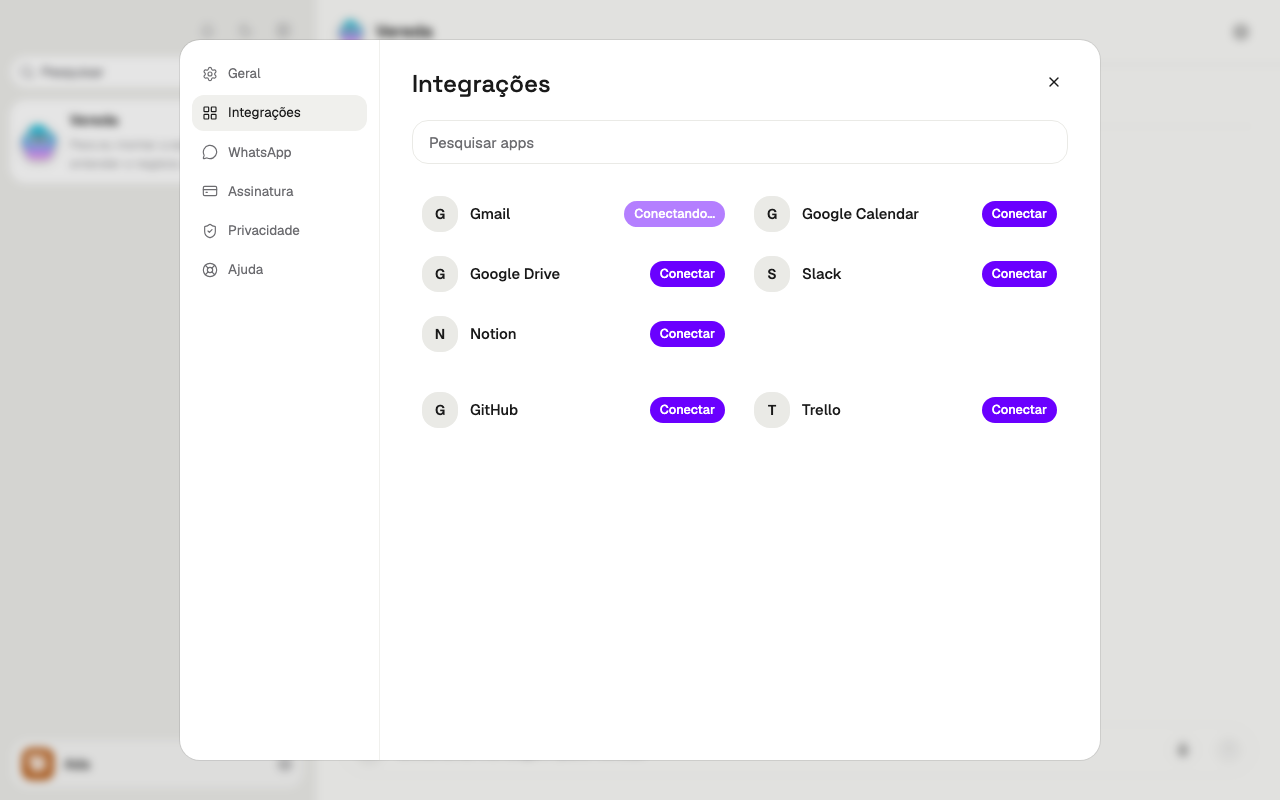
While the login tab stays open, the button shows Connecting…. The screen waits about 90 seconds.
If the connection does not finish, the screen tells you. The Connect button returns, and you try again.
- Find the app in the list.
- Click Connect.
- In the new tab, sign in to the app and allow the access.
- Go back to Vereda. The button of the app changes to Connected.
See the account of an app
A connected app shows the Connected button. Click it to open the page of the app.
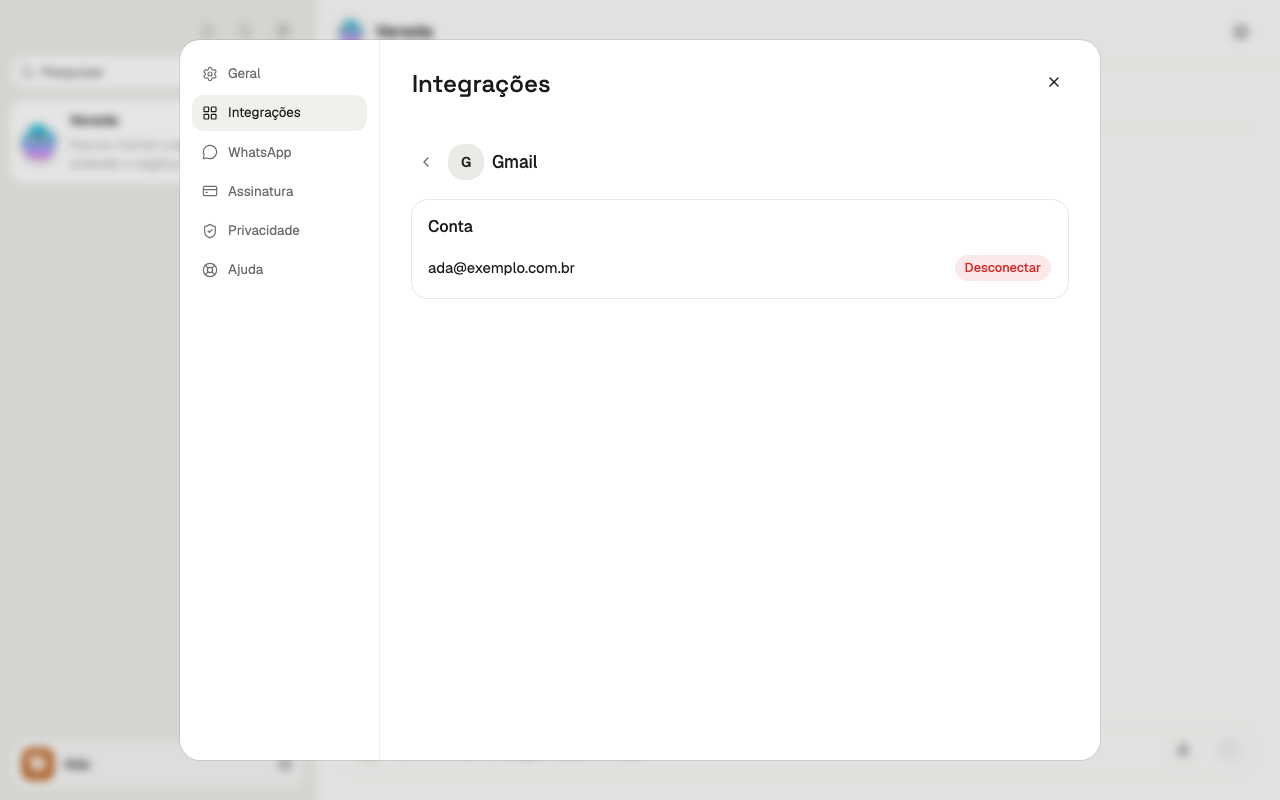
A mail app, such as Gmail, shows one card for each connected account, with its address. The other apps show the Account card.
If the app does not report the account, the screen shows Account connected and the day of the connection.
The arrow at the top of the page goes back to the list.
Disconnect an app
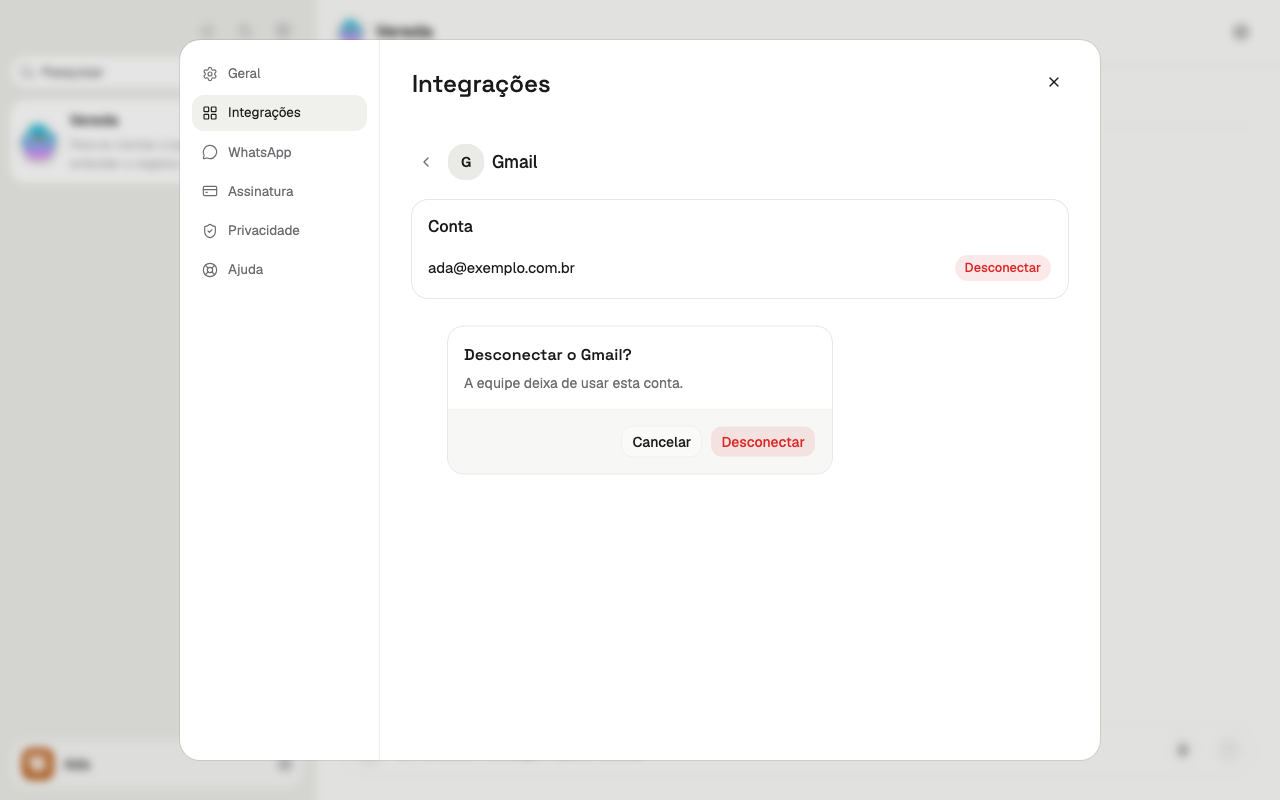
When you disconnect, the team stops using the account. Before that, the screen asks if you are sure.
After you disconnect, the app returns to the list with the Connect button.
- Click Connected on the app.
- In the card of the account, click Disconnect.
- Read the question. The text says The team stops using this account.
- Click Disconnect to confirm. To give up, click Cancel.
One account per app
Each app has one account only. Gmail and Outlook are the exception: the section Several mailboxes explains.
To use another account of an app, disconnect the current account. Then connect the app again with the new account.
Sometimes another tab or another device connects the app before you. Then the screen says This app already has a connected account. and the button changes to Connected.
Several mailboxes
Gmail and Outlook take several accounts. You can connect your personal mailbox and the company mailboxes at the same time.
Each account has its own mark: Private or The company's. You choose the mark when you connect the account, and the choice is mandatory. The mark of one account does not change the others.
An account marked as Private has one employee only. An account marked as The company's opens only to the employees you release. The account page shows who it is released to.
The e-mail login and password also takes several mailboxes. Each login has its own mark, its own employee or its own releases.
When an employee can use more than one account, it picks the account by its e-mail address.
You ask the leader for something from your personal mailbox. With two personal mailboxes, the leader passes the request to the right employee or asks which mailbox you mean.
You can also ask the leader for another account. For example: connect another Gmail.
- Click Connected on the app, such as Gmail.
- Click Connect another account.
- In the new tab, sign in with the other account and allow the access.
- Go back to Vereda. The app page shows one card for each account, and each card has its own Disconnect button.
Connect from the chat card
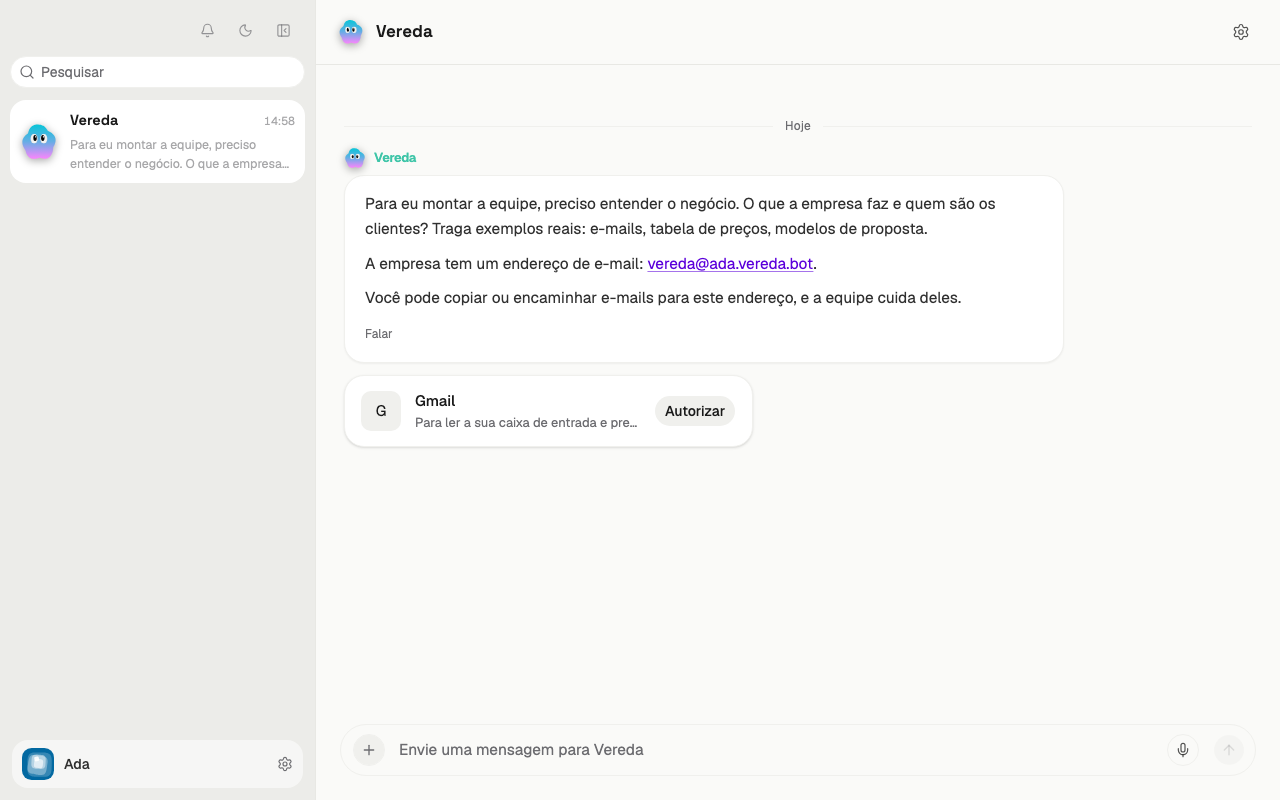
When the team needs an app that has no account yet, the leader or an employee shows a card in the chat. The card has the app name and a line that says why the team needs it.
You can also ask in the chat. For example: connect my Gmail.
If the app tab closes before you finish, the card keeps checking and shows Did you finish authorizing? We keep checking. with a Try again button. After 2 minutes without completion, the card says Authorization timed out. Please try again.
If the app already has an account, the card shows Connected and the notice This app already has a connected account.
- On the card, click Authorize. The button changes to Waiting….
- In the new tab, sign in to the app and allow the access.
- Go back to the chat. The card shows Connected.
- The team continues with the request alone. You do not need to tell it.
Your data or the company's
The card asks “Does this <app> hold your own data or the company's?” when you connect an app. The two options sit side by side. You choose Private (only me and the private employee) or The company's (the whole team).
The screen asks this question for any app, including email, calendar, and contacts apps, such as Gmail.
The choice is mandatory. The Authorize and Connect buttons turn on only after it. An app connected before this rule, with no answer, counts as yours.
An employee that takes care of an app of yours becomes a private employee. Only you ask this employee for work.
Vereda learns how you write and who is who by reading all your mailboxes: Gmail, Outlook or a login and password. The whole team uses this learning, to write in your tone and to know who each person is. From an email marked Private, the team only learns the work contacts: name, company, role and relation to you. The subjects and the personal contacts of that email do not reach the team.
You change the answer later, on the page of the app, in the Data card. An app marked The company's works for all employees. The mailbox is the exception: it opens only to the employees you release it to. The section Release the company mailbox explains how.
Your personal mailbox
A mailbox marked Private is your personal mailbox. Only one employee reads and sends from it.
That employee is the only one who takes care of the mailbox. The other employees do not read or send from it.
At each read and each send, the card asks for your okay. You answer with Just this once, Always allow, or Don't allow.
The leader does not read the mailbox. When you ask the leader for something in it, the leader passes the request to the employee of that mailbox.
Release the company mailbox
A mailbox marked The company's opens only to the employees you release it to.
Without a release, no employee reads or sends from that mailbox.
When an employee asks for a mailbox with no release, the leader proposes the release to you.
Several employees can use the same mailbox. Each one has its own release.
A mailbox that was already in use stays released to the employees who used it.
A mailbox marked Private loses all its releases.
A release does not apply to the personal mailbox. The personal mailbox stays only with its employee.
A proposal to an outside customer goes from a company mailbox released to the employee. It does not go from the company's address.
- Ask the leader for the release. For example: Release the sales mailbox to Lia.
- On the card, click Just this once to approve, or Don't allow to refuse.
- To take the release back, ask the leader. The leader asks for your okay on the card.
Send a new e-mail from the company
An employee opens a new e-mail from the company's address. The address starts with vereda and ends in vereda.bot.
The e-mail is signed “Team” and the name of the company.
The employee sends only to you, to the members of the team, to the authorized list, and to the domain of the company. An address outside this list is refused. Nothing leaves.
Each send asks for your okay on the card.
To answer an e-mail that arrived, the employee replies in the same conversation. It does not open a new e-mail.
To write to an outside customer, use a company mailbox released to the employee.
- In the employee's conversation, ask for the new e-mail, with the recipient and the subject.
- Read the card before you approve.
- Click Just this once to send, or Don't allow to cancel.
Send a file by email
An email can carry files. Ask for the send in the employee's chat, with the file name.
The accepted types are PDF, Word (docx), Excel (xlsx), PowerPoint (pptx), CSV, text (txt), PNG, and JPG.
One email carries up to 5 files and up to 15 MB in total.
The files can come from the shared folder or from a file sent in this chat.
The card shows the name of each file. Read the names before you approve.
A private file asks for your OK on every send. Only a rule of yours that includes private data skips your OK, and never when the team found hidden orders. Always allow does not free that file.