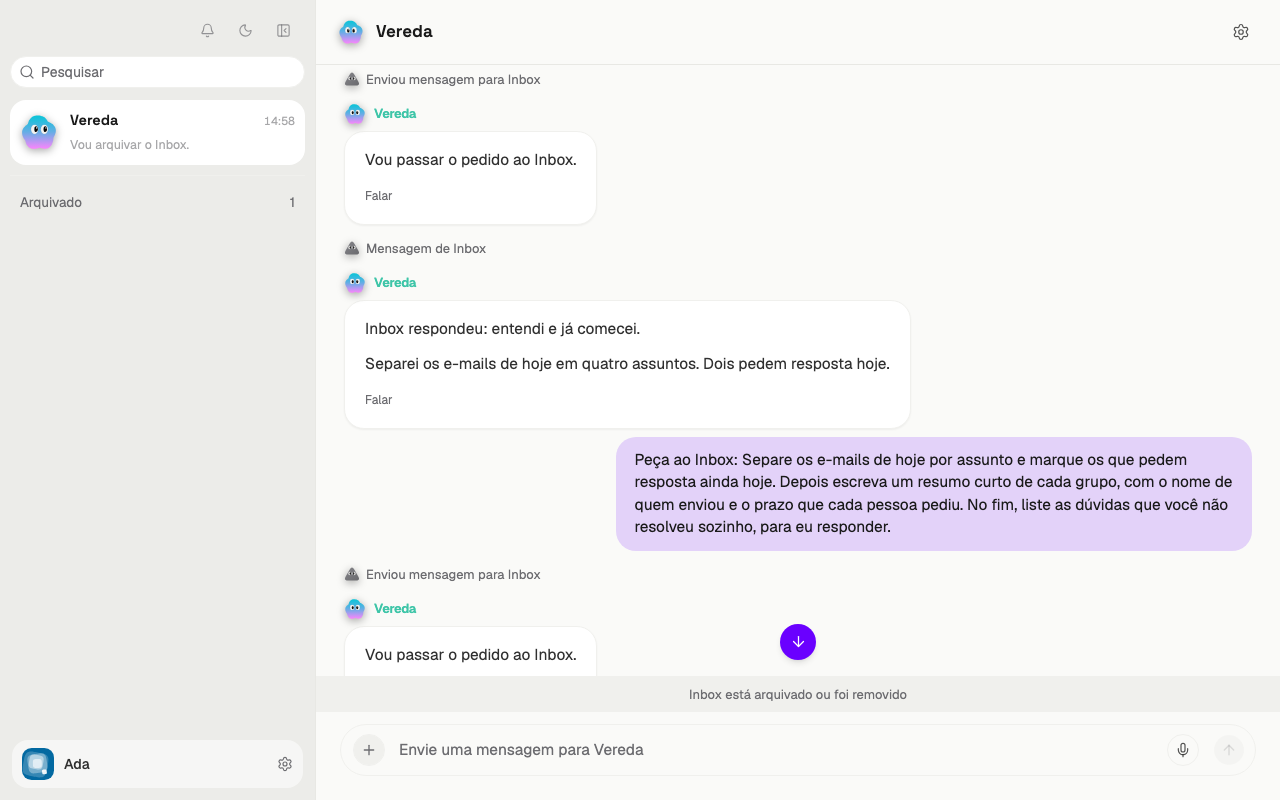
Employee chat
Understand the chat notice
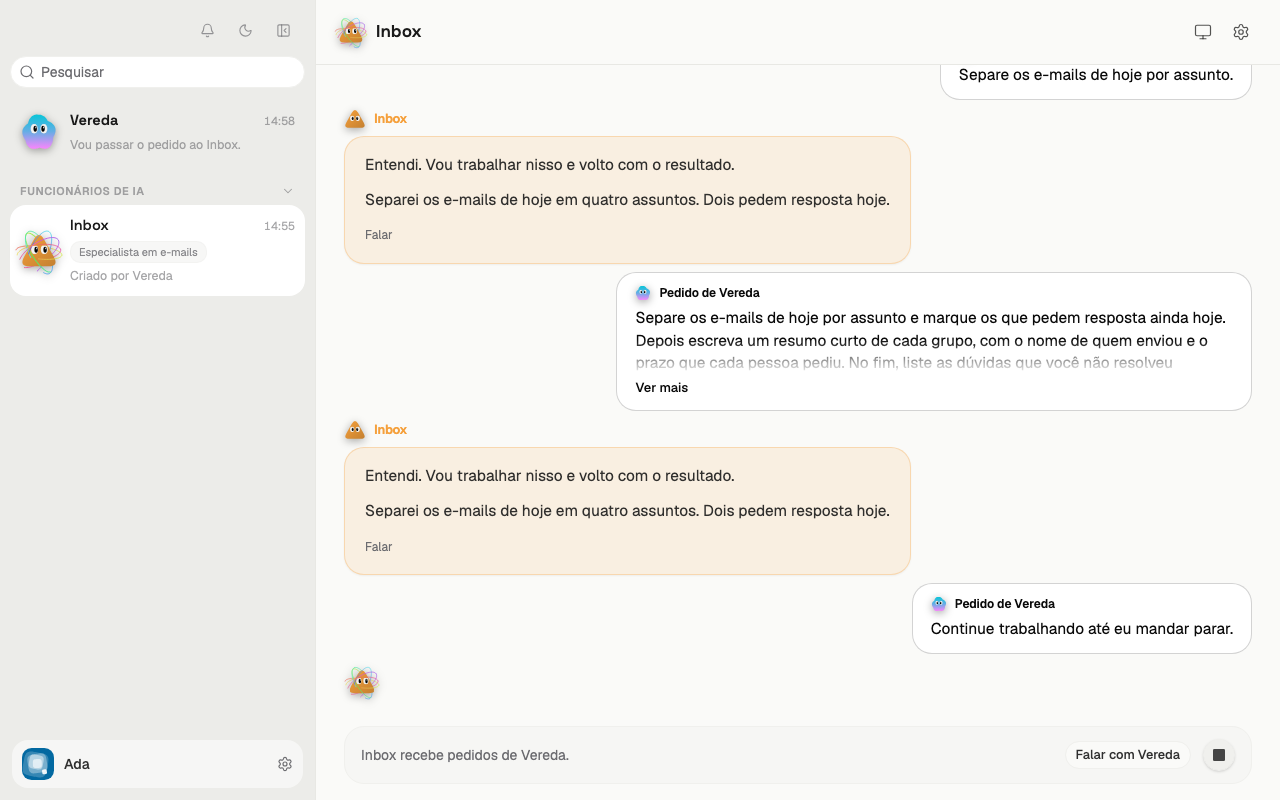
The chat of an employee has no message field. In its place, the footer shows a notice, such as “Inbox takes requests from Vereda.”
The employee takes requests only from the leader. You read the conversation, but you do not write in it.
To give work to the employee, click “Talk to Vereda”, at the right end of the notice. The chat of the leader opens. Write the request there.
Read the sides of the conversation
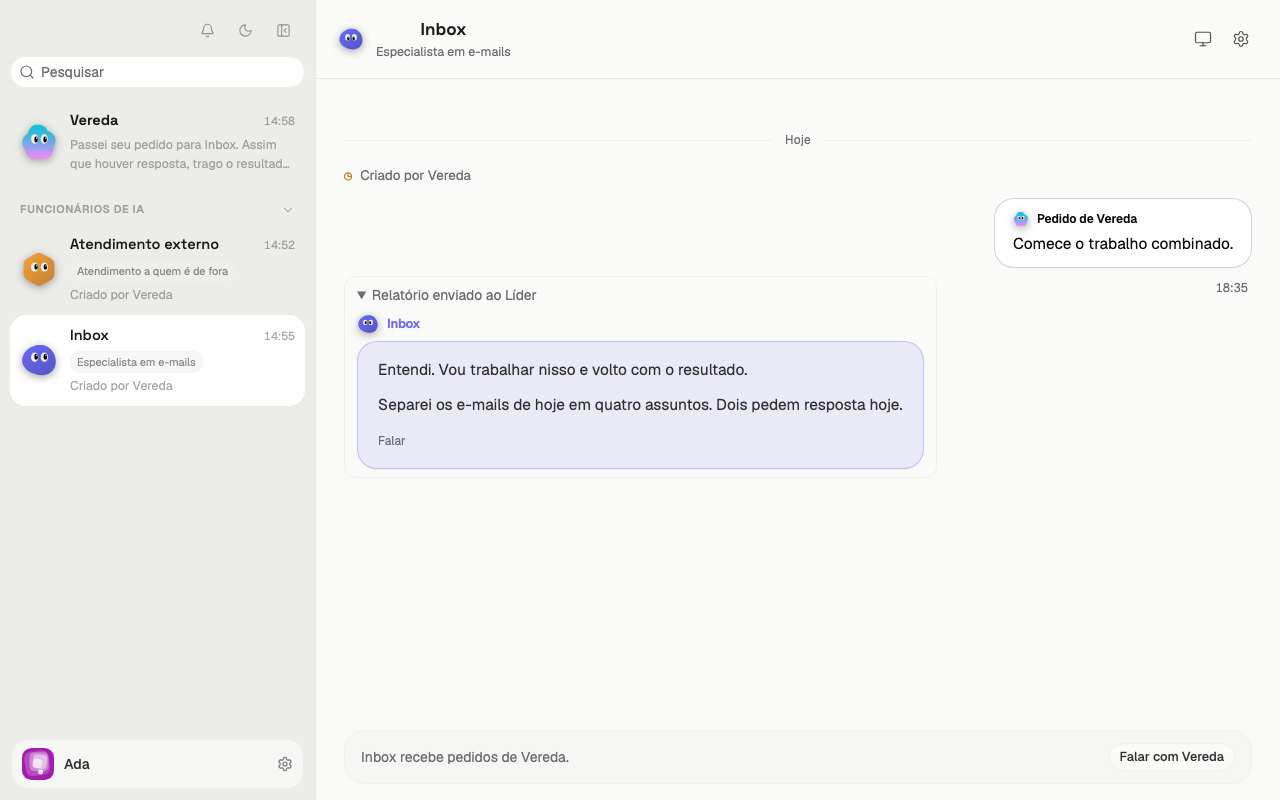
The request from the leader sits on the right, in a white card. The card has the text “Request from Vereda”.
The answer from the employee sits on the left, in a bubble with the color of the employee. The name of the employee appears above the bubble, in the same color.
Open a long request
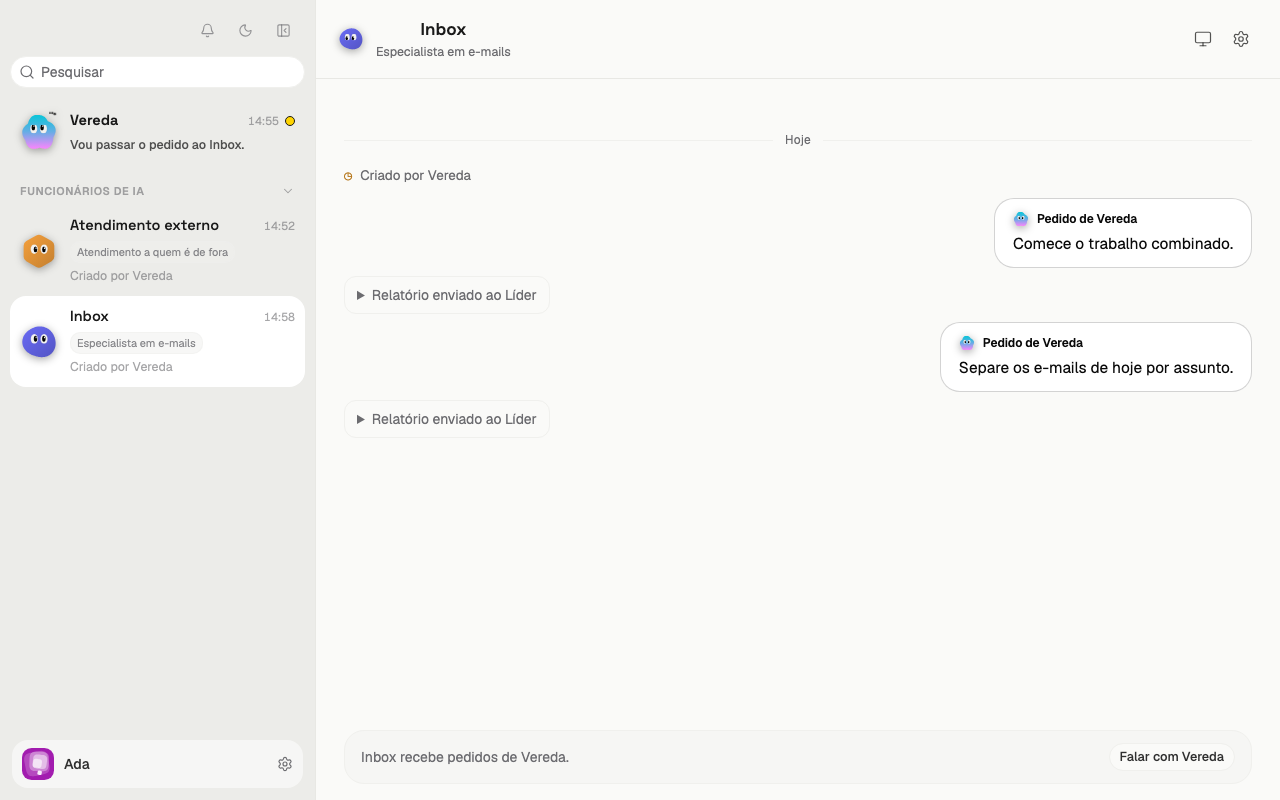
A long request shows only 3 lines. Click See more to read the whole request.
Click See less to close the request again.
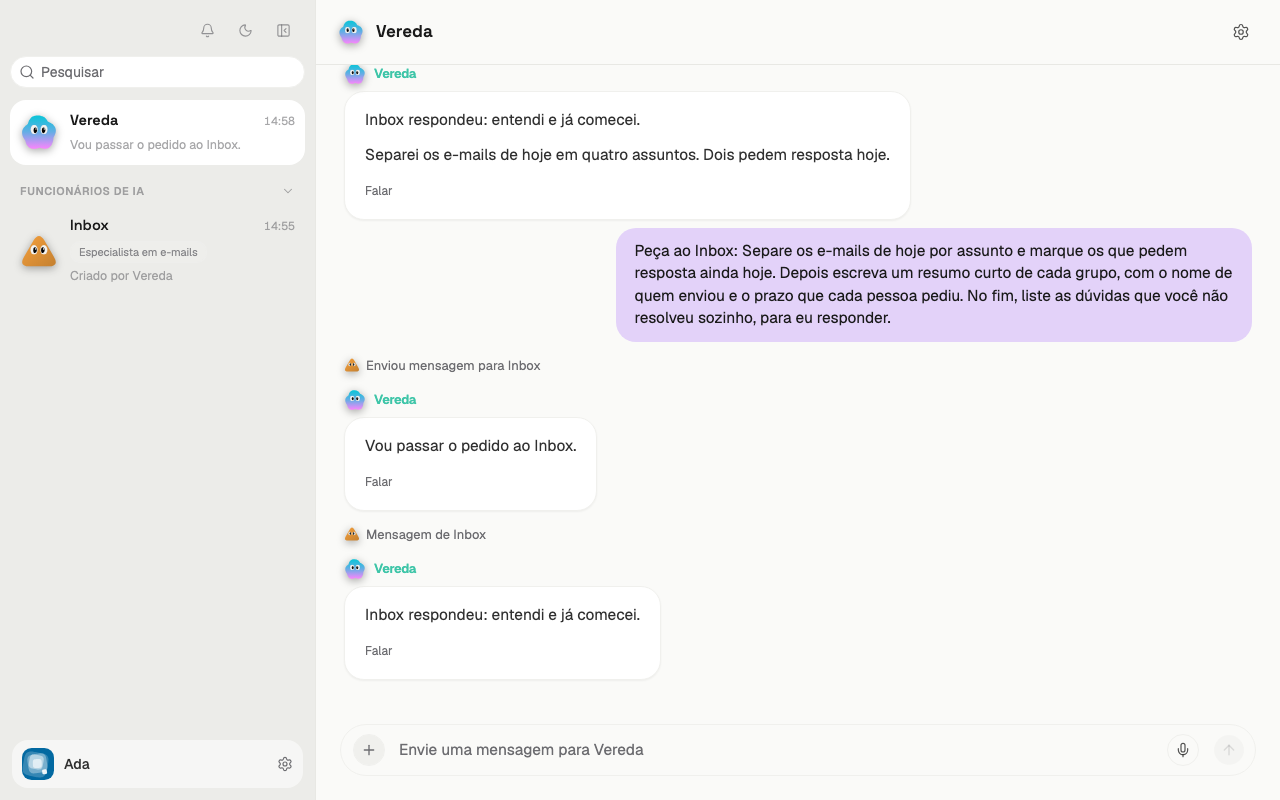
See the messages between the leader and the employee
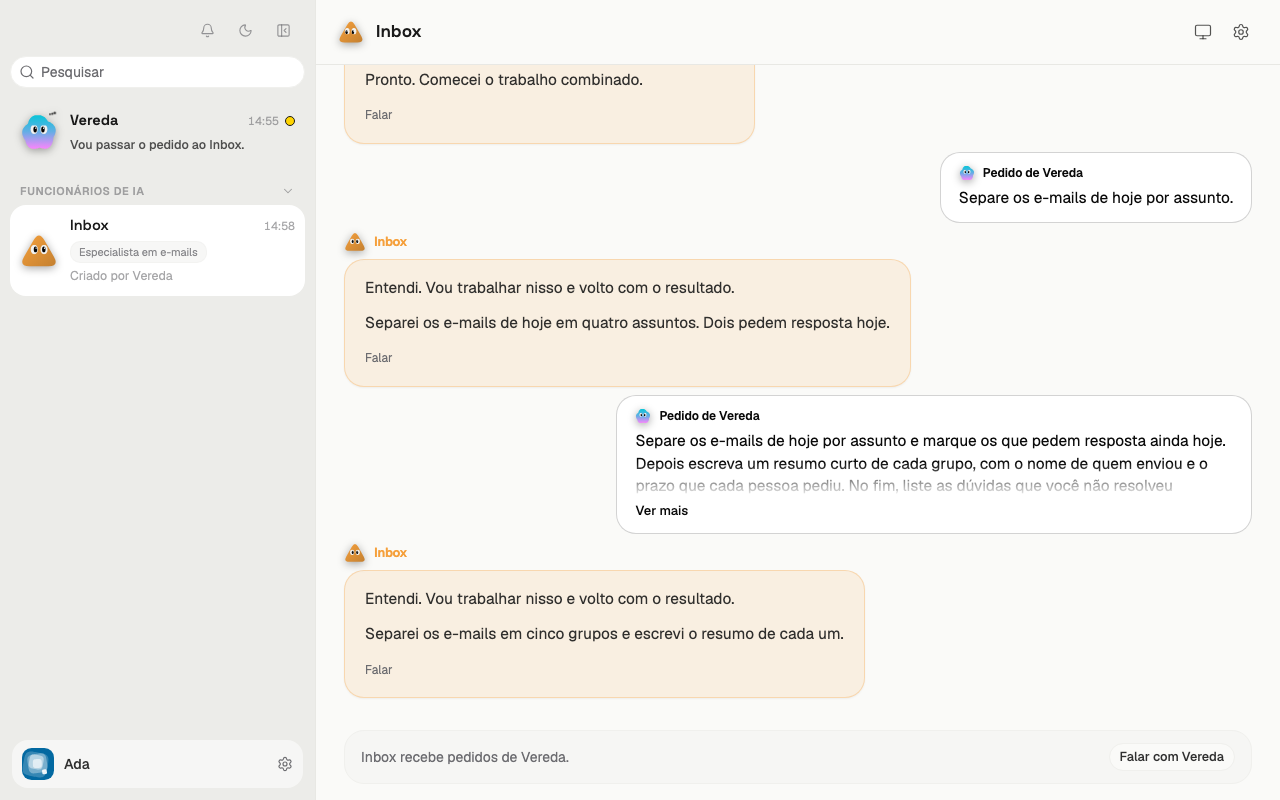
The chat of the leader shows a short tag for each message between the leader and the employee.
The tag “Messaged Inbox” marks the request that the leader sent. The tag “Message from Inbox” marks the answer from the employee.
Click a tag. The chat of the employee opens at the message.
Stop the work of an employee
While the employee works, a round button with a square appears at the right of the notice. Its name is Stop.
Click Stop to interrupt the work. The button disappears when the employee no longer works.
When the employee is archived
If the leader archives the employee, the tags stay in the chat of the leader.
Click a tag. The chat shows the line “Inbox is archived or removed”.
To return to the chat of the employee, restore the employee in the Archived section, below the list.