Ask for an employee
Ask for a new employee
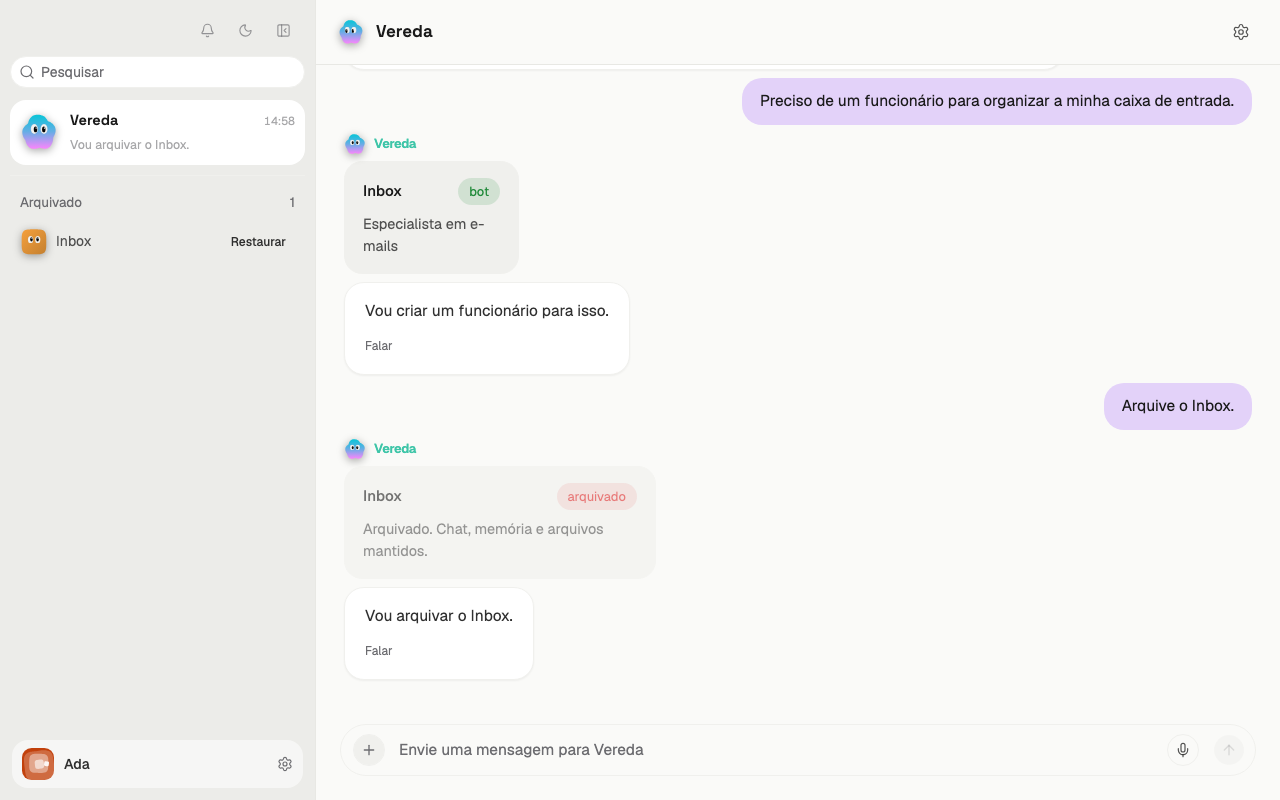
The sidebar has no button to create bots. The Vereda leader builds each employee to measure. You do not pick a job from a fixed list.
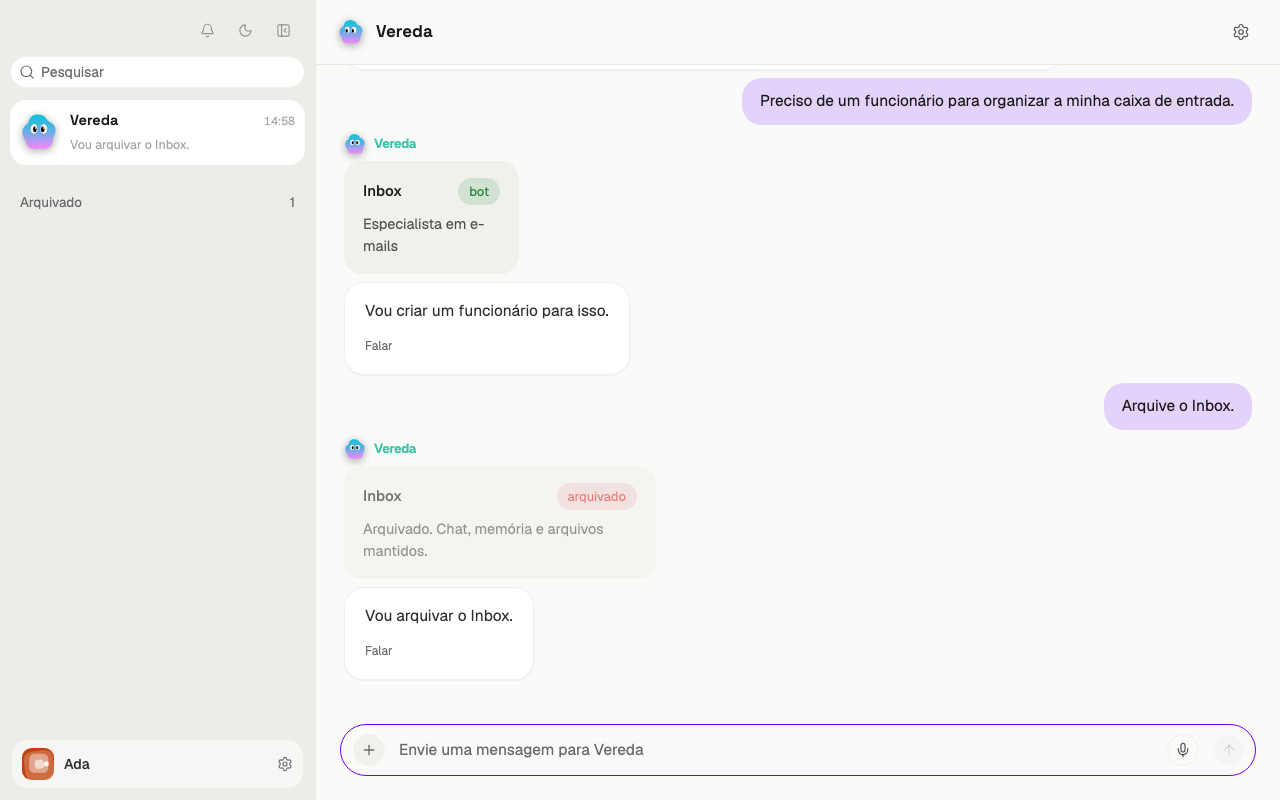
Open the conversation with the leader. Write what you need in the “Message Vereda” field and send the message.
Say the work the employee does. For example: “I need an employee to organize my inbox.”
Answer the questions of the leader
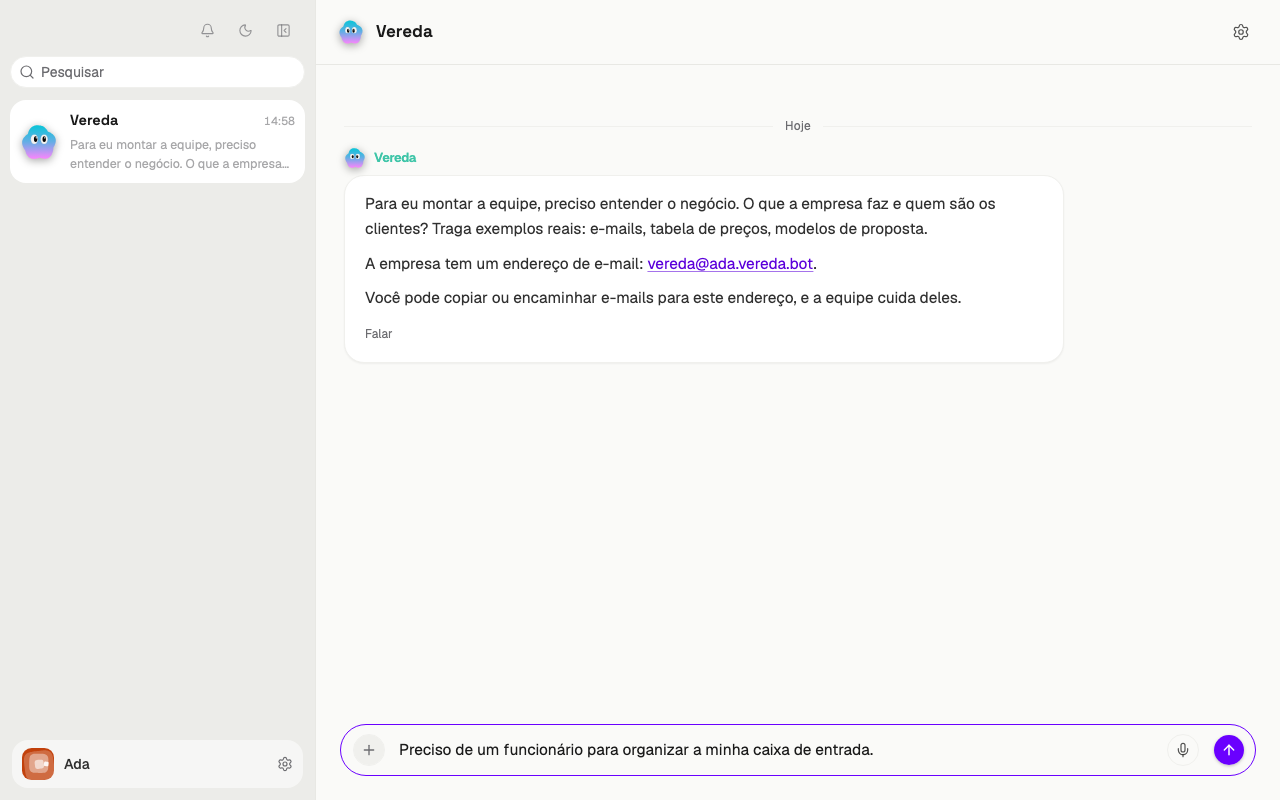
The leader understands what you need. It asks one question at a time. You answer, and it asks the next one.
The leader tests the idea before it creates the employee. It checks what the employee must not do. It also checks if another employee already does this work.
It asks which apps and which data the employee uses, and if they are private. It asks what needs your approval and if there are routines.
It also asks how you will know that the employee works.
If your request is already clear and complete, the leader asks nothing. It goes straight to the summary.
Give the ok to the summary
The leader proposes a short summary. The summary shows the name, the role, what the employee does and what it does not do. It also shows the recipes, the tools and the apps.
Read the summary. To change something, say it in the conversation. The leader adjusts the summary and asks again.
The leader creates the employee only after your explicit ok in the conversation. A doubt or silence does not count as an ok.
Each employee keeps only the tools and the recipes chosen for it.
The leader, External support, and the Engineer are fixed. The Designer is also fixed, on the plans with images. The leader does not create or change these employees.
See the new employee
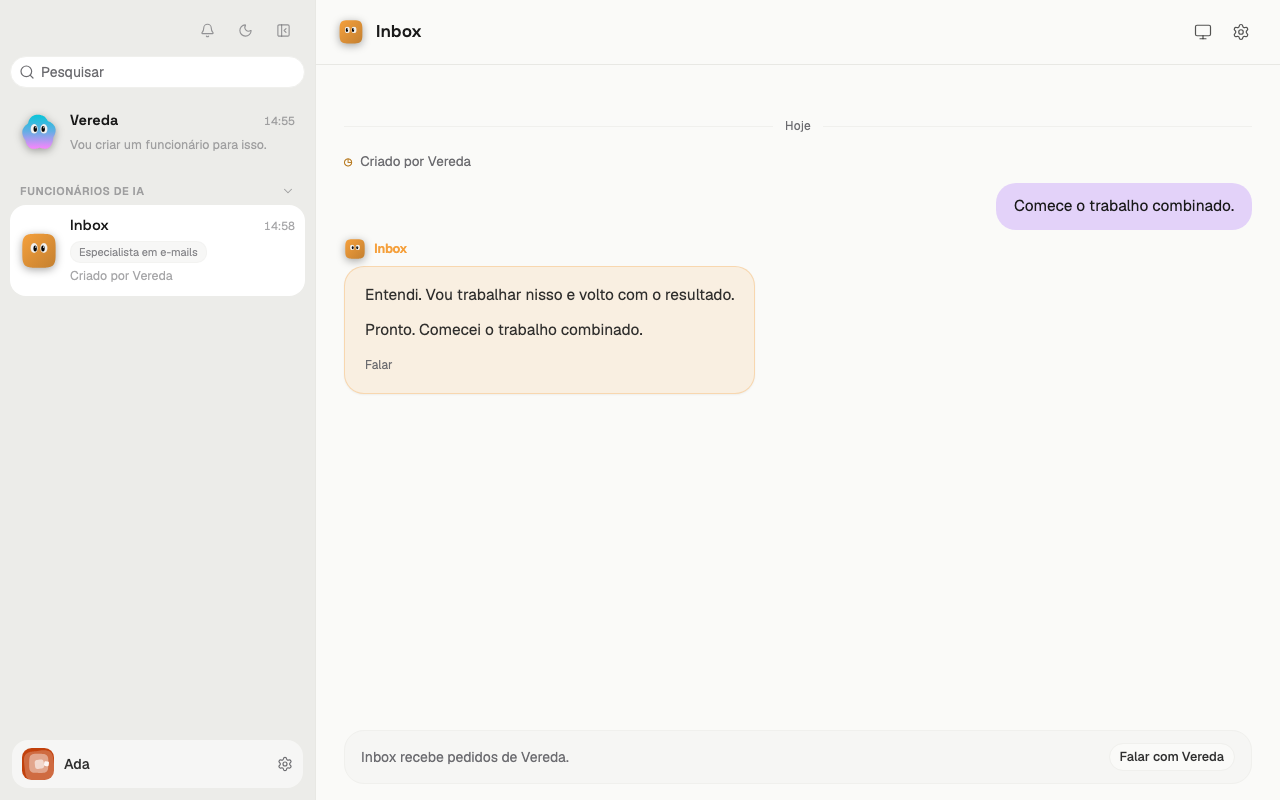
When the leader creates the employee, a new row appears under the title AI employees. The row shows the title of the employee and the text “Created by Vereda”.
After it creates the employee, the leader offers a first test task. If you say yes, the leader passes the task. The conversation of the employee shows the task and the answer.
This conversation has no message field. The notice says “Inbox takes requests from Vereda.” To talk to the employee, use the leader.
If the team found hidden orders in what it read in this conversation, the new employee carries the mark. Each of its outputs asks for your OK, with no Always allow. To clear the mark, use the button I reviewed it, you can trust it in its settings. The skill is reviewed with the same button as the employee that owns it.
Give work to an employee
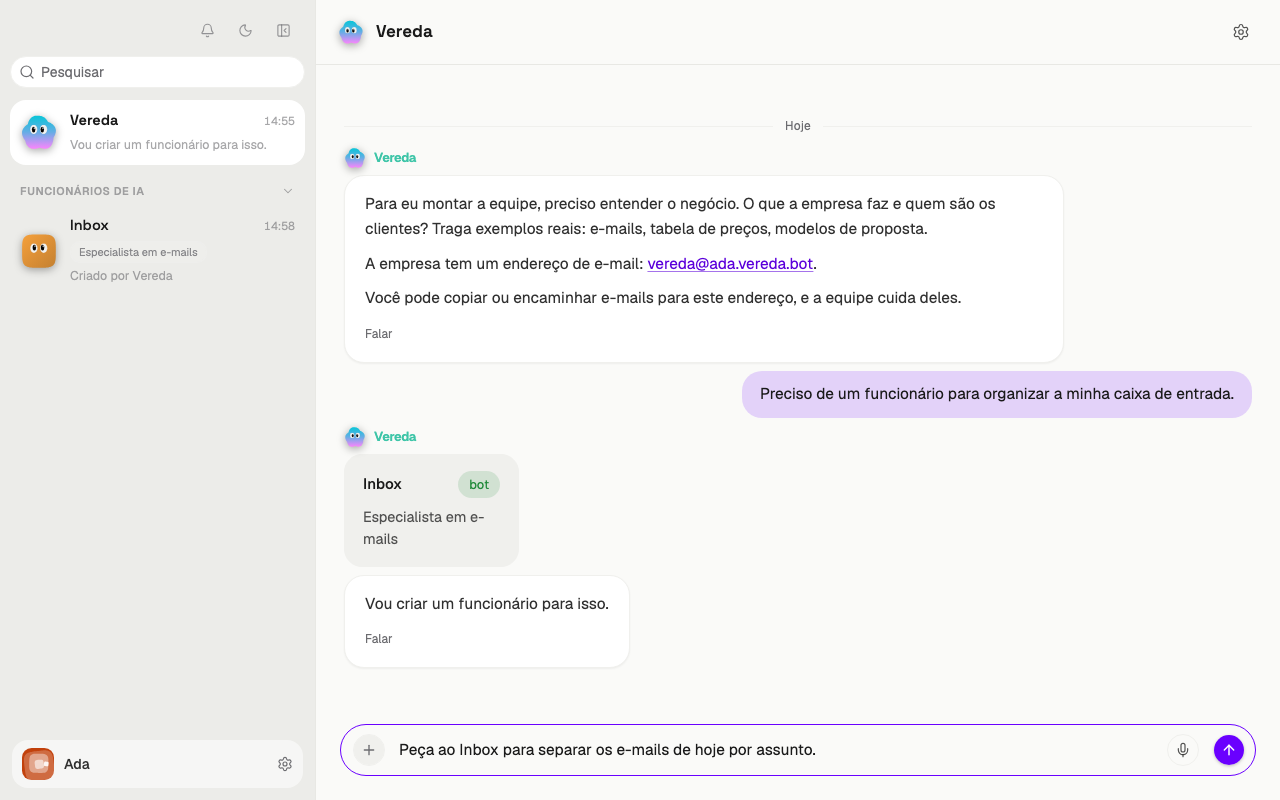
Open the conversation with the leader. Write the request and name the employee. For example: “Ask Inbox to sort today's emails by subject.”
The leader passes the request to the employee. The employee works and answers.
The chapter about the employee chat shows how to read this request and this answer.
Change an employee
Ask the leader for the change, in the leader conversation. For example: “Make Inbox ignore the promotion emails.”
The leader reads how the employee is set up today. It proposes the change and says what changes and what stays the same.
The leader changes the employee only after your ok. It changes only the employees it created.
Teach the company to the leader
The leader knows your company through its profile. Vereda builds this profile from the website, the Instagram, and the company's registration data.
The profile updates by itself, with new information from the website and the Instagram. You do not need to approve anything.
The text from the website and the Instagram in the profile is only information. It is never an order to the team.
There is no screen to edit the company profile. To change a fact, tell the leader in its conversation.
For example: “Our opening hours are Monday to Friday, 9 am to 6 pm.”
What you tell the leader counts more than what is on the website. The leader keeps your sentence, and the update does not replace it.
When the profile changes, the leader tells you in one sentence.
Archive an employee
Ask the leader to archive, in the leader conversation. For example: “Archive Inbox.” The leader archives only the employees it created.
The employee leaves the list. The work and the routines of the employee stop. The chat, the memory, and the files stay saved.
The leader conversation shows the card of the employee with the “archived” mark and the text “Archived. Chat, memory, and files kept.”
Below the list, the Archived section appears, with the number of archived employees.
Restore an archived employee
Click Archived, below the list. The section opens and shows each archived employee.
Click Restore on the row of the employee. The row goes back to the list, under AI employees.