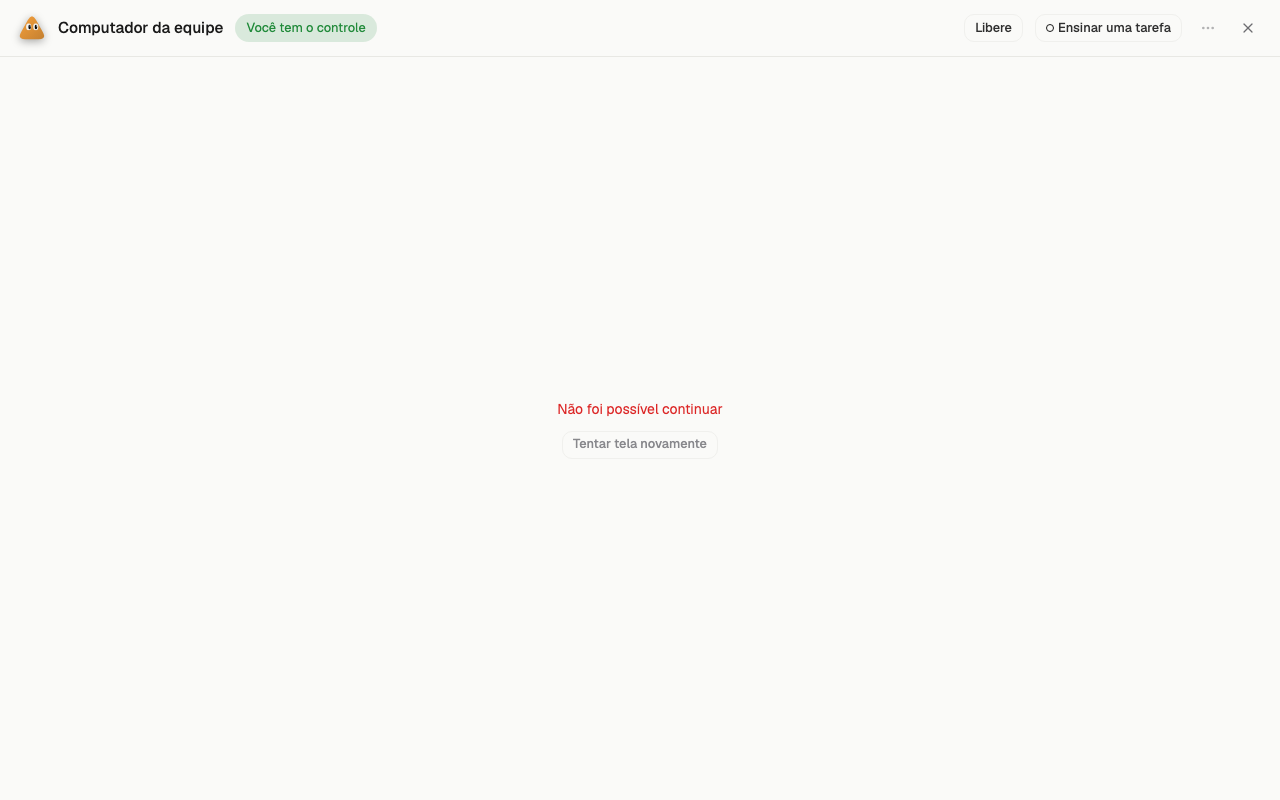
Computer
Know whose computer it is
The team uses one computer, the Team Computer. Each employee has its own user, its own folder and its own screen on it.
The folder of a private employee is closed to the other employees. Only that employee enters it.
If the owner chooses Own computer for an employee, that employee uses a computer of its own.
The leader Vereda has no computer screen. The header of the leader chat does not show the computer button.
Only the settings icon appears there. To see the screen of an employee, open the chat of that employee.
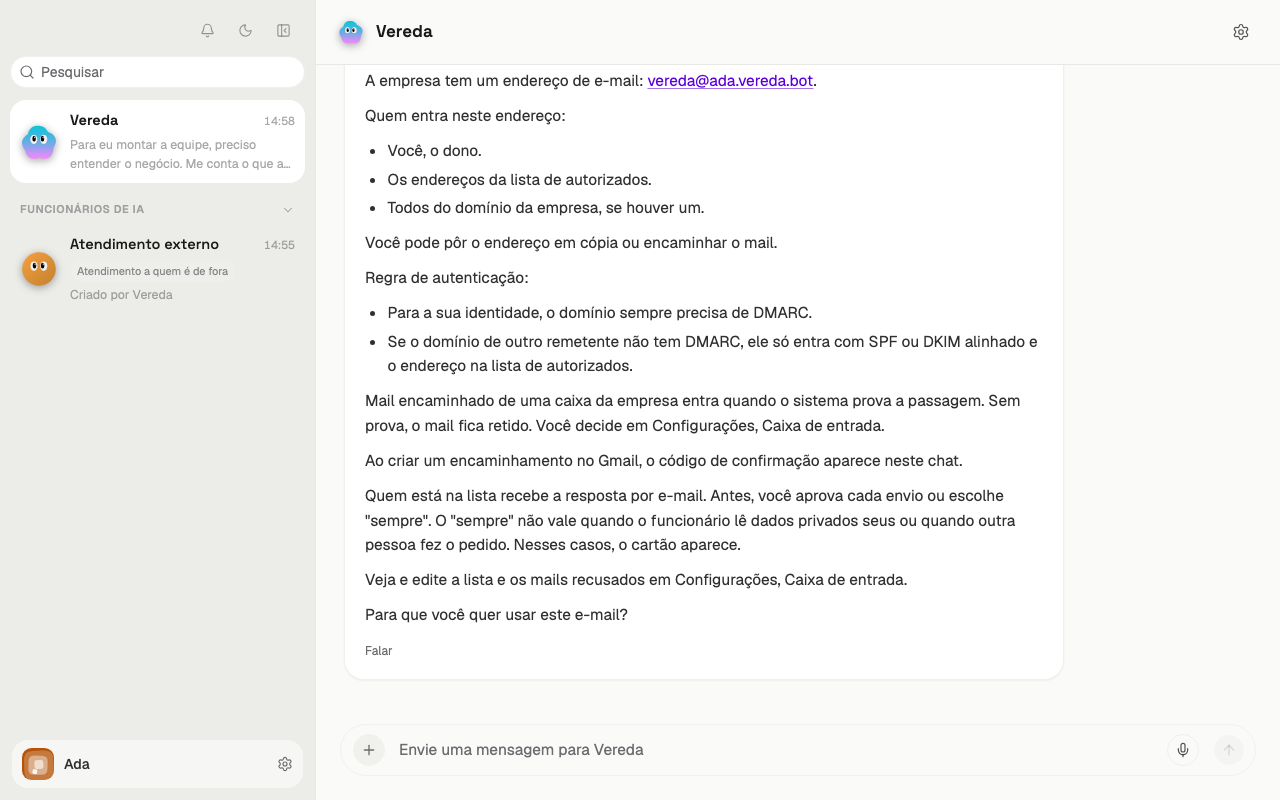
Open the computer panel
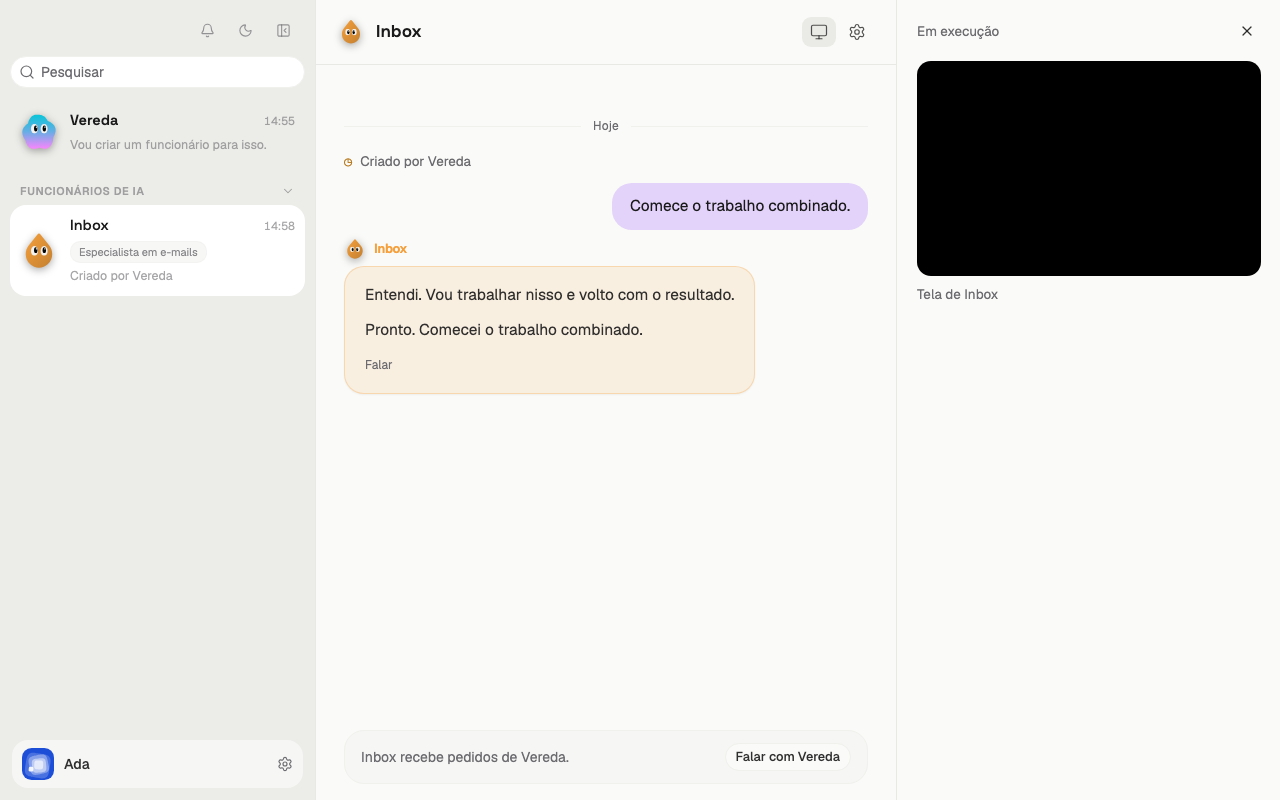
Open the chat of an employee. In the header, click the Agent computer button, next to the settings icon.
The panel opens on the right. At the top, it shows the state of the computer, such as Running. Below are the screen of the employee and the text “Inbox screen”.
The X button, named Close panel, closes the panel.
Open the computer in a full window
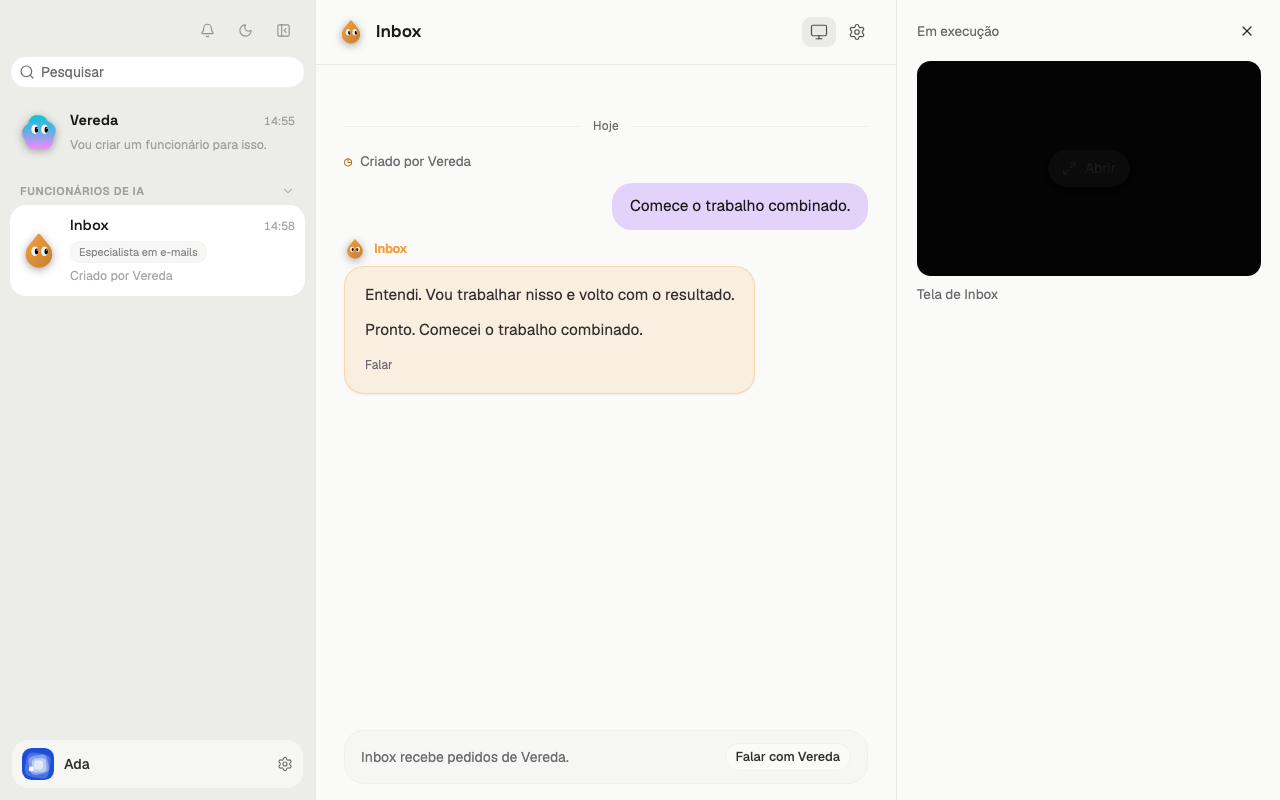
Move the mouse over the screen in the panel. The Open button appears over the screen.
Click Open. The screen of the employee fills the whole window.
Take control
In the full window, the top shows the name of the computer, such as Team Computer, and the mark You have control.
With control, the screen responds to your mouse and your keyboard.
If the employee works on the computer, Open only shows the screen. You do not get control. Stop the work with Stop, in the chat of the employee, and open the computer again.

Give the computer back to the employee
Click Release, at the top of the window. The window closes and the employee uses the computer again.
The X button, named Close computer, only closes the window. It does not give control back. Use Release to give control back.
Answer a request from the employee
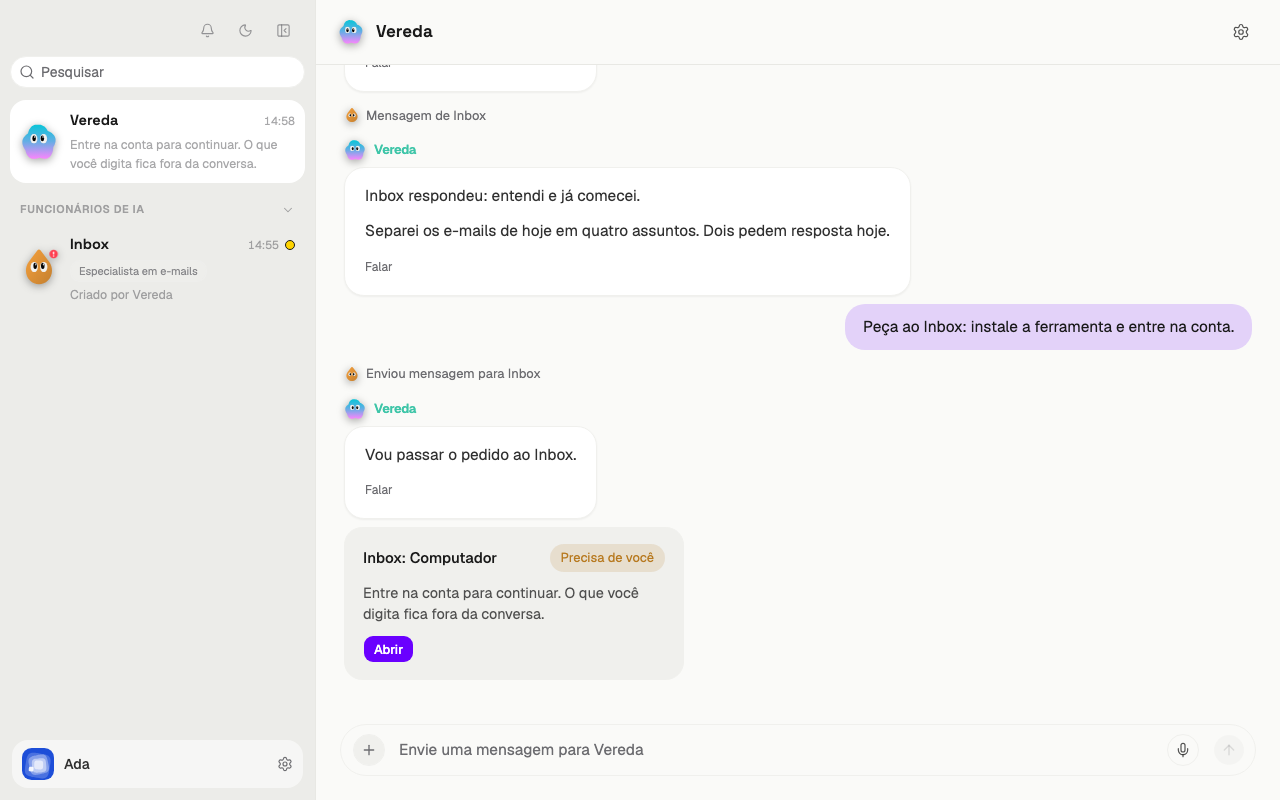
Sometimes the employee needs you on the computer, for example to sign in to an account. The leader chat receives a copy of the computer card.
The title of the card is “Inbox: Computer”. Click Open on the card. The window opens with the computer of the employee, not the computer of the leader.
Finish the step on the computer
When you open the computer from the card, it shows the mark Needs you and two buttons: Skip and I’m done.
Do what the employee asked. Then click I’m done to say that you finished.
Click Skip to give the computer back without doing the step.

When the computer shows an error
If the app cannot give the computer back, the screen shows the message Could not continue and the button Retry screen.
The message stays on the screen until you act. It does not go away alone, not even when the chat of the employee refreshes.
Click Release again to give the computer back. Click Retry screen to load the screen again.
If the computer fails to start, the screen shows Computer failed to boot.