Sign in
How to start from the website
The vereda.bot website has two buttons at the top. The “Create my workspace” button opens the purchase. The “Sign in” button opens the page for people who already have a Vereda.
Vereda has no sign-up page. Your account starts from the purchase and from the access link that Vereda creates for you.
How to choose the plan
The first button opens the Choose your plan page. Each card shows the plan name and the Choose button.
Before you choose, tick the box that says you read and accept the Terms of Service and the Privacy Policy. Without the tick, the Choose button stays off.
- Read the cards and see what each plan includes.
- Tick the box that accepts the terms.
- Click Choose on the plan you want.
- Pay on the Stripe payment page. Vereda opens this page for you.
How to enter the data of your business
After the payment, the About your business page asks for the data of the company. You fill it in once.
- In Do you have a CNPJ?, choose Yes or No.
- With Yes, type the CNPJ. Vereda looks up the data and fills in Legal name and Trade name. Check what it fills in.
- With No, fill in Full name and Business name.
- Fill in Street, Number, District, City, and State. You can leave Complement (optional) empty.
- Choose the Business activity.
- Type your WhatsApp. With a CNPJ, also fill in Your name.
- In Website (optional) and Instagram (optional), enter the website and the profile, if you have them.
- In Your Vereda address, choose the name of your address, such as padaria-exemplo. The text below says if the name is free.
- Click Continue.
How to wait for Vereda to be ready
The Preparing your Vereda… page appears while Vereda builds your space. Keep the page open.
When the space is ready, the page opens the password step by itself. If it does not open, click Enter my Vereda on the Your Vereda is ready page.
If you come back after you create the password, the Your Vereda is already active. page shows the address of your Vereda.
How to create your password
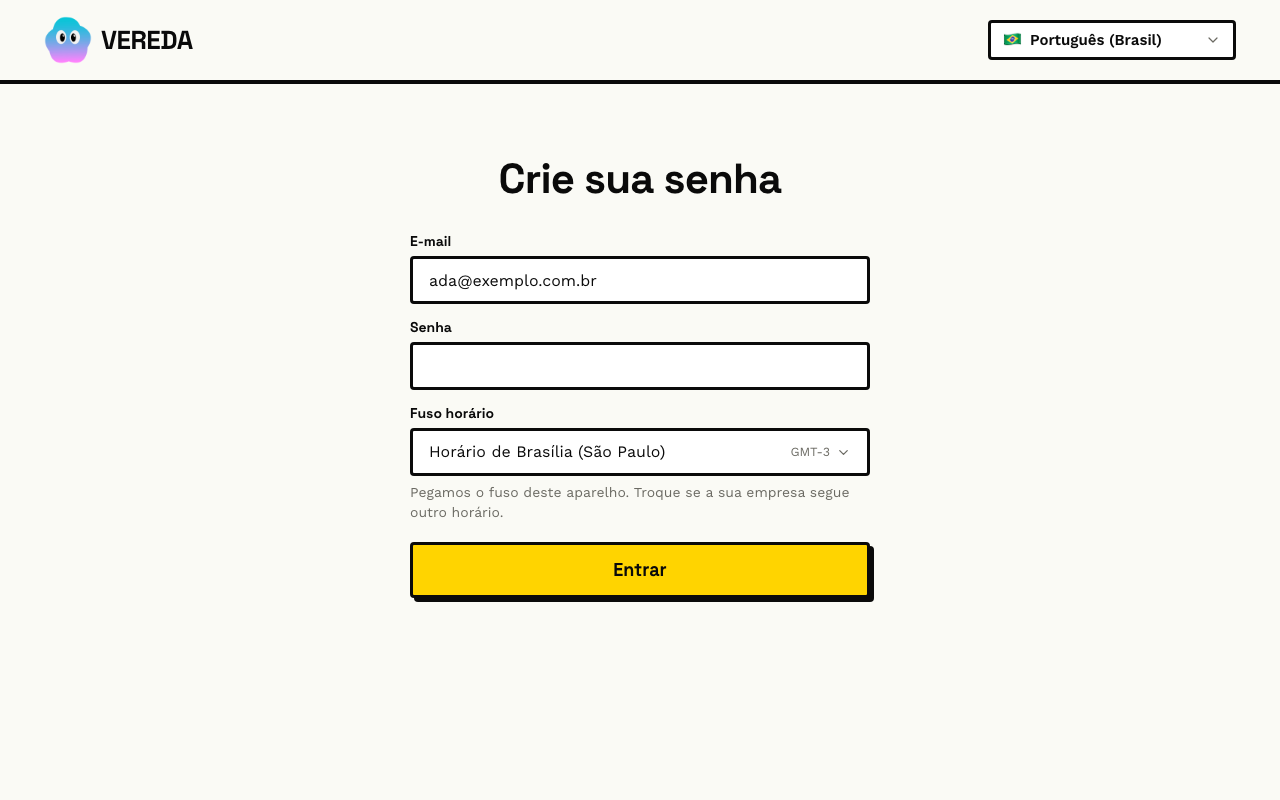
The Create your password page opens from the access link. The link works one time.
- Check the Email. It is the email of the purchase, and you cannot change it.
- Type the Password. Use at least 10 characters.
- Check the Time zone. Vereda uses the time zone of this device. Click the field to change it and use Search by city.
- Click Enter.
How to ask for another access link
If the page shows This link has expired or was already used., the link does not work anymore. Ask for another link on the sign-in page.
Follow the steps in the section “How to find the address of your Vereda”. If you did not create the password yet, the email brings a new link.
How to go to the page of your Vereda
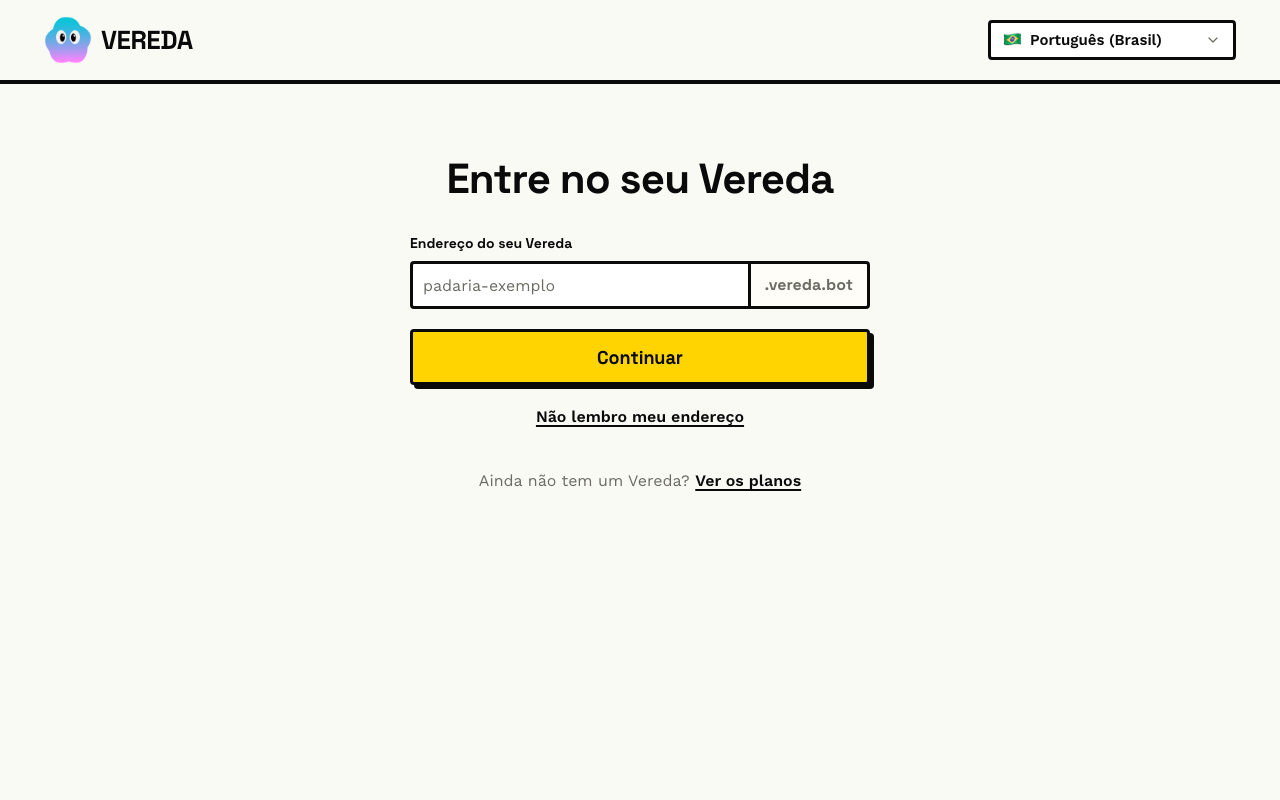
Each Vereda has its own address. On the website, the “Sign in” button opens the Enter your Vereda page.
- Type the name of your address in Your Vereda address, such as padaria-exemplo.
- Click Continue.
How to find the address of your Vereda
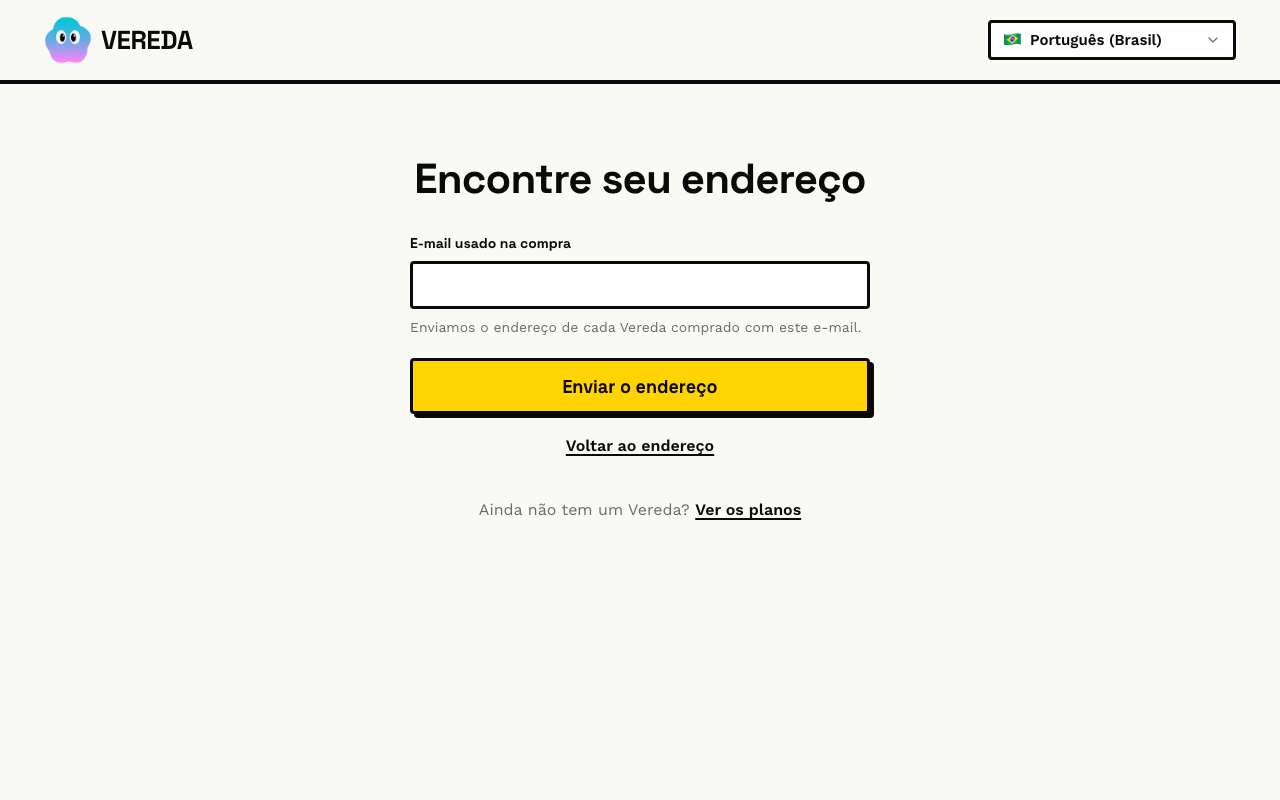
If you do not remember the address, ask Vereda to send it by email. Use the email of the purchase.
- On the Enter your Vereda page, click I don't remember my address.
- On the Find your address page, type the E-mail used to buy.
- Click Send me the address.
- Open the email. It brings the address of each Vereda bought with this email.
- To go back, click Back to the address.
How to buy when you do not have a Vereda yet
At the bottom of the Enter your Vereda page, the No Vereda yet? text has the See the plans link. The link opens the Choose your plan page.
How to sign in with email and password
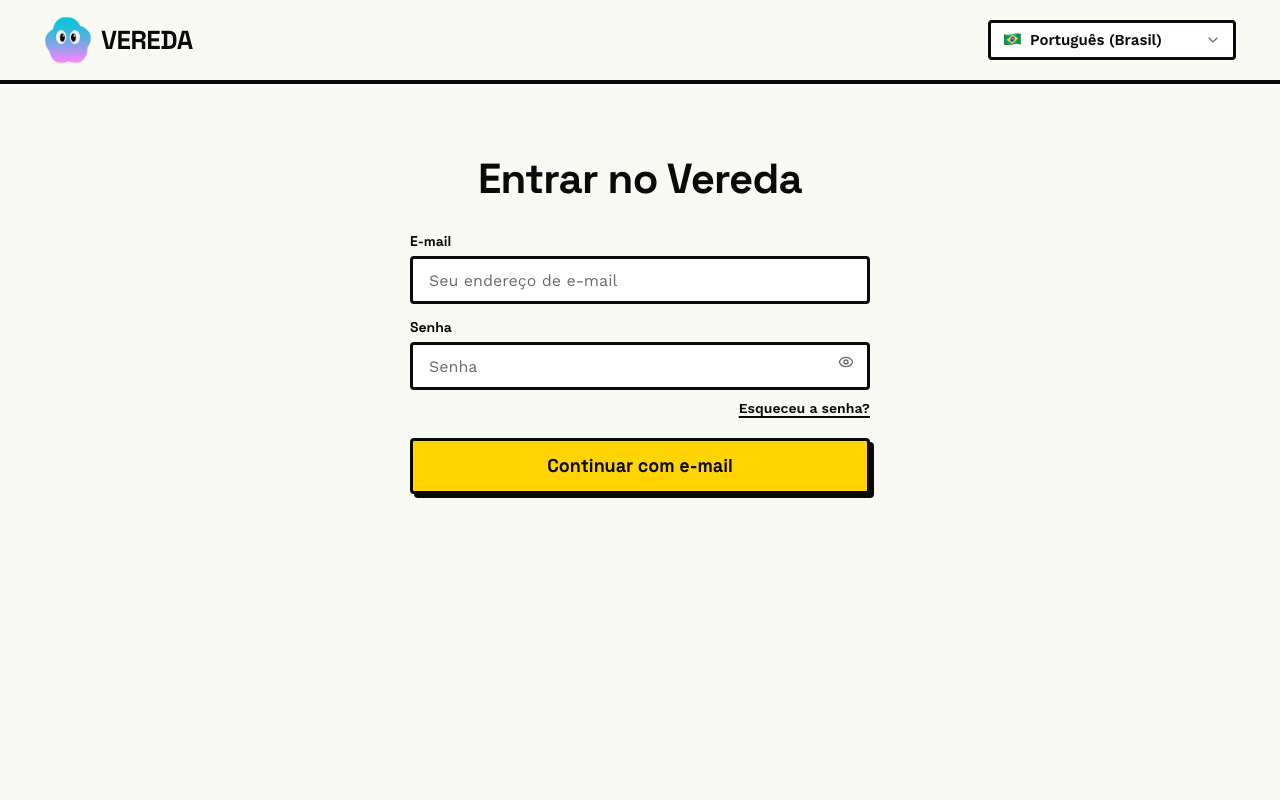
The page of your Vereda has the title Sign in to Vereda. Use the email and the password you created. The Continue with email button sends both fields.
- Type the Email.
- Type the Password.
- Click Continue with email.
How to see the password you type
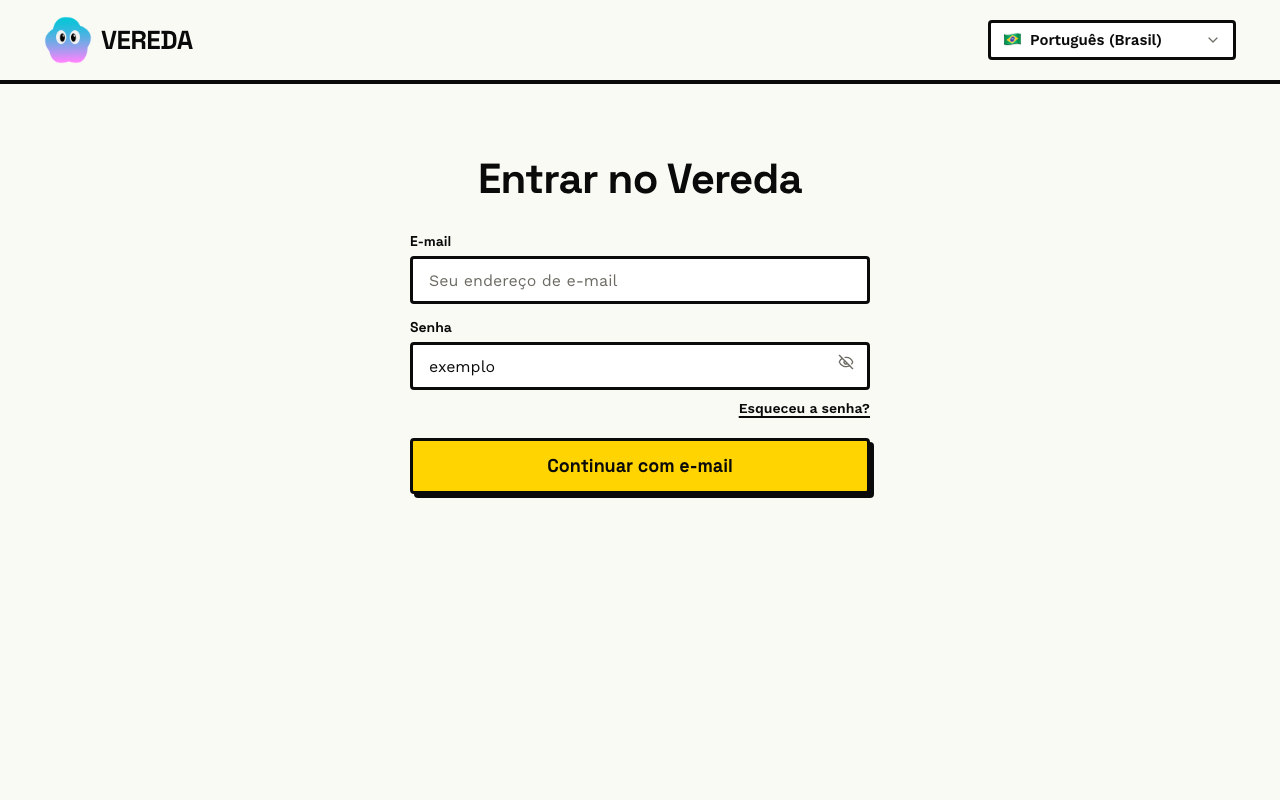
The Password field hides the characters. Click Show password to see what you typed. The button becomes Hide password.
How to change the language
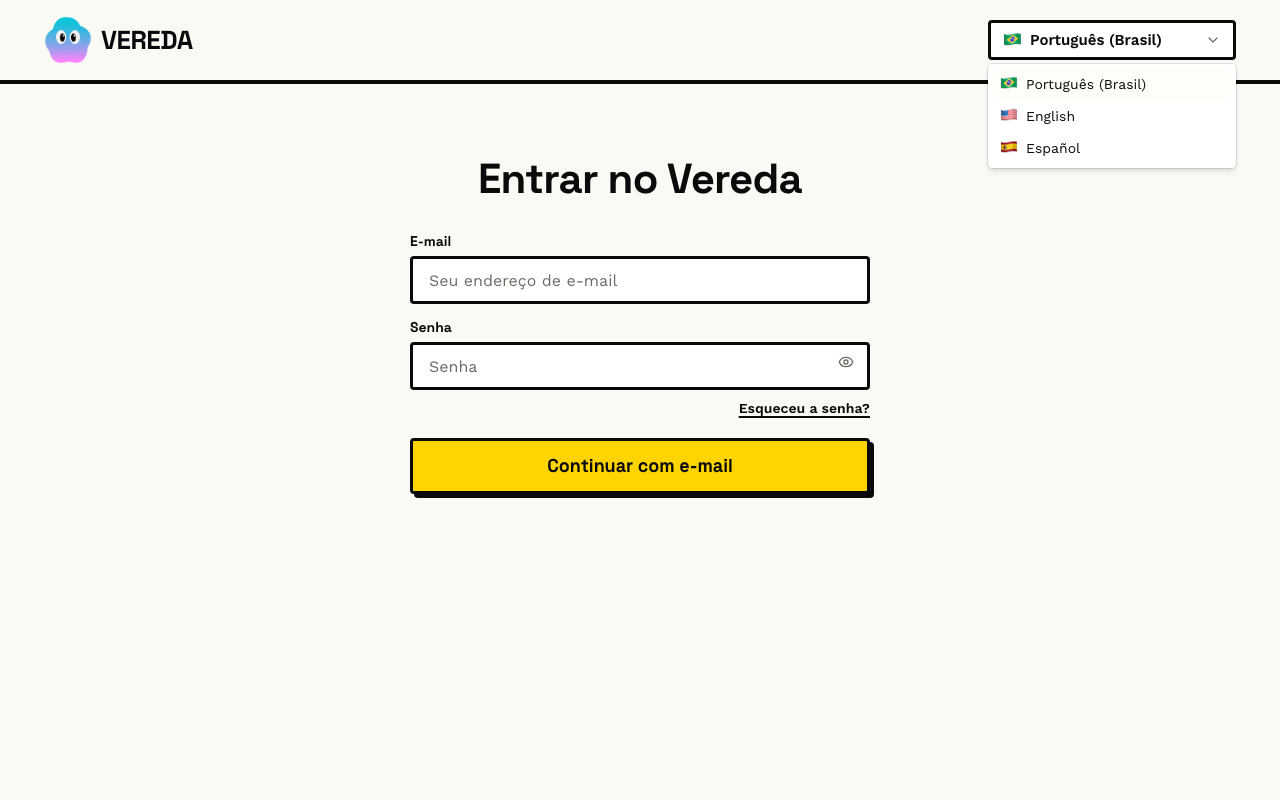
The Language list changes the language of the page. The options are Português (Brasil), English, and Español.
How to ask for the link to change the password
Use this path when you forget the password. The link arrives at the email of your account.
- On the Sign in to Vereda page, click Forgot password?.
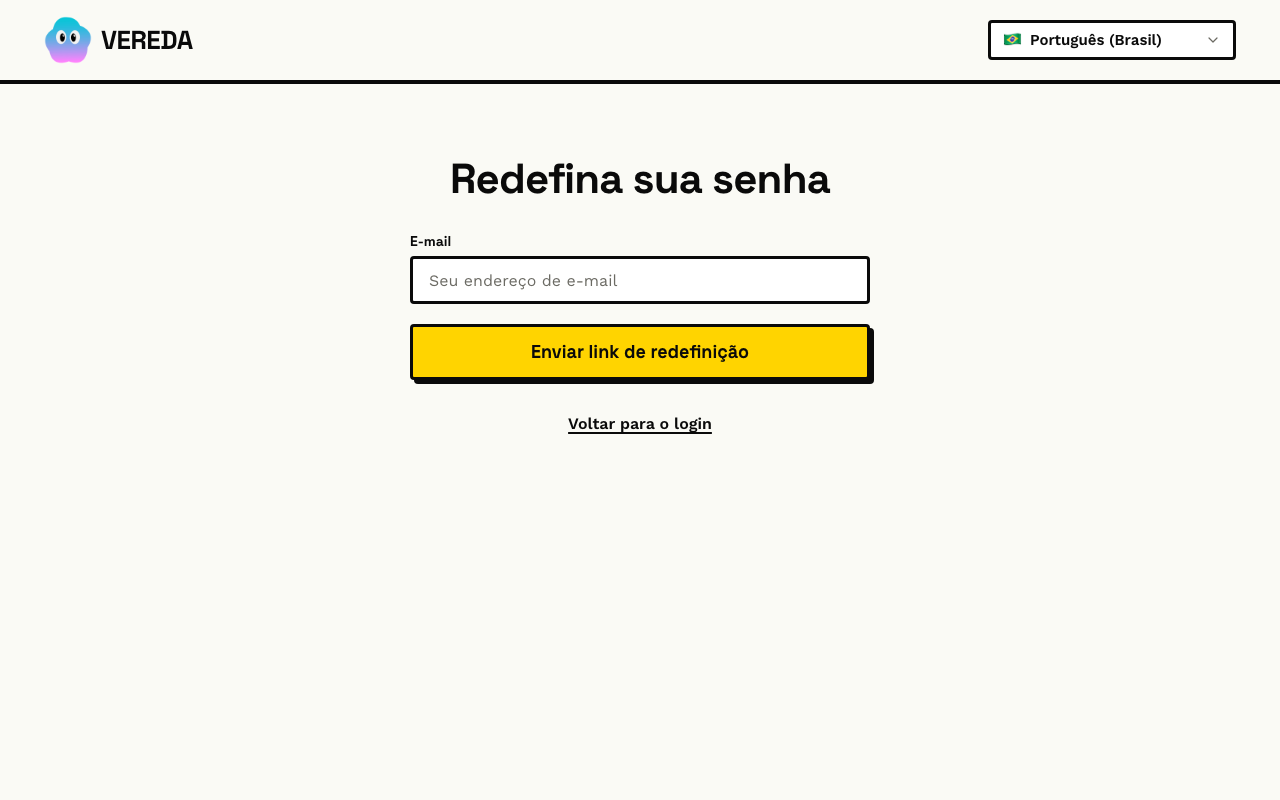
- On the Reset your password page, type the Email.
- Click Send reset link.
How to open the reset email
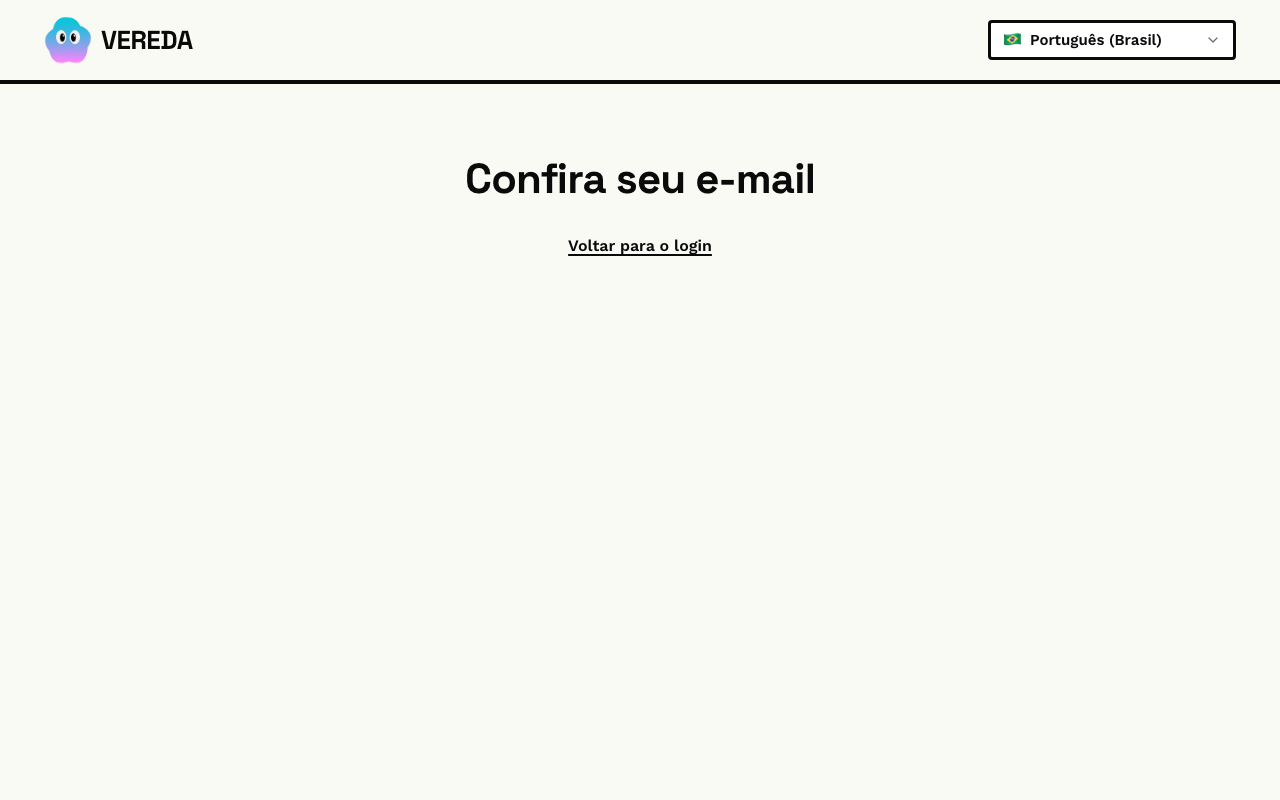
After you send the request, the Check your email page appears. Open the email and click the link in the message.
To go back to the sign-in page, click Back to sign in.
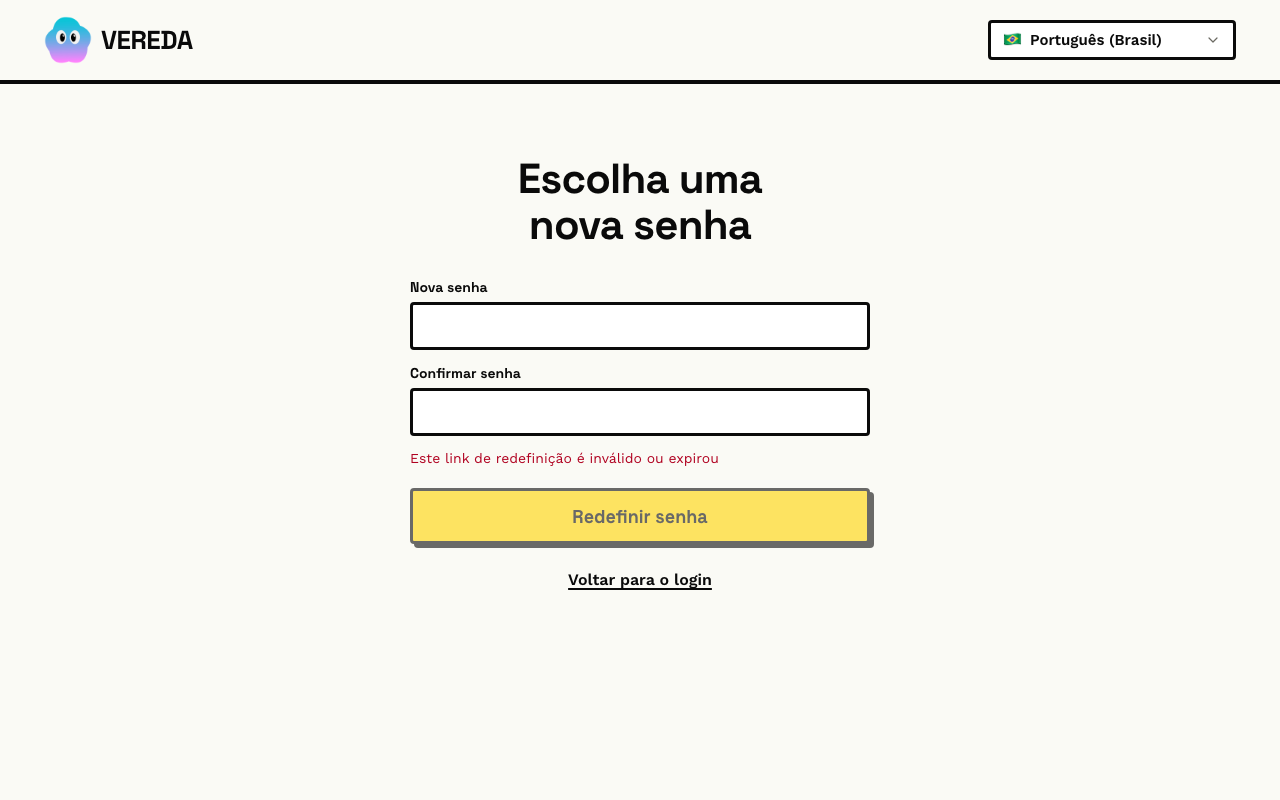
How to choose the new password
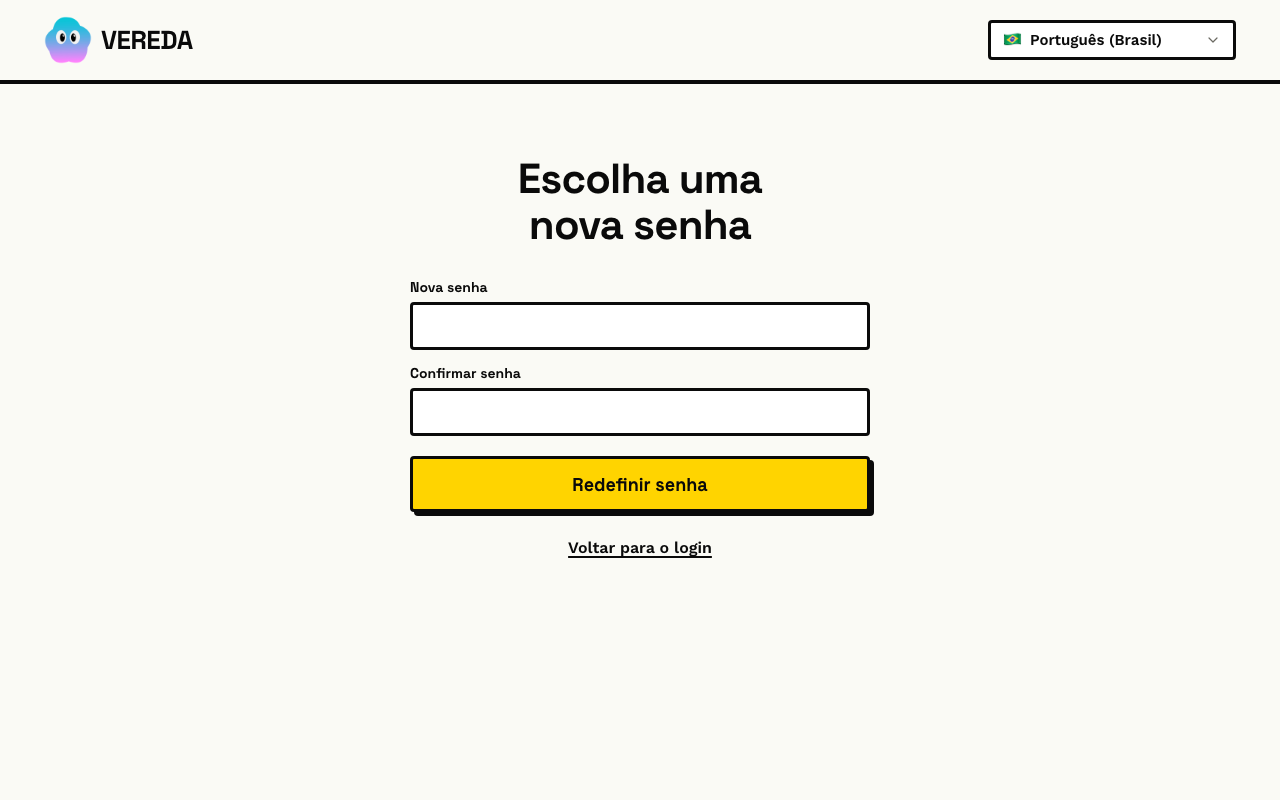
The link in the email opens the Choose a new password page.
- Type the New password. Use at least 10 characters.
- Type the same password in Confirm password.
- Click Reset password.
How to sign in with the new password
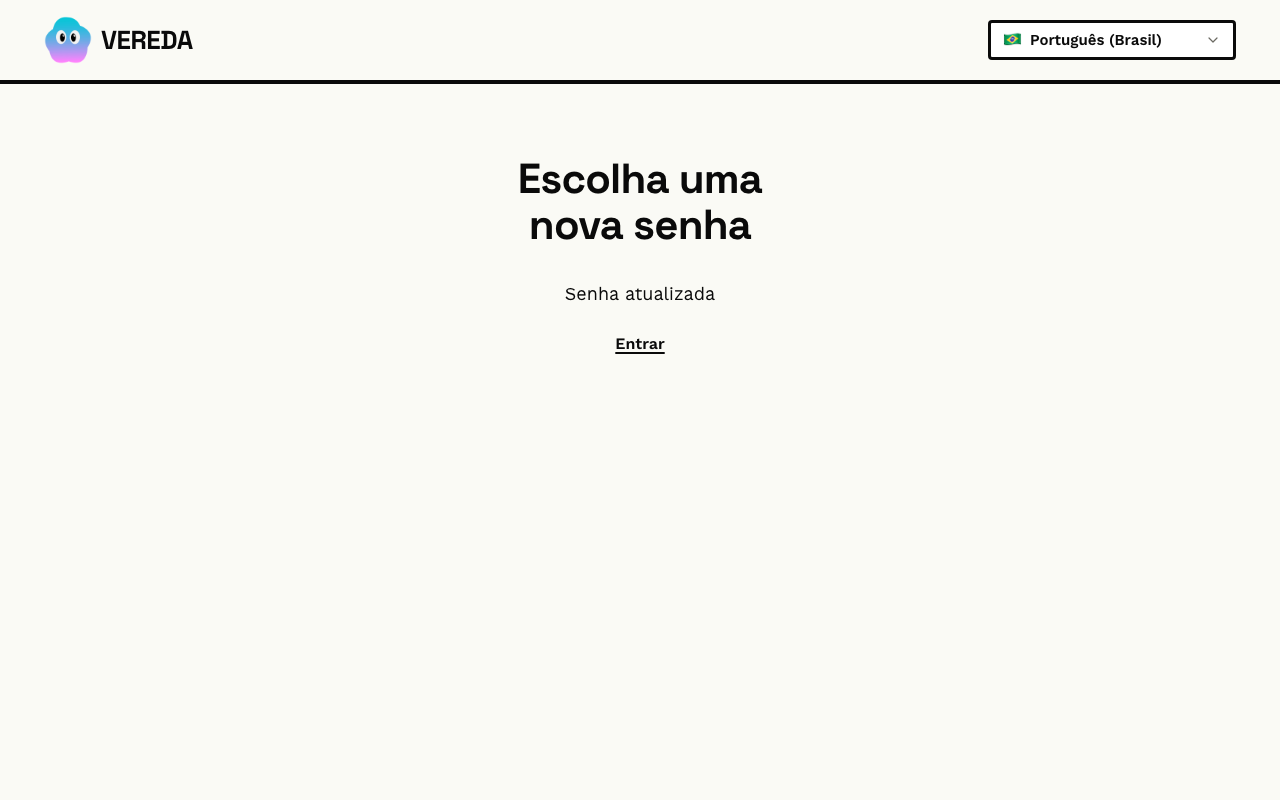
The page shows Password updated. Click Sign in and use the new password.
What to do when the reset fails
If the two passwords are different, the page shows the warning Passwords do not match. Type both again.
If the link was already used, the page shows This reset link is invalid or expired. The Reset password button stays off.
Click Back to sign in. Then click Forgot password? and ask for another link.