
Account
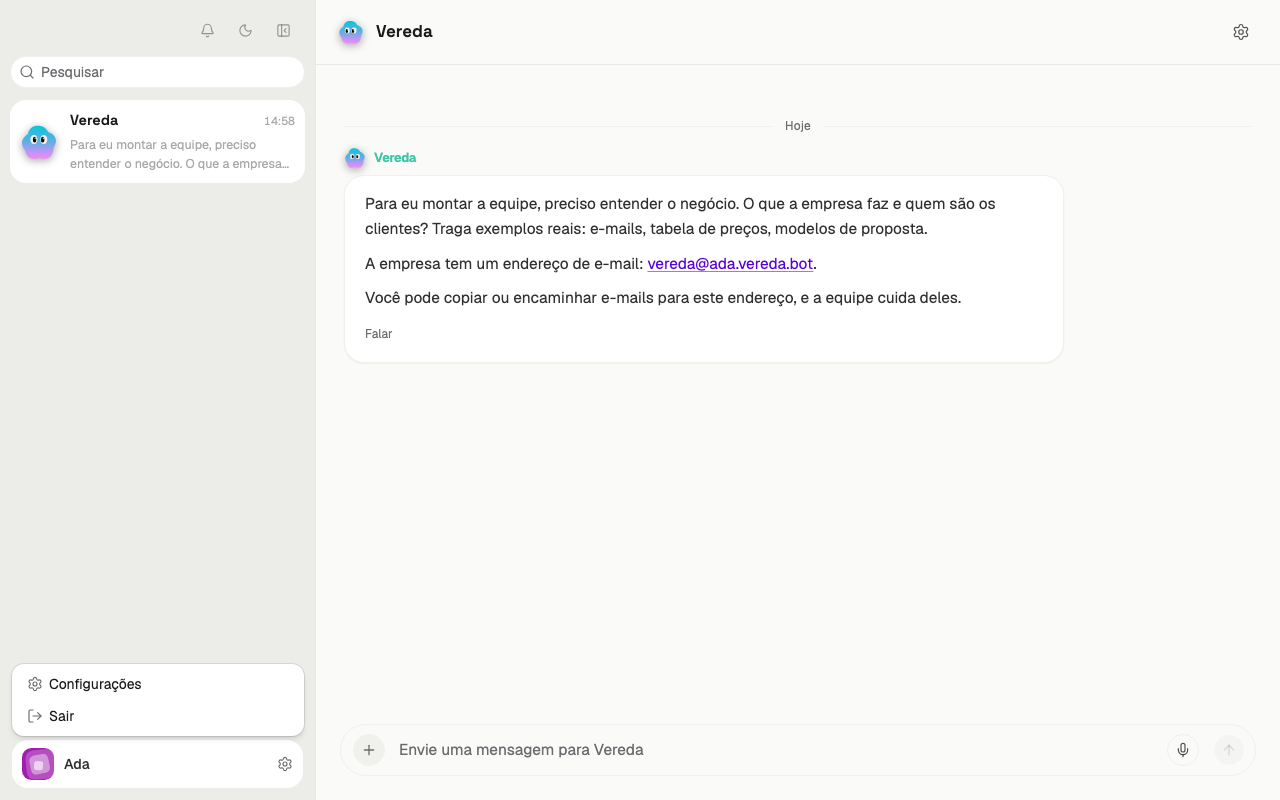
Open Settings
Settings hold everything that belongs to your account, such as picture, password, theme, language and subscription.
The window opens over the conversation. To go back to the conversation, close the window with the X in the top corner.
The same menu of your name has the Log out button, which ends your session.
- Click your name, in the bottom corner of the sidebar.
- In the menu that opens, click Settings.
- The window opens in the General area.
Go from one area to another
The menu on the left side of the window has six areas: General, Integrations, WhatsApp, Subscription, Privacy and Help.
Click the name of an area to open it. The window title changes to the name of the area.
The other chapters of the manual name only the area they talk about. This is the full list.
The General area has your account, the password, the theme, the language, the time zone, the tips and the Voice.
Change the picture
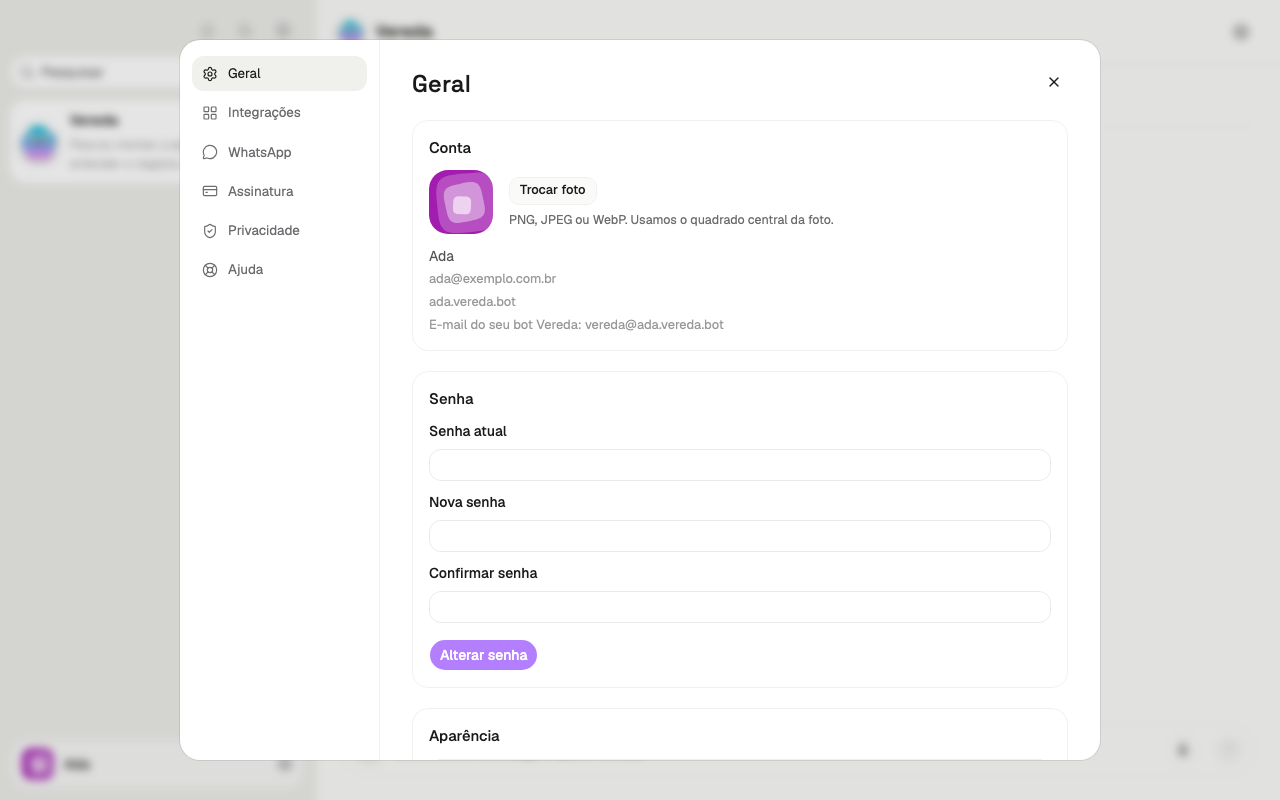
Your picture appears next to your name, in the sidebar and in Settings. With no picture, the account uses an automatic avatar.
Use a PNG, JPEG or WebP image. Vereda uses the center square of the picture. Choose a picture with the face in the middle.
If the image does not work, the screen says why. For example: This picture is too big. Try a smaller one.
To go back to the automatic avatar, click Use the automatic avatar. This button appears only after you choose a picture.
- In General, find the Account card.
- Click Change picture.
- Choose the image on your computer.
- Wait until the button stops saying Saving…. The new picture appears.
See your email and the email of Vereda
The Account card shows your name. Below it, the card shows the email you use to sign in.
If your account has its own address, the card also shows the address of your space. Below it is the line Your Vereda bot's email:, with the email address of Vereda.
An email that you send to this address, from your account email, goes to the team leader.
Email from other people goes to the employee that handles the company email. This employee passes the subject to the right employee.
Not every account has this address. Without it, the card shows only your email.
Change the password
The new password needs 10 characters or more. The Change password button stays inactive until the current password has 8 characters and the new password has 10.
If the two new passwords are different, the screen says Passwords do not match. Write both again.
When you change the password, Vereda ends your session on the other devices. On this device, you stay signed in.
If you forgot the password, use the sign-in page. The chapter Sign in explains how.
- In General, find the Password card.
- Write your password in Current password.
- Write the new password in New password.
- Write the new password again in Confirm password.
- Click Change password.
- Wait for the message Password updated.
Choose the theme
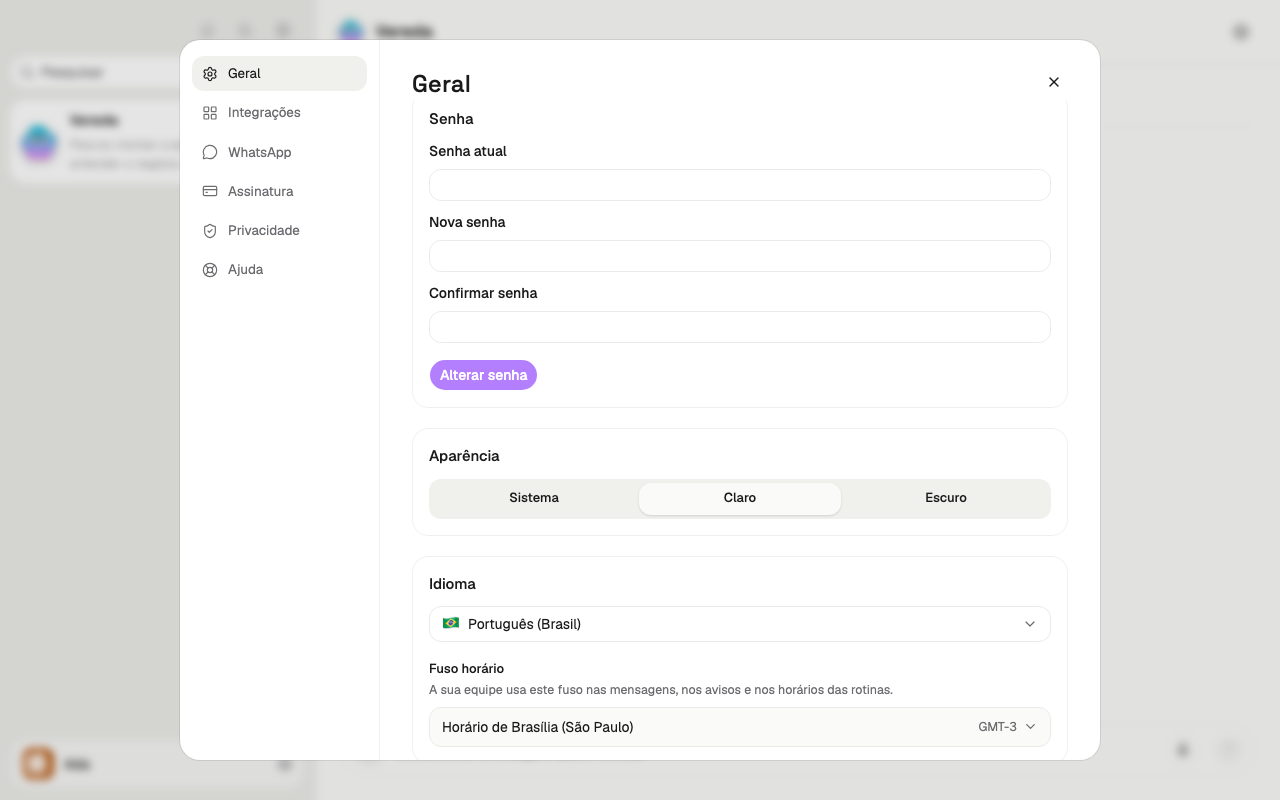
Vereda has a light theme and a dark theme. The System option follows the theme of your device.
There is also a shortcut. At the top of the sidebar, next to the Activity bell, is the theme icon.
In the light theme, the icon is a moon. Its name is Switch to dark theme.
In the dark theme, the icon is a sun. Its name is Switch to light theme.
The icon only switches between light and dark. To go back to System, use Settings.
- In General, find the Appearance card.
- Click System, Light or Dark.
Choose the language
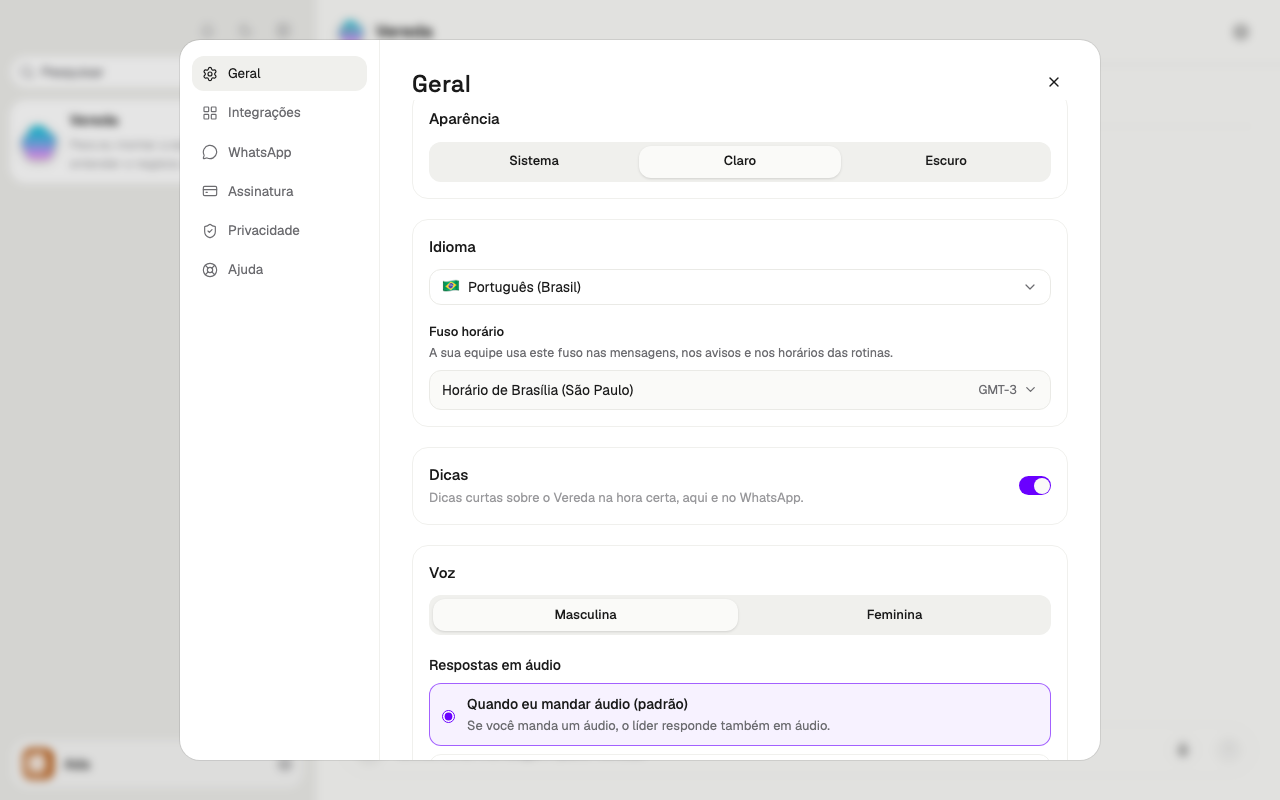
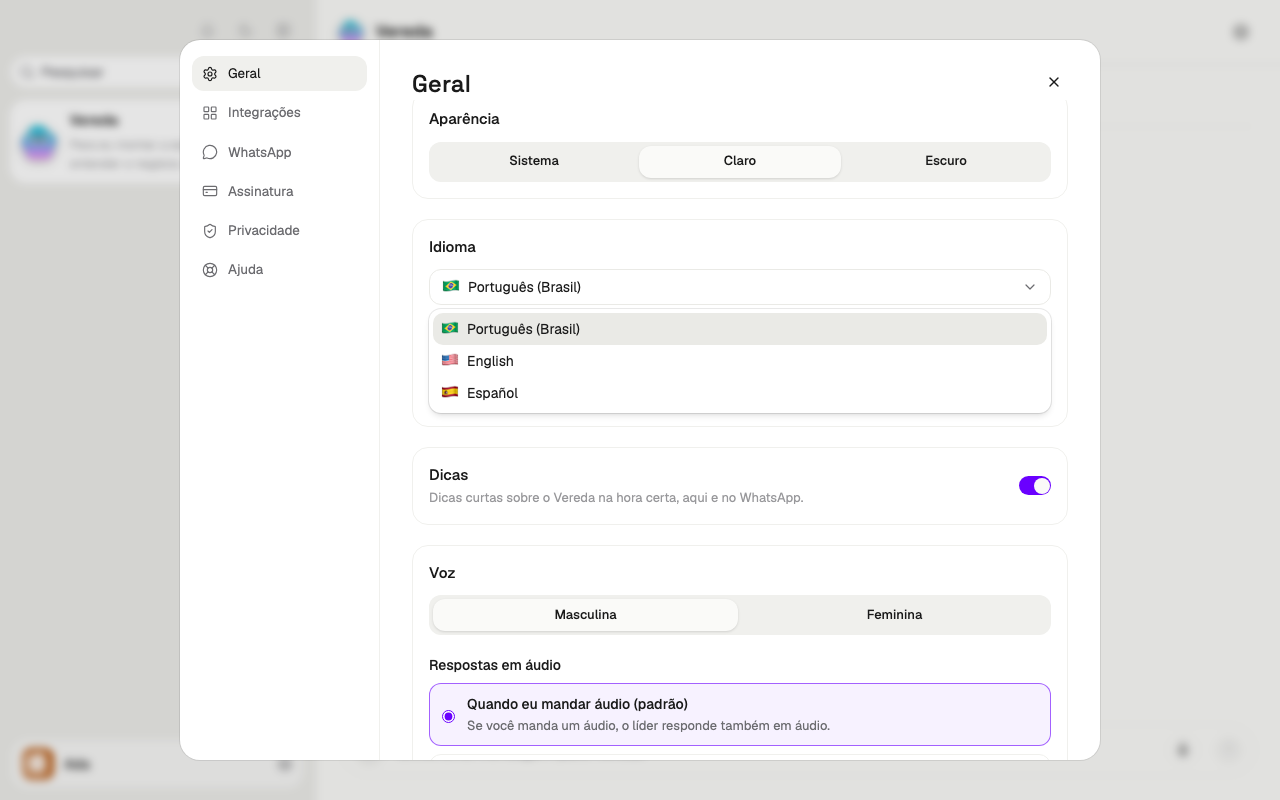
Vereda has three languages: Português (Brasil), English and Español. Each language has its own flag in the list.
The screen changes at once. Vereda keeps your choice in your account.
This manual comes in the same three languages. Use the language menu of the site to change it.
- In General, find the Language card.
- Click the language list.
- Click the language you want.
Set the time zone
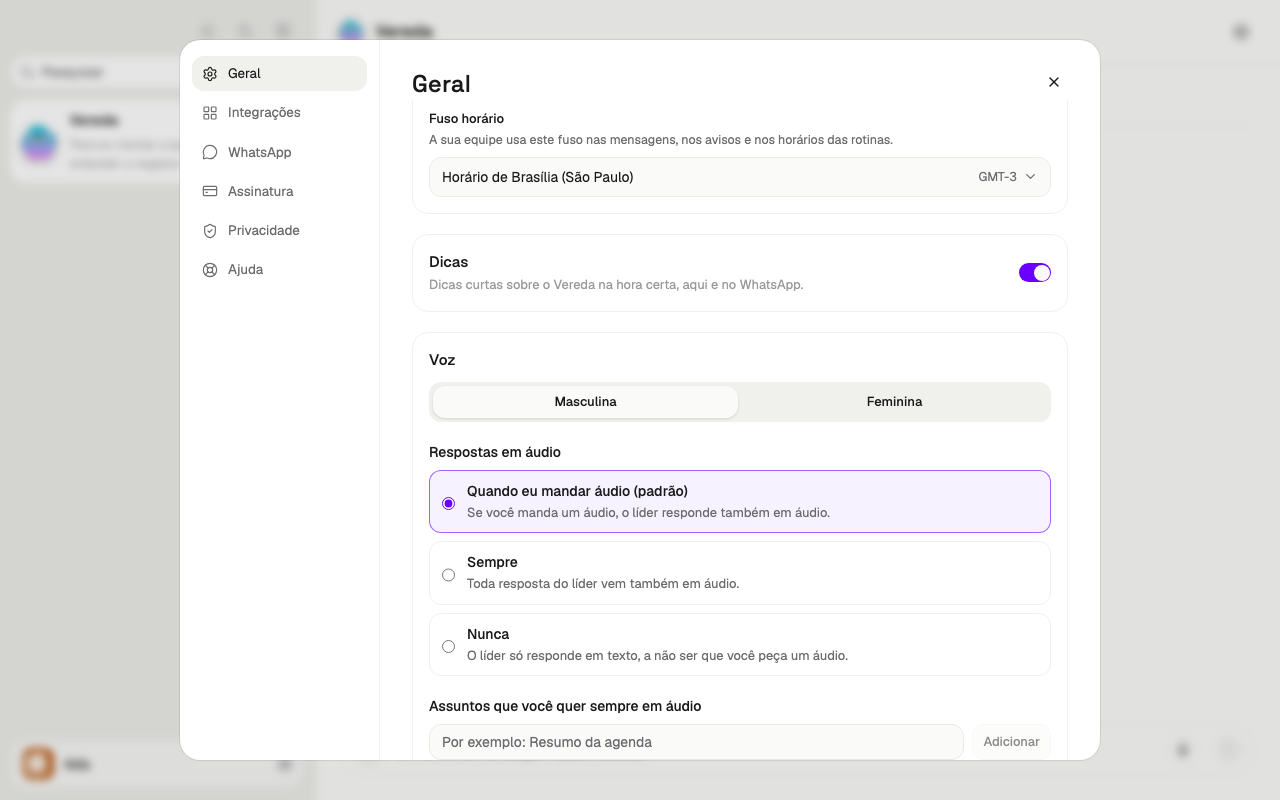
The Time zone is in the Language card, below the language list.
Next to the name of the zone, the screen shows the difference from Greenwich time. In Brasília time, it is GMT-3.
Your team uses this zone in messages, in notices and in the times of routines. Set the zone before you ask for a routine with a time.
Vereda saves the zone at once. If it cannot, the screen says Could not save the time zone. Try again.
- In General, in the Language card, find Time zone.
- Click the zone that appears.
- Write the name of your city in Search by city.
- Click your zone in the list.
Turn tips on or off
Tips are short notices about Vereda, at the right moment, on the screen and on WhatsApp. They come turned on.
The switch is on the right side of the Tips card. Click it to turn tips on or off.